Modified Controls
Spot which controls you've changed at a glance, reset any of them back to their default with a single click, and filter the Inspector to show only what's been adjusted.
@since Cornerstone 7.9.0+
As you style an Element, it can be hard to remember which controls you've actually touched versus which are still sitting at their defaults. Modified Controls make this obvious. Any control whose value differs from its default is flagged in the Inspector, can be reset back to its default in one click, and—when enabled—can be filtered so that only your adjustments remain on screen.
The Adjusted Indicator
Whenever a control's value differs from its default, a small dot appears alongside it in the Inspector. This is the adjusted indicator, and it's the quickest way to see what you've changed on the currently inspected Element.

The indicator understands the full range of control types, so it lights up correctly for paired values (like a color and its alt color), grouped controls (like linked dimensions for margin and padding), and multi-value controls (like shadows). If any part of a group has been changed from its default, the group is marked as adjusted.
Resetting a Control
Hover over the adjusted indicator and it turns into a reset icon. Click it to restore that control to its default value.

A few things worth knowing about resets:
- Grouped controls reset together. If you reset one side of a linked group—say, the top value of an unlinked margin—every mapped value in that group is restored to its default in a single action.
- Paired values reset together. Controls that carry an alt value (such as a color pair) have both the base and alt value cleared back to their defaults at once.
- Resets are undoable. Each reset is recorded in History as Reset Control, so you can undo it like any other change. After an undo, the control becomes adjusted again and its indicator reappears.
Filtering to Only Adjusted Controls
When you're auditing or cleaning up an Element, it helps to hide everything you haven't touched. The Toggle Controls Visibility feature adds a filter button to the Inspector header that collapses the view down to only the controls you've adjusted.
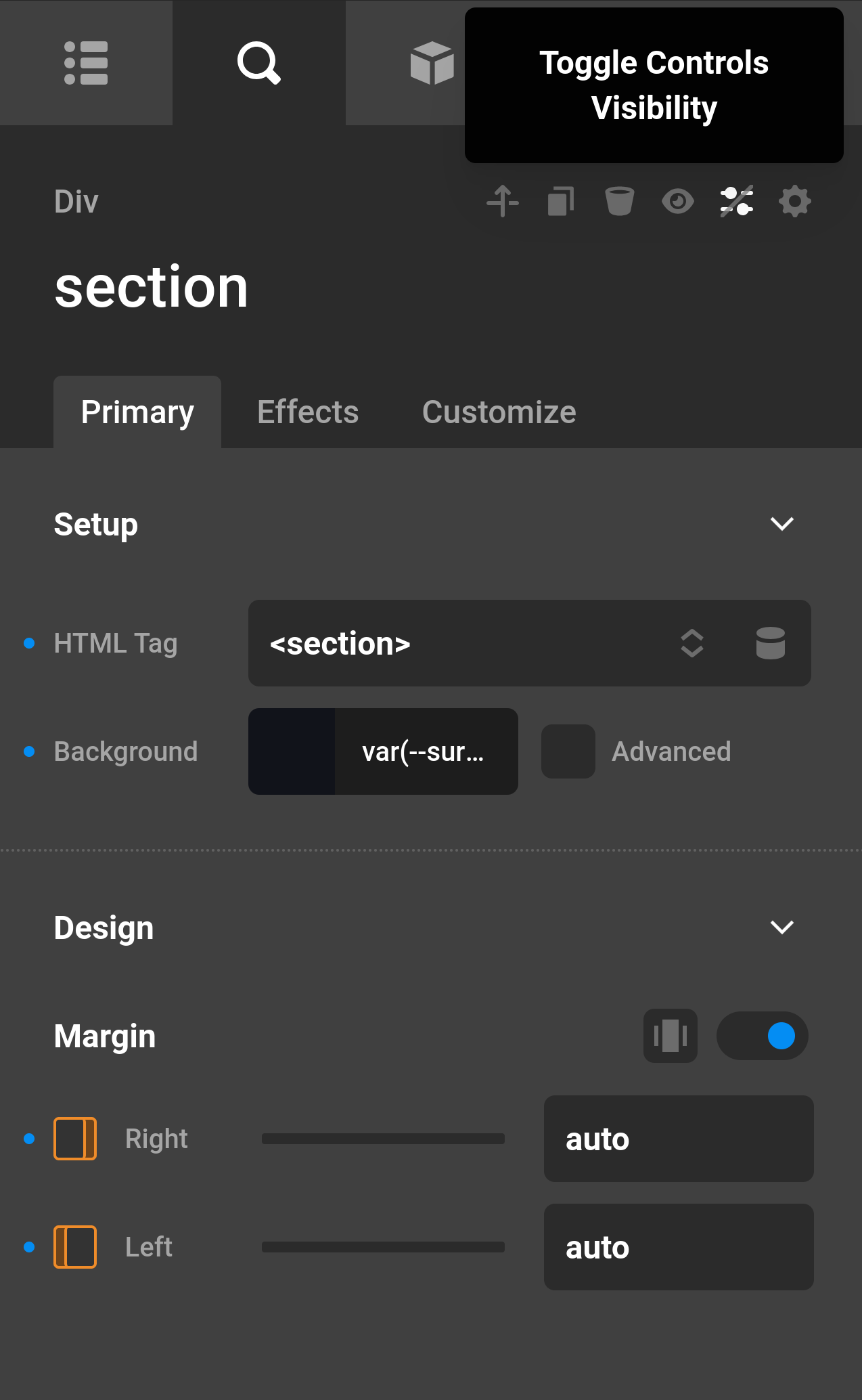
This is enabled per Element, so you can toggle the filtered view on one Element without affecting how the Inspector behaves elsewhere.
Enabling the Toggle
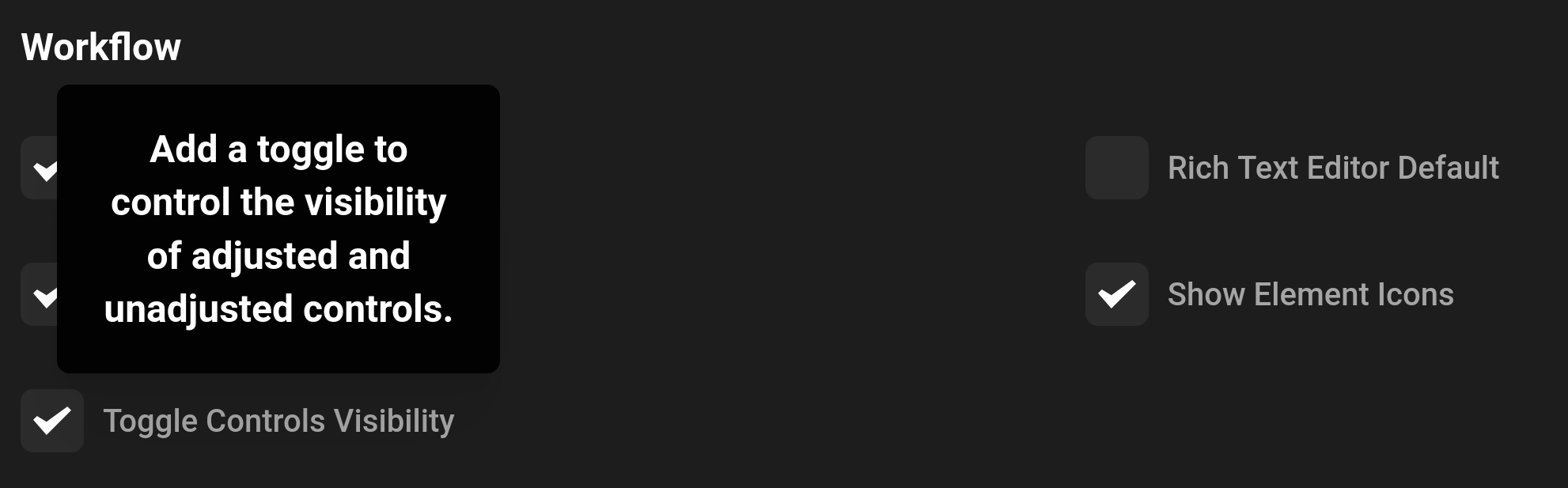
The filter button is opt-in. To turn it on:
- Open the Preferences panel.
- Enable Toggle Controls Visibility.
Once enabled, the filter button appears in the Inspector header next to the Element's other actions (such as show / hide). Clicking it switches between showing all controls and showing only the adjusted ones.
See something inaccurate? Let us know