Font Awesome Pro
A great library of icons integrated and included with all Themeco Products
Included with all Themeco Products is the library Font Awesome. These icons can be used on the frontend site as well as in your parameters controls. The current bundled version of Font Awesome is version 7, and every icon style we ship can be used from the icon pickers or added by hand, including Duotone.
Controls
Each Font Awesome style can be controlled in Theme Options in the Font Awesome section. The default loading type can also be controlled from Webfont to SVG. More notes on SVG later.
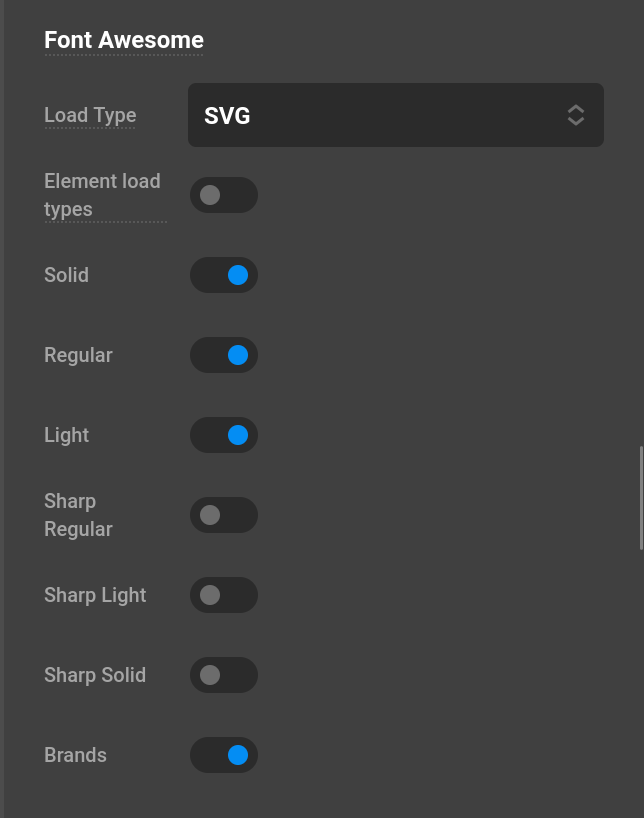
The styles you can enable or disable individually are:
- Solid
- Regular
- Light
- Sharp Regular
- Sharp Light
- Sharp Solid
- Duotone
- Brands
Disabling a style you do not use is a small performance win in Webfont mode, because its font file is never loaded. Keep in mind that a disabled style is also unavailable in the icon pickers, and any icon markup you added by hand for that style will fall back to the base icon name rather than rendering in the style you asked for.
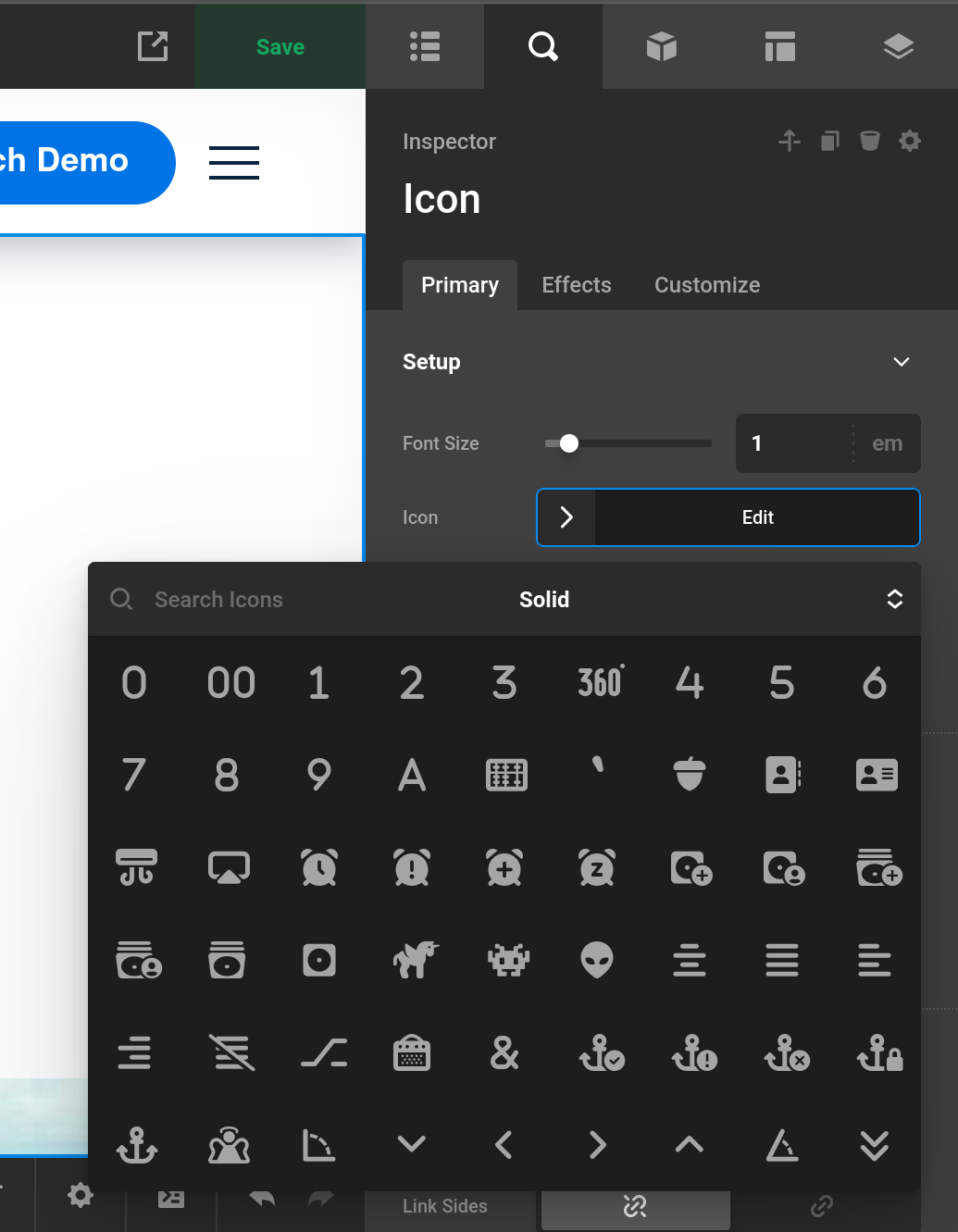
Standard controls for selecting an icon.
SVG Support
Font Awesome SVGs can be used in place of the Webfonts for a fairly significant performance increase. This requires PHP Zip and then changing the Theme Options icon load type to SVG.
PHP Zip can be installed on your server sometimes through the cpanel. It will vary based on the server and hosting provider.
For example, on debian based systems it will look like the following.
sudo apt install php-zipSVGs come packaged to you in a zip file. When SVGs are being used this zip file will be unzipped. If your host has limits on the numbers of files you are recommended to not use this or switch hosting providers.
SVG icons are currently not supported on the audio and video elements and will load in the Webfonts when these elements are placed on a post.
Icon Keys and Style Prefixes
Everywhere our products accept an icon — parameters, shortcodes, and the PHP helpers below — the value is an icon key: the Font Awesome icon name, optionally preceded by a short style prefix.
circle-check      → Solid (no prefix means Solid)
o-circle-check    → Regular
l-circle-check    → Light
d-circle-check    → Duotone
ss-circle-check   → Sharp Solid
sr-circle-check   → Sharp Regular
sl-circle-check   → Sharp Light
wordpress-simple → Brands (matched by name, no prefix needed)| Prefix | Style |
|---|---|
(none) or s- | Solid |
o- | Regular |
l- | Light |
b- | Brands |
d- | Duotone |
ss- | Sharp Solid |
sr- | Sharp Regular |
sl- | Sharp Light |
The o- prefix comes from an older Font Awesome notation where the letter "o" indicated an "outline" version. It is what our products use for the Regular style, so o- and "Regular" mean the same thing throughout these docs.
Brands icons do not need a prefix. They are matched by icon name, so wordpress-simple resolves to the Brands style on its own.
If the style you asked for is turned off in Theme Options, the prefix is stripped and the icon falls back to its base name. If the icon name does not exist at all, it renders as xmark (f00d), which is a quick way to spot a typo in an icon key.
Adding Icons in Manually
SVG
You can get the SVG output of an icon via the fa_get_svg_output function. You pass the icon key through the function.
$catSVG = fa_get_svg_output('cat');
echo $catSVG;
Prefixes work here too, so fa_get_svg_output('d-cat') returns the Duotone SVG. fa_get_svg_path() returns the URL of the SVG file instead of its markup.
Webfonts
Webfonts can also be manually added through an <i> tag along with the glyph inside of a special data attribute posted below.
From an icon key you can grab the proper attribute and glyph through fa_get_attr.
$icon_data = fa_get_attr('angles-down');
cs_tag('i', [
    $icon_data['attr'] => $icon_data['entity'],
], '');
fa_get_attr() returns three values:
| Key | Example | Notes |
|---|---|---|
attr | data-x-icon-s | The data attribute for the resolved style |
unicode | f103 | The raw codepoint, handy for CSS content |
entity |  | The HTML entity to use as the attribute value |
Two shorthand helpers wrap it when you only need one piece:
echo fa_entity('angles-down');     // 
echo fa_data_icon('angles-down');  // data-x-icon-s=""
Icon Data Attributes
The following are the data attributes for each Font Awesome style. Each one renders the glyph you assign to it through a :before pseudo element, so the attribute value is the icon's HTML entity.
| Attribute | Style | Font family | Weight |
|---|---|---|---|
data-x-icon-s | Solid | FontAwesome | 900 |
data-x-icon-o | Regular | FontAwesomeRegular | 400 |
data-x-icon-l | Light | FontAwesomeLight | 300 |
data-x-icon-b | Brands and social icons | FontAwesomeBrands | normal |
data-x-icon-d | Duotone | FontAwesomeDuotone | 900 |
data-x-icon-ss | Sharp Solid | FontAwesome SharpSolid | 900 |
data-x-icon-sr | Sharp Regular | FontAwesome SharpRegular | 400 |
data-x-icon-sl | Sharp Light | FontAwesome SharpLight | 300 |
data-x-icon | Solid (legacy) | FontAwesome | 900 |
data-x-fa-pro-icon | Any weight of the Pro family | FontAwesomePro | 300 / 400 / 900 |
A minimal inline icon looks like this:
<i data-x-icon-l="" aria-hidden="true"></i>data-x-icon is the original pre-v5 attribute and still maps to Solid, so older markup keeps working. New markup should use data-x-icon-s instead.
data-x-fa-pro-icon uses the FontAwesomePro family, which registers Light, Regular, and Solid as weights 300, 400, and 900 of a single family. Reach for it when you want to switch an icon's weight from CSS rather than swapping the attribute:
.my-icon[data-x-fa-pro-icon] { font-weight: 300; } /* Light */
.my-icon:hover               { font-weight: 900; } /* Solid on hover */
Alignment Helper Classes
Any icon attribute also responds to two helper classes that space the icon away from adjacent text:
left— addsmargin-right: 0.5emright— addsmargin-left: 0.5em
<a href="#"><i class="left" data-x-icon-s="" aria-hidden="true"></i>Read more</a>Duotone Icons
Duotone icons draw two layers from the same codepoint: a primary layer on :before and a secondary layer on :after. You only ever write the one attribute — the second layer is produced automatically through the ss01 font feature.
<i data-x-icon-d="" aria-hidden="true"></i>Color and opacity of each layer are controlled with CSS custom properties:
| Property | Default | Applies to |
|---|---|---|
--fa-primary-color | currentColor | Primary (foreground) layer |
--fa-secondary-color | currentColor | Secondary (background) layer |
--fa-primary-opacity | 1 | Primary layer |
--fa-secondary-opacity | 0.4 | Secondary layer |
.my-duotone-icon {
  --fa-primary-color: #0d6efd;
  --fa-secondary-color: #0d6efd;
  --fa-secondary-opacity: 0.25;
}
Set both colors explicitly when you want a true two-color icon; leaving them alone gives you the classic single-hue effect where the secondary layer is a faded version of the text color.
Duotone must be enabled in Theme Options before the font file loads. With it disabled, a d- prefixed icon falls back to Solid.
Icons in Custom CSS
Because the glyphs are webfonts, you can place an icon anywhere CSS lets you set content — you just need the codepoint and the matching font family from the table above. Use fa_get_attr() to look up a codepoint, or grab it from the icon's page on fontawesome.com.
The font family alone is not enough; the weight has to match the style or the browser will synthesize the wrong face and the glyph will not render.
Inline Pseudo Elements
.callout:before {
  content: "\f058";
  font-family: "FontAwesome";
  font-weight: 900;
  margin-right: 0.5em;
}
Custom List Markers
To replace the bullets of a list with an icon, style the ::marker pseudo element:
.icon-list li::marker {
  content: "\f00c ";
  font-family: "FontAwesome";
  font-weight: 900;
  color: #0d6efd;
}
::marker accepts only a limited set of properties, so if you need padding, sizing, or a hover state on the marker, hide the native bullet and use a :before instead:
.icon-list {
  list-style: none;
  padding-left: 0;
}

.icon-list li {
  position: relative;
  padding-left: 1.75em;
}

.icon-list li:before {
  content: "\f00c";
  font-family: "FontAwesomeLight";
  font-weight: 300;
  position: absolute;
  left: 0;
  top: 0.1em;
  color: #0d6efd;
}
Swap the family and weight pair to change the style — "FontAwesomeLight" / 300 for Light, "FontAwesome SharpSolid" / 900 for Sharp Solid, and so on. Duotone is not practical from raw CSS because it needs both pseudo elements; use data-x-icon-d on real markup instead.
Whichever style you reference, it must be enabled in Theme Options, otherwise its font file is never loaded and the glyph renders as a blank box or fallback character.
These snippets can go in Theme Options > CSS, or in an Element's Element CSS when the icon belongs to a single Element.
Font Awesome 5 Name Compatibility
Font Awesome renamed a large number of icons between v5 and v6, and those names carry through to v7. We ship a shim that maps the old names and codepoints onto their current equivalents, so icon keys saved years ago still resolve correctly. It is enabled by default and generally should be left on.
If you are writing new markup, prefer the current Font Awesome 7 names — for example martini-glass-empty rather than the v5 glass, and xmark rather than times.
See Also
See something inaccurate? Let us know