My account shows I purchased Max, but at my website, it wants me to buy it. Awhile back I tried to enter a code for it but ran in o difficulties. Also, I’m clueless on how to make changes with Pro. Back in 2017 I could navigate my way around, but not now. The beginning tutuorial for Cornerstone doesn’t match my screen.
You may need to refresh validation for it to unlock. There’s a link for this in the Max section… you’ll get access to all of Max in the ‘Pro’ section.
Also when purchasing Max, you may have received a new licence… I did…

Also when purchasing Max, you may have received a new licence… I did…
Hello @mglyn,
Thanks for writing to us.
It generally happens due to an aggressive cache issue. I would suggest you go to Cornerstone -> Settings -> Clear Cache. Please clear your browser cache and recheck it. If it doesn’t work for you, please share your details in a secure note. Please provide the following details
- WordPress Login URL
- Admin-level username and password
You can find the Secure Note button at the bottom of your posts
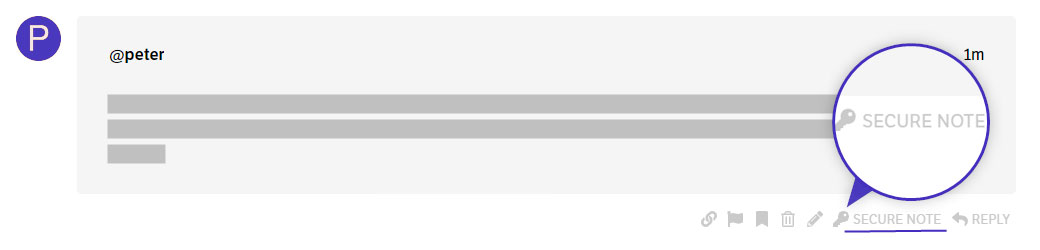
Thanks
Cleared cache and refreshed Max, but status appears the same. Shouldn’t there be a place to check or enter the license number? Also, am afraid to enter password because it just says reply. When one hits that, there is a secure note symbol, but is the original “reply” out there for public view? Also, who sees it. All who replied?
Hey @mglyn,
Check which license your site uses – Log in at https://theme.co/account/dashboard and confirm that your website’s domain is assigned to a license in the same account that shows the Max purchase.

Re-enter your license key – In WordPress, go to WP Admin > Pro. This is the validation page, where the license key is entered. Click Revoke Validation, paste your license key from the Themeco dashboard into the box, and press Enter. When a success message appears, click Refresh Validation in the Max section of the same page.
Clear the Max cache – Go to Cornerstone > Preferences > Actions and click Clear Max Cache. Then open the builder, go to the Template tab and click Launch Max to confirm your products are unlocked.
Regarding the Secure Note: text you type in the normal reply box is public. To share login details privately, please post a short reply first (for example, “Login details added in a Secure Note”). Then click the Secure Note icon at the bottom of that reply and enter the details there. A Secure Note can be seen only by Themeco staff and you, as the person who started this thread. Other forum members, including those who replied here, cannot see it. We recommend creating a temporary administrator account for us and deleting it once the issue is resolved.
Kindly let us know how it goes.
It went wonderfully well. Thank you! It occurred to me that if I have difficulty with the Pro Cornerstone tutorials, and if forum searches are incomprehensible, what will I get from Max? We shall see. In the meantime, my website has these, I believe they are called “thumbnails”. I would like to change the order that they appear. E.g. instead of the 9th in a series on the seraphim, I would like the top thumbnail to say this is the first in the series. I don’t know how to rearrange them. Perhaps, it’s somewhere in the forum if I use the right search terms. Perhaps, search results won’t use language i don’t understand (“thumbnail” is part of my very limited vocabulary). Could you either direct me on the search, or explain here how to reverse the order?
Hey @mglyn,
Thank you for the update, and we are glad Max is working for you now.
Regarding reversing the order of the post thumbnails on your site, please review the steps below.
-
Find out where the thumbnails come from – Open the page that shows the thumbnails, then click Edit with Cornerstone in the top admin bar. If the thumbnails appear in the builder, they were built in Cornerstone; please follow item 2. If that page is your main blog page (set under WP Admin > Settings > Reading), please follow item 3.
-
Reverse the order in Cornerstone – By default, a list of posts shows the newest post first. In the builder, click the element that holds the thumbnails (often a Posts element, or the Row or Div around them) and find its Looper Provider settings. Change the type from Recent Posts to Query Builder. In the new Order By control, choose Date and switch the direction from Descending to Ascending. Your oldest post, the first in the series, will then appear first. Click Save.
-
If the thumbnails are on your main blog page – The blog settings in Pro do not include a control for post order. Please share the page address in your next reply and we will confirm the best way to change the order for your setup.
To answer your question about searching: the posts in a list like this come from a Looper Provider, and the setting you need is called Order By. Searching “Looper Provider Order By” or “Query Builder ascending” in the Docs will lead you to the right section. Also, don’t worry about Max: it mostly provides ready-made templates, so you’ll have less to build from scratch.
Best Regards.
Thank you for your patience. If I try the Cornerstone edit, I draw a blank. I did see under the non cornerstone customize settings that the homepage displays the latest settings with the only option being " a static page". My investigation did not result in a solution.
Hello @mglyn,
To help you with your concerns, we need to check your settings. Please share the admin login details so we can check them on our end, debug the issue, and guide you properly. Please share the exact layout URL.
Thanks
preface to a secure entry
Hello @mglyn,
Thank you for sharing your login details. We have checked your site, and I understand you would like to edit your homepage, which currently shows your latest posts as thumbnails. You would also like to know whether your blog posts should be converted to Cornerstone. Please review the steps below.
-
Why the current homepage cannot be edited – Your site is set to show “Your latest posts” on the homepage (WP Admin > Settings > Reading). With this setting, the homepage is not a page you can open and edit. WordPress builds it automatically as a list of your newest posts, which is why nothing appeared when you tried to edit it with Cornerstone. To design it, you need to create an Archive layout, which controls how this list of posts looks.
-
Create the Archive layout – Open Cornerstone, click the plus sign (+) in the top bar to open the New Document pane, select Archive, and click Create. Then add the elements you would like on your homepage, such as a heading and a Posts element for your thumbnails. To show your series from the first post onward, select the Posts element, set its Looper Provider to Query Builder, and set Order By to Date with the direction set to Ascending. Click Save.

- Assign the layout to your homepage – In the same layout, open the Settings tab on the Outline pane and click Assignment → Conditions. Click Add Condition Group, select Blog in the first dropdown and is being viewed in the last dropdown, then click Save. Because your homepage shows your latest posts, this makes the new layout your homepage design.

Regarding your blog posts: there is no need to convert them. Your existing posts will continue to display correctly as they are. To give all of your posts a consistent design, you can create one Single layout instead of editing each post. Click the plus sign (+), select Single, and click Create. Add The Content element where you would like each post’s text to appear. Then assign the layout under Settings → Assignment → Conditions by selecting Post Type, is, and Post. Every blog post, old and new, will then use this design automatically.
I would highly recommend that you check out these links:
-
 Archive Templates – how to create an Archive layout and assign it to your blog/homepage.
-
Single Templates – how to design all of your blog posts with one layout.
-
Layout Builder Overview – an introduction to layouts and assignments.
-
Loopers – the Query Builder and Order By settings for your post thumbnails.
-
 Themeco YouTube – search “Layout Builder archive”.
-
Building On WordPress – search “Cornerstone blog layout”.
Kindly let us know how it goes.
Thank you. I understand the concept. Thought to see how far along I could go. Didn’t see a “create” for the header. Also, I don’t see how one can get a preview. It seems options are to either save, or arrow back and lose one’s work. Could you address this issue? Frankly, I’m afraid to do much other than change some colors, or dimensions, changes one can quickly undue. That is why your recommendations should prove very valuable and I’ll check them out and hopefully spare you answering what they address. God bless you!
Hey @mglyn,
I feel that we are not on the same page. Create a video of your screen recording or at least a screenshot so I will have an idea on what your screen looks like.
Thanks.
![image|690x366]

The header appears to be there. Don’t know how to load “post element”. Did see a preview refresh option at top.
Hello @mglyn,
It appears you haven’t added a posts element to your layout yet. You can either add a Posts element manually, or click the Templates icon > Themeco tab > Archive Layouts , choose a starter preset, and save the layout. Please have a look at the screenshot below.

Hope it helps
Thanks
Curious as to how to add a post element manually. Also, I want the configuration to match what I currently have, which I think came from Themeco’s Ethos. You touch the image on the left and it says “View Post”. To its right is the title and underneath a thumbnail text of the beginning of the post. How to I find such a template?
I’m getting a warning not to edit a post in Wordpress section. I wish to edit a post. How can I safely do this?
Hello @mglyn,
I checked your site, and I can not replicate the issue while editing the posts. Please provide the steps so we can follow them and replicate the issue. In case you want to create a custom archive layout, please have a look at this video to learn more about how to add the posts element and create a custom archive layout.
https://youtu.be/L1719j7J7LE?si=fj4qU4YTh1eftRg0
Hope it helps
Thanks
Dashboard, posts, “The Table”, Edit. This is the pattern that later produced a very strong warning, so I don’t exactly want it replicated.
I recall that in the years past, I could work on an edit at the above path, and options would come up to save the changes without having to publish. So that’s why I tried to edit here. Unfortunately, when I hit a save button, it published anyway.
Is there a way that I can edit my posts while I learn how to set up the archive template? Is there a way that I can edit and save that edit without having to publish, since some edits are rather time consuming and may need to be done in more than one setting?
Much thanks for your help.
Also, I had already viewed the YouTube video you suggest, and still need to know how to add a post template to the archive that matches what was set up years ago with Themeco Ethos, and which I described in one of my posts yesterday in detail.