Style Blog Page

Hi

In docs you are showing to design the blog page in cornerstone.

But for some reason I dont find the way how to edit the blog site in cornerstone. I can see the site in cornerstone also I dont see the link in pages where it redirects me to “edit this page with conerstone”. It’s the only page in my Wordpress pages that does not have this link. Is there something I need to turn on to be able to create the blog design in cornerstone?

thank you!

E

Hello @bigdreams,

Thanks for writing to us.

To make the page a blog post page, follow these steps

  1. Go to the WordPress dashboardSettingsReading .
  2. Under Your homepage displays , select “A static page (select below)” .
  3. In the Posts page dropdown, select your Blog page .
  4. Go to the WordPress ->Cornerstone->Theme Options->Blog
    Set the Style and Layout from here.

Please note that if you set any page as your Blog page, you will not be able to edit it using the Cornerstone builder, since it is an archive page and cannot be edited directly in Cornerstone.

Alternatively, since you have the Pro theme, you can go to Cornerstone → click the plus icon → Blank → Archive Layout → Create .

Then:

  • Enter a title for the Archive Layout.
  • Go to the Template icon.
  • Select Themeco → Archive Layout .
  • Click Add to import the blog template or design it using the Cornerstone element.
  • Go to the Settings tab.
  • Open Assignment → Conditions .
  • Set the condition to assign the layout to the Blog page: Blog is being viewed.

This will render the layout according to your design, and that is how you can edit the Blog page layout using the Cornerstone Layout Builder in Pro. Please remember that the Layout Builder is only available in the Pro theme, not in the X theme.


Hope it helps
Thanks

in all my project I use Pro exactly.

I already have a page called “blog”
How can I create a template that uses my blog archive layout template. I tried it your way but it doesn’t work that way.

Hi @bigdreams ,

Since you already have a page named “Blog” (which is designated as your Posts page in WordPress settings), WordPress treats it as a dynamic archive rather than a static page. Because of this, standard page templates cannot be applied directly to it.

Instead, we need to ensure that the custom Archive Layout you created in Cornerstone is correctly assigned to override this specific page.

If the template isn’t showing up on your Blog page, please verify the following three settings:

1. Set the Assignment Condition

  1. Open your custom Archive Layout in the Cornerstone Builder.
  2. Click the Settings (gear) icon in the workspace panel.
  3. Locate the Assignment section and click on Conditions.
  4. Click Add Condition and configure it precisely to:
    • Blog is being viewed
  5. Save your changes.

2. Verify the Layout is Set to “Active”

Even if the conditions are correct, the layout will not render if it is not active:

  1. In Cornerstone, open the main menu and go to Layouts.
  2. Find your custom Archive Layout in the list.
  3. Make sure the status toggle is set to Active.

3. Clear WordPress and Browser Cache

Because WordPress pages designated as the Posts page are heavily cached by WordPress, caching plugins, and hosting environments:

  • Clear any caching plugins you have active (e.g., WP Rocket, W3 Total Cache, LiteSpeed Cache).
  • Clear your browser cache or view the blog page in an Incognito window to see the new layout.

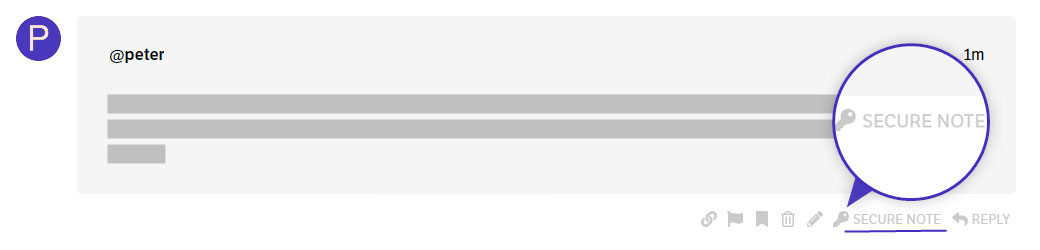
If the layout still does not appear after verifying these settings, kindly provide the following details in a Secure Note.

  • WordPress Login URL
  • Admin username and password

You can find the Secure Note button at the bottom of your posts.

Thanks.