Validated Pro Unlimited License but cannot update themes or bundled plugins

Hi there, I am using an unlimited license and have validated it perfectly fine, as I have done dozens of times before. However, when I try to update the theme and the bundled plugins they behave as if they haven’t been validated, and say ‘automatic update unavailable for this plugin’ (Envira Gallery) and ‘validate pro for updates’ (on the theme).

I have cleared the cache, logged in and out and still I cannot update them.

I have manually updated the theme with your latest available download via FTP, but I cannot find Envira Gallery to manually download/upload via FTP in the same way.

Why would the license work but the theme/plugins still say they require validation, when the validation page shows it’s worked and all is well?
Hey @EarlySigns,

The following are the possible reasons why the license shows as validated but updates still fail

  • Cached WordPress Update Transients: WordPress caches update API checks in database transients (update_themes and update_plugins). Even when validation succeeds, WordPress does not always immediately clear or refresh these transients. The updater reads the outdated cached check—which recorded the site as “unvalidated” and holds no download packages—and blocks the update.
  • URL or Protocol Mismatch: The validation page locally shows “Validated” because the validation key is stored in your site’s database. However, when WordPress runs the update query, it sends your live site URL to our update server. If there is a mismatch (e.g., http vs https, www vs non-www, or a staging URL) between what is registered in your Themeco Account Dashboard and what is set in your WordPress Settings > General, the update server rejects the download request.
  • Outbound Connection Restrictions: Your local WordPress site registers validation because the database flag is set, but the server’s background cURL request to our update server (community.theme.co) might be blocked by a server-side firewall or outdated SSL certificates.

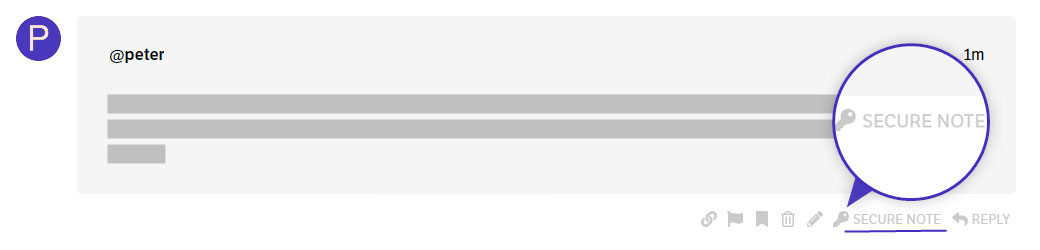
If none of that helps, kindly provide the following info in a Secure Note

  • WordPress Login URL
  • Admin username and password
  • cPanel and/or FTP access (you can get this from your web host).

You can find the Secure Note button at the bottom of your posts.