Unabel to get CS Forms working

Hi,

I’ve been really excited to use CS Forms, however, I’ve not been able to get it to work.

I’m starting with the basics of building a contact form. If I use the default Contact Form element, it works. As soon as I add any other field, it no longer stores submissions. I may not be setting up the name input field incorrectly, but I followed the video tutorials and still no luck. When I delete the name field, it still doesn’t work.

My issues:
Unable to add the name field and store submissions
Unable to get the loading icon to show
Unable to clear the form fields after submission
Hey @Nate_Sheridan,

  1. Please illustrate or provide details about this unable to add the name field and store submissions issue. For now, here’s what I think is the cause and the potential solution.
  • The Cause: In WordPress, name is a reserved query variable used internally to query posts by slug (i.e., ?name=post-slug). If you name a form field exactly "name", WordPress intercepts the submission, attempts to find a post matching the entered text, and fails with a 404 Not Found error or redirects the page. This aborts the submission handler, preventing submissions from being stored.
  • The Solution:
    • Change the name attribute of your name input field to something non-reserved (e.g., your-name, fullname, contact_name).
    • If deleting the field did not immediately resolve it, ensure you saved the page, cleared your browser/server cache, and made sure no other fields use WordPress reserved names (like page, m, p, s, author, etc.).

  1. Unable to get the loading icon to show
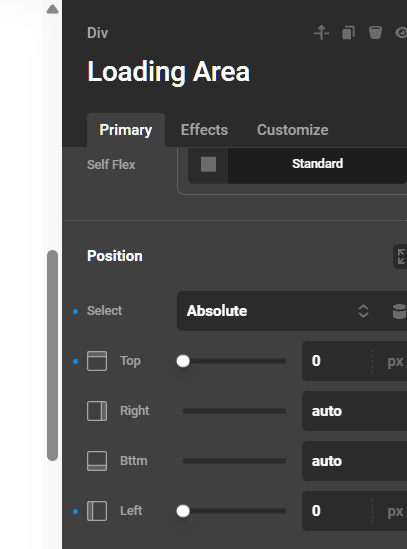
  • The Cause: Your Loading Area element is set to Position Absolute.
  • The Solution:
    • Try setting it to Position Relative.

3. Unable to clear the form fields after submission

  • The Cause: Cornerstone Forms checks the Reset on Submit configuration on the Form element. If this is not turned on, the server-side code is designed to repopulate the fields with the submitted data.
  • The Solution:
    • Go to your Form element settings and ensure the Reset on Submit option is enabled.
    • In AJAX mode, also make sure the form itself is one of the target elements in your AJAX Selectors so that the form is replaced by the clean, empty HTML returned by the server upon successful submission.

Hi Christian,

Thank you for your detailed feedback. This is very helpful.

  1. With the basic email and message field that comes with the CS contact form element, I’m able to fill it out, click submit and see the entries being stored in the Cornerstone submissions tab.

However, when I add a text input field, with the name and label set to first-name / First Name, the form stops collecting entries. I’m sure it’s a user error, but I can’t see what I’m doing wrong or what may be causing the submissions to fail.

  1. Sorry, completely missed that positioning. I’m presuming it’s set to absolute by default. I’ve changed it to relative, and all positions are set to auto, but I still can’t see the loading lottie. When I hover over it in the left menu, it still looks like it’s offscreen.

  2. This is great! However, I’m not sure what you mean by “make sure the form itself is one of the target elements in your AJAX Selectors” - but this is less of an issue, as I’ve got the success message showing while hiding the form on submissions without errors.

Hey @Nate_Sheridan,

For issue #1:

There are two main reasons why adding a field named first-name causes the form to stop collecting submissions:

1. Frontend JavaScript Validation Conflict (Hyphen Issue)

The form’s frontend validation is powered by a JavaScript library called Yup (bundled inside cornerstone-forms.js).

  • The Problem: Yup uses path-parsing utilities to resolve field names (for nested data or array inputs). Because hyphens (-) are mathematical operators in JavaScript, special characters in field names can cause the path-parser to fail or throw an uncaught validation error in the browser console.
  • The Result: When this error is thrown during submission, the submission process halts completely, preventing the form data from being sent to the server.
  • The Solution: Use an underscore (e.g., first_name) or camelCase (e.g., firstName), or run the words together (e.g., firstname). Avoid using hyphens (-) in your field names.

2. Default Input Name Collisions

When you drag a new Text Input element into the form builder, it is pre-configured with a default name (usually 'text').

  • The Problem: If you change the Label of the element to First Name but forget to update the actual Name attribute inside the element’s Input Settings, its name remains the default 'text'. If you have another text field on the form still using the default name 'text', the two fields collide.
  • The Result: The browser or server-side validator will overwrite the values or fail validation because the fields share the exact same key.
  • The Solution: Ensure you are changing the Name property under the field’s settings, and that every field in the form has a completely unique name.

For issue #2:

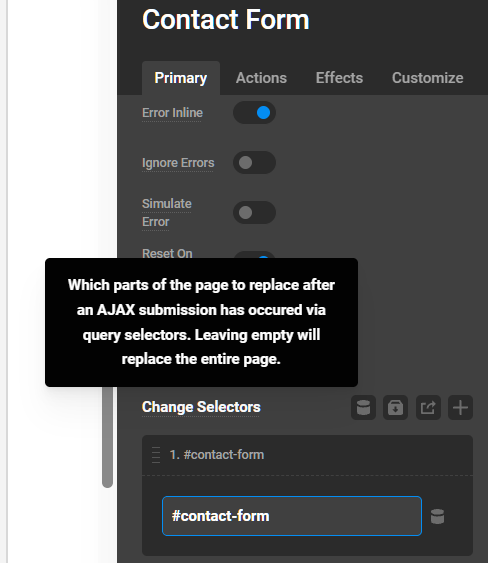
  • The Cause: The JavaScript form handler relies on the AJAX Selectors setting of the Form element to determine which parts of the page it should toggle and display the loading indicator (.cs-form-loading-area) on. If you enable AJAX Submit but leave the AJAX Selectors list empty, the script does not target any elements, leaving the loading area in its default hidden state (is-not-active).
  • The Solution:
    • Add the CSS selector of your form or its container (e.g., #contact-form) to the AJAX Selectors option under the Primary > Change Selectors settings in the builder.

Hi Christian,

I really appreciate the time you’ve taken to explain forms to me. This has been really valuable; however, I’m still not getting form submissions.

  1. Thank you for the explanation. I will use underscores or camelCase, but will ensure I avoid hyphens in future. I’ve updated my current form to use underscores.

  2. I updated the General > Name and Label > Content fields. Please let me know if I’m missing a field.

  3. The loading Lottie is now showing! Thanks for highlighting the ‘change selectors’ option I was missing.

Hey @Nate_Sheridan,

Can you clear all caches and temporarily deactivate all 3rd party plugins so we’re sure there’s no plugin conflict.

Thanks.

Hi,

I cleaed the cache from Cornerstone > Settings, as well as entire site via litespeed.
I’ve deactivated all plugins, except CS forms of course.

I’m still not able to recieve from submissions.

Hello @Nate_Sheridan,

It looks like the form is corrupted. I would suggest removing the current form, adding a new one, and checking it again. I have created a page on your server where the form is working fine. The page is in draft mode.

Thanks

This topic was automatically closed 10 days after the last reply. New replies are no longer allowed.