I want to shift the headline, sub-text, and button up on the home page a little. How do I do that?
Hello @jhayles,
Thanks for writing in!
You can shift the elements by setting an outer spacing in your bar settings on your custom header. In the example, the outer spacing is set to 60 pixels.

Or you can also set a Content Max Length as seen on the image below with 950-pixel maximum length:

Hope this helps.
Thank you. I changed the layout from a sub-text to a regular text element and chose “Heading 2” for the display. However, the heading 2 display doesn’t scale down correctly on mobile devices. I feel like this formula works best for the text size on mobile: calc(3vw + 19px).
How can I apply that formula to the text inside the text box? The Text Format settings inside the editor do not work on this box for some reason…
Hi @jhayles,
I didn’t quite understand your new issue. Can you please provide us a screenshot on how to replicate it? so that we can better help you with your problems.
Thank you.
Sorry for the delayed response. I’m talking about the text box under the main heading, at the top. It looks find on desktop but it’s too big on mobile. I’ve had to use the custom calc(3vw + 19px) for other fonts on the page to make them adjust to mobile screens better. But those options don’t appear to be there for this text box. Here’s a screenshot from mobile…

Hi @jhayles,
Thanks for reaching out.
To adjust the font size on a smaller screen you need to add the following custom CSS code into the Element CSS.
@media (max-width: 480px)
{
    $el.x-text h2
    {
        font-size: 100%;
    }
}
You may need to adjust the breakpoints as per your need. You can find the details on the custom media query breakpoints: https://medium.com/@uiuxlab/the-most-used-responsive-breakpoints-in-2017-of-mine-9588e9bd3a8a
Please remember that the above code will work if copied as it is and don’t conflict with any existing style.
Please note that the code provided serves only as a guide to help you get started custom coding on your own if there’s no option offered in our theme or the products we bundle.
We really do not provide support for custom codes that means we can’t fix it in case it conflicts with something on your site nor will we enhance it.
Thanks
I copied and pasted that code but it didn’t work. I was getting RED error messages inside the CSS. Now it’s closed out and I can’t find where that CSS went. Can you help me?
I don’t know why it’s so difficult to find settings that control the font size better on mobile devices. Do you always have to use CSS for that? Isn’t there settings somewhere within the builder for that?
Hi @jhayles,
Can you please provide login credentials for your site in a secure note to examine it further, including:
– WordPress Site URL & Login URL
– WordPress Admin username/password
To create a secure note, click the key icon underneath any of your posts.
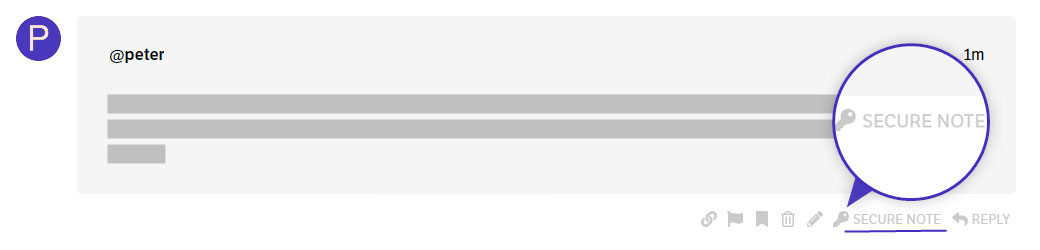
Thanks
I sent a secure note. I want to DECREASE the font size on desktops. The font size is fine on mobile for now.
Hello @jhayles,
If you want to reduce the font size, please change the values in your Typography settings especially if you use em as your font size unit in your element settings.

Please check out the relation of the Typography settings:
Best Regards.
I read all the documentation and I don’t understand any of it. I wish this wasn’t so difficult. This system is supposed to be easy to use. I’m finding myself having to read documentation for hours learning about em, rem, scaling, etc. All I want to do is adjust the font size for different screen sizes. Is there not a simple process for that?
Hi @jhayles,
I’m sorry, not yet, at least not at an element level. It’s something we’re working on. We’re building a responsive styling feature that will allow you to change styling values per breakpoint (including font size). We don’t have an ETA at the moment but it’s one of our biggest priorities - unfortunately it’s one of the more technically complicated features to implement as we need it to work seamlessly with all the other generated CSS we have getting output already.
Until then, Tristup’s example is a great technique to use to override the font size at a particular breakpoint.
@Alexander I’m glad they’re working on this. In the meantime my website is not presentable on desktop sizes. The size of the font is grossly large. I have copied and pasted the CSS code you mentioned above but I keep getting error messages. For the sake of my site being able to be presentable, can someone please log into my account and reduce the font size for me on large devices? It’s fine AS-IS on mobile.
It’s only the header text that’s the problem…on large devices the first two words Colorado Springs should be on a single line. And the sub-text needs to be reduced so it only takes up about three lines, instead of the currently six lines.
Can you please help me with that?
Hi @jhayles,
I logged in and checked your header setup and I found that you’ve added the suggested code in the Header CSS instead of adding in the Element CSS. I went ahead and added the code in the Element CSS for both the elements (Headline element and Quote element) I’ve handled it for both screen sizes (large and small).
To get to the Element CSS, inspect the element first and then go to the Customize tab (see screenshot)

Once you’re in, under Setup you’ll find the Element CSS (see screenshot)

Feel free to make adjustments if needed. Hope this helps!
That’s working much better! Thank you. Just one more thing I need to do…the sub-headline (the quote box) is still being read on 6 lines for larger devices. I need to spread the words out so they will come down to about 3 lines of text instead of 6. I played with the padding but it doesn’t do what I want. I think it has something to do with increasing the size of the quote container so it spreads out more? Can you help me with that?
Hey @jhayles,
Upon checking, the quote text span 4 lines on a large screen but 3 on a laptop so it looks like you now know how to adjust the font size fluidly also because I see you’ve already set up the CSS fluid text technique.
If you wish to reduce the lines further, lower the 5vw value in the Font Size setup.
Hope that helps.
I honestly don’t even remember everything I did. I pieced it together based on the advice from the forums. I reduced the VW and played with the font size and it seems to look better on bigger screens now. I don’t have my laptop to check it on there though. Would you mind checking it on a laptop size and seeing how it looks? I appreciate your help! I hope Theme.co comes up with an easier way to play with all of this. I’m sure it makes sense to those who understand more about CSS and code, but it’s confusing to me and I don’t want to spend all of the time learning about that.
Hello, @jhayles,
I checked your site on my laptop it seems that looks fine at my end. Please find the screenshot in the secure note.
Thanks
Yep! Looks great. Thank you for working through this with me.
Hi @jhayles,
You’re welcome and it’s our pleasure to help you. If you have any other concerns regarding our theme features, feel free to reach us.
Thank you.