Placed Google map using API key nothing shows up

Hi, I’ve seen several posts about this but none of them are quite what I need.

I’ve set up the google maps api key on google cloud console, copied and pasted the api key into the AIP Key field in the Map element, and nothing shows up.

I’m guessing you will need the login info to inspect?

Hi Kaliko,

Thanks for reaching out.

It will be difficult to determine the issue without checking it directly in your WordPress admin dashboard. I would suggest you please provide login credentials for your site in a secure note to examine it further, including:

– WordPress Site URL & Login URL
– WordPress Admin username/password
– Page and the section where you have added the Map.

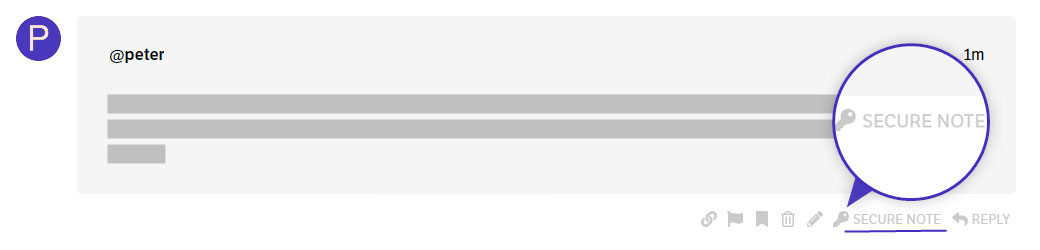
To create a secure note, click the key icon underneath any of your posts.

NOTE: Tried by checking the URL listed in your Themeco account, but unable to find the one you are having a problem with.

Thanks
Hello Kaliko,

Kindly remove the Map embed code first because it is causing a conflict with the Map element.

Google Maps only loads only 1 script per page.

By the way, I noticed that you are using Pro 6.7.6 version. You may need to update to the latest version. You can find the changelog here:

Best Regards.

Hi, the Map embed code was only added after the Google option didn’t work, so I know that the embed code isn’t what’s causing the issue. It’s removed now and Pro is updated, could you kindly take another look?

Hey Kaliko,

You can use the map embed:

When I check the coordinates, it points me to Greenland, and when I interchange them, it displays Nepal on my Google Maps. If we follow the embedded map code, we get the following coordinates.

  • See the secure notes below.

Thanks.

I would love to just use a Google My Maps embed code and not even deal with the API. The problem is that on desktop the embedded Google My Maps zooms by accident when the user mouses over it. Is there a way to disable this feature using the Maps element? Otherwise using the embedded map is not an option for my client unfortunately.

Hello Kaliko,

Regretfully the Maps element does not have any control over the embedded map. I would recommend double-checking the API key and the map ID because with the Map element, you can control the Map View.

Best Regards.

Okay, but my original reason for writing you is that the map doesn’t display using the API key. Were you able to determine why that is? The API key that’s in place is correct, and so is the Map ID.

Hello @ThndrStrmLLC,

I checked your settings, and it seems that you set the Map as hidden for all the screens. I would suggest you please unhide it, clear your browser cache, and recheck it again.

Thanks

Hi, yes, sorry I forgot to unhide it as I was working on another map possibility. However, it still does not display on my screen, what browser are you using ?

Hello @ThndrStrmLLC,

I’ve tested this on Google Chrome version 143.0.7499.41, where it functions as expected. To ensure you’re seeing the latest changes, please clear your browser cache completely, then refresh the page. Let us know the specific browser and version you’re using so we can replicate the issue on our end.​

Thanks

Okay, I got the map to show up after clearing my cache and browser history. However, as soon as I logged back into WordPress and viewed the page after making one text change, the map no longer shows up. It’s right back to the same problem.
And, the issue is across both Chrome for desktop and Safari for mobile. The map showed up on both after I cleared my cache on the browser I was using to run Pro, and then disappeared on both as soon as I made one text change to the page the map is on.

Hello @ThndrStrmLLC,

This issue often occurs from caching problems on the server or in your browser. Please try clearing your browser’s cache and cookies (or use private/incognito mode), and also purge any server-side caches through your hosting panel or caching plugin.

Thanks

Hmm, I just did that per your previous suggestion and it worked, but only until I made one small change to the page. Does that mean each time I make a change to the page I won’t be able to see the map (and nor will any other user)?

Hello @ThndrStrmLLC,

It seems to be something unique to your setup, as I’ve tested it again on my end and it’s working fine here. I recommend checking it in a different system’s browser and making sure no browser extensions are blocking JavaScript files from loading.

Thanks

Yes I cleared cache immediately after writing you earlier and the map showed up again, so that’s why you’re seeing it, as I have not gone back into WordPress.
When you say you’ve tested it on your end, what does that mean? That you’re able to make changes to the page and that the map still shows up after you make a change? If so, what kind of changes are you making? Knowing what you’re doing will be helpful to me in troubleshooting this issue.
Thanks

Hey @ThndrStrmLLC,

I believe this has to do with your server cache and caching plugin. Please clear all caches and deactivate your caching plugin and contact your web host to disable caching in your site so we could see where the issue is without caching in play.

Thank you.

I may have found the source of the issue. I just got this message on the map page:

“This page didn’t load Google Maps correctly. See the JavaScript console for technical details.”

Also, according to my developer there is no caching on the server and there is no caching plugin.

Hi Kaliko,

I have thoroughly checked your website and found that the Map API is loading multiple times. After further investigation, I noticed that the script was being injected via Code Snippets > Header & Footer. I temporarily removed it, and the issue appears to be related to your API key configuration.

Currently, the API key seems to be restricted and the URL is NOT on the allowed HTTP referrer list. You’ll need to allow all URLs under your website domain.

For example, if your website is https://www.example.com, the API key should be allowed for:

This should resolve the issue.

Hope this helps.
Thanks

Hey Kaliko,

This is what @Tristup is referring to:

  • See the secure note below

I have removed the script, and now the Map is displaying on the live view of the page. Please check your Events page in your browser. It may not display in the builder.

Cheers.