Hey @100leiden,
1. Naming Conflicts & Stacking Components
Yes, conflicts can definitely occur when stacking (nesting) components with similar parameter names.
-
Dynamic Content Collision: Cornerstone resolves component parameters using dynamic content tags like
{{dc:p:fontSize}}. When you nest a component (like a Heading) inside another component (like a Hero), they share the VM callstack. If both components define the exact same parameter key (such as fontSize), the inner component’s resolution can clash or mistakenly inherit or overwrite the parent’s parameters during evaluation.
-
Reserved Parameter Names: Cornerstone does have internal/reserved control configurations (like
id, class, style, css, and built-in CSS/layout variables). Using generic keys like fontSize or maxWidth in stacked components increases the risk of clashing inside the layout parser.
-
Fix/Recommendation: Changing the key name to a more specific descriptor (e.g.,
headingFontSize) is the correct solution. It ensures the key namespace is unique and avoids collisions in the callstack when rendering nested elements.
2. The isVar Property Always Returning the Desktop Value
The reason the isVar property is stuck on the desktop value is not a bug in the component itself, but a consequence of the JavaScript and PHP console errors halting the execution of Cornerstone’s builder preview engine.
How isVar works under the hood:
When you enable isVar: true for a control parameter, Cornerstone’s CSS engine does not generate static values (like padding: 20px). Instead, it generates CSS variable calls (e.g. padding: var(--param-...)) and relies on a JavaScript-driven preview script in the editor to dynamically update these CSS variables’ values at different preview breakpoints.
If the builder’s JavaScript execution crashes during loading or preview generation, the script that updates these CSS variables fails to run. As a result, the preview defaults to the base (desktop) value and never updates when resizing or switching breakpoints.
3. Diagnosing the Console Errors
The crash preventing your preview script from running is caused by the two console errors:
A. PHP/REST API Exception: "Could not find element cX, ID unknown…"
This error originates from the backend in TreeDataREST.php.
-
What happens: The builder tries to fetch the element tree via the REST API. If a component or element (with ID
cX) is referenced (e.g., in a looper, condition, or global setting) but cannot be found in the current layout structure, the server throws a DomainException.
-
The Impact: This causes the REST API request to return a
500 Internal Server Error or malformed JSON data, leaving the frontend builder script with an incomplete layout tree and crashing the editor.
B. JavaScript Crash: "Uncaught ReferenceError: Cannot access ‘ne’ before initialization in csslint-tco.min.js"
This script is Cornerstone’s built-in CSS validator registered in App.php as csslint-tco. The crash occurs due to:
-
Server-level or CDN Minification/Caching: Even if you disabled all WordPress plugins, many hosting environments (such as SiteGround, LiteSpeed, or CDNs like Cloudflare) have server-level minification/concatenation active. This often breaks block-scoped ES6 scripts (like CSSLint’s IIFE structure) by causing a Temporal Dead Zone (
TDZ) reference error where variables (minified to ne) are accessed before initialization.
-
Modern CSS in Custom CSS Fields: The CSSLint engine used by Cornerstone is older and does not support modern CSS syntaxes (such as
@container queries, CSS nesting, or modern grid layouts). If you have custom CSS in your Global CSS or Element CSS containing these modern declarations, it can crash the parser when loading the builder, causing the JS execution to halt.
Action Plan / Recommended Steps
-
Disable Server/CDN Optimization: Check if you have CSS/JS minification enabled on your hosting control panel or Cloudflare. Exclude Cornerstone’s editor paths (
/x/, /pro/, /cornerstone/) from being minified or concatenated.
-
Clean up Element References: Inspect your layout, loopers, and conditions to find any references to missing or deleted elements (
cX) to resolve the backend exception in TreeDataREST.php.
-
Inspect Custom CSS: Temporarily cut/paste any Global or Element CSS into a local text editor to see if removing modern syntax resolves the CSS Lint crash.
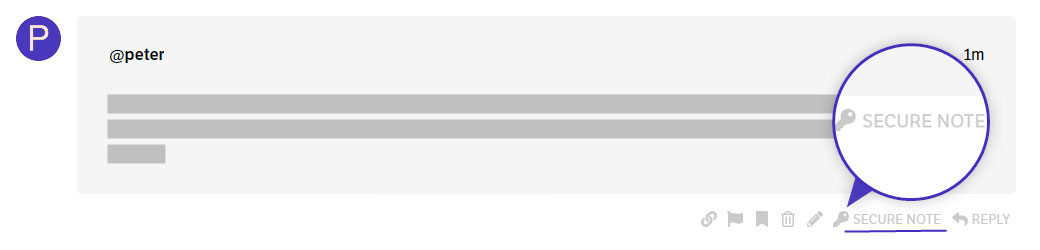
If that doesn’t help, please copy your site to a staging server then provide the following details in a Secure Note
- Staging WordPress Login URL
- Admin username and password
- Page URL where we can see the issue
- FTP login credentials
You can find the Secure Note button at the bottom of your posts.
Thanks.