Hi there, how do I set the previous and next nav in the inline slider to ONLY trigger Next and Previous please
I am using an inline slider with custom next and pre nav as pictures and only want the relevant picture to scroll.
Thanks so much.
Hi there, how do I set the previous and next nav in the inline slider to ONLY trigger Next and Previous please
I am using an inline slider with custom next and pre nav as pictures and only want the relevant picture to scroll.
Thanks so much.
Hey @wolfproductions,
Thank you for reaching out. You can turn any Element into a slider navigation control using custom attributes, which is exactly what you need for your picture-based previous and next controls.
To do this, you can do the following:
Add the attributes to your navigation images – select your “previous” image Element, open Customize > Custom Attributes, and add data-x-slide-prev. Then select your “next” image Element and add data-x-slide-next. Neither attribute requires a value. Once saved, each image will move the slider by exactly one step in its own direction.
If the controls do not respond – this normally means the slider and the navigation are not in the same context. Add data-x-slide-context to a parent container that wraps both the Slide Container and your navigation images. If the navigation cannot share a parent, for example because the slider is inside a Modal, add data-x-slider-id to the navigation Elements instead so they reference the correct slider directly.
For jumping to a specific slide – if you would also like an image to open one particular slide rather than stepping through, use data-x-slide-goto with the numeric index, for example data-x-slide-goto="3".
Check out this documentation:
Sliders — Custom Attributes — the full list, including data-x-slide-goto-trigger and data-x-slide-goto-keep-active.
Kindly let us know how it goes.
Thanks Ruenel, so I am already using the nav that are part of the inline slider and have tried 3:
data-x-slide-goto with the numeric index, for example data-x-slide-goto="3" .Setting “3” to both “2” (as I wanted it to go to the second slide), I have also tried using the name I called the slide “Lucy” but neither work, the ‘link’ still says “#next” though, is that where I am going wrong?
Thanks so much
Hello @wolfproductions,
To help you with your concerns, we need to check your settings. Please share the admin login details. Meanwhile, I would suggest you troubleshoot a few of the common issues before we investigate your settings. Please share your details in a secure note. Please provide the following details
You can find the Secure Note button at the bottom of your posts
Thanks
Hello @wolfproductions,
Thank you for sharing the login details. I cloned the slider and linked it using the data-x-slide-goto attributes. I have kept it hidden for now; please unhide it and review the settings.
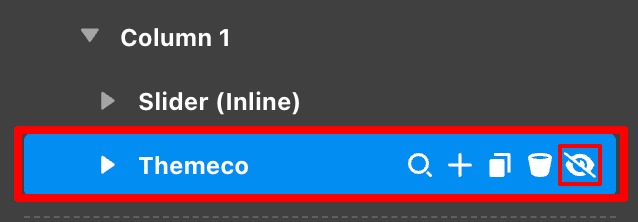
Thanks
Thanks Prakash, works great, the only thing is the ‘hand’ on hover over from the mouse is now not showing?
Hello @wolfproductions,
You can add the custom CSS code by navigating to: Slider Navigation → Prev/Next Div Element → Customize → Element CSS Then, paste the provided CSS code into the Element CSS field.
$el.x-div{cursor: pointer;}
The purpose of providing custom CSS is to show you how to add CSS code to your site. Writing custom CSS is outside the scope of our theme support. If you need more customization, you need to learn CSS and learn how to use the browser’s element inspector. If you have no idea about coding, you can subscribe to One, where customization questions are answered.
Hope it helps.
Thanks
Perfect, thanks Prakash
This topic was automatically closed 10 days after the last reply. New replies are no longer allowed.