Image Element Settings

I have a question regarding the image element. I have an image that are located in the right 1/4 column. It displays correctly in Chrome (the image size is reduced to the width of the column); but in IE, the image exceeds the column width. Here is the settings:
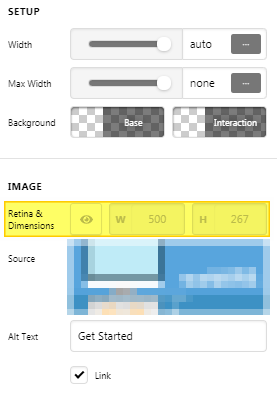
Would you please tell me the correct settings to use for putting the image in the column? And, also what does “Retina & Dimensions” do? When I toggle the “eye” icon, the size of the width the height change; but I am not sure how that affects the image.

Thank you!

Hello @joannhu,

Thanks for writing in!

Retina & Dimensions - This is for Retina support is enabled out the box. Click the Eye to disable the Retina support. Also supports options to set the width and height of the image. For more details, please check this out:

Please make sure that you are using the latest version of IE. By the way, IE has been out dated and replaced already in MS Edge.

Hope this helps.

Thank you for the information!

Just to clarify, when the eye icon is blue, it means the Retina support is disabled?
This might be a stupid question, but in what circumstances I should consider disabling it?

Hello @joannhu,

When the eye icon is in blue, it means that the retina option is enabled. Without getting too technical, it means that Retina display devices show more pixels per square inch, resulting in sharper images. This would be useful when your site is viewed on retina devices like the MacBook Pro with 15” display the pixel resolution is 220 pixels.

Hope this explains it.

This topic was automatically closed 10 days after the last reply. New replies are no longer allowed.