After updating the X-Theme, Safari no longer displays locally loaded fonts

Hello Team,

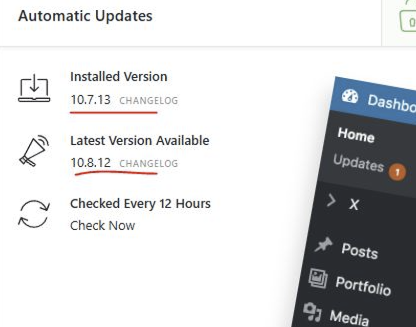
First off: I’m seeing these release notes. Is this happening to anyone else?
image
I need help with the following problem:

After updating the X Theme, Safari no longer displays the locally installed Google Fonts (font-family myUbuntu).

This affects all updates after X 10.8.1. I have repeatedly reverted the changes.

Features of the affected websites:
WordPress Multisites
WordPress Version: 5.8.13 (intended to be updated to WP 7.0.2)

On the original website = X Version: 10.8.1
On the staging site (= HTTP) = X Version: 10.8.12

In both versions:
WordPress Version: 5.8.13 (intended to be updated to WP 7.0.2. The initial test was performed and reverted due to problems)

Slider Revolution: Version 6.6.20 (Updates were performed in the past. The site became inaccessible each time with a PHP warning)

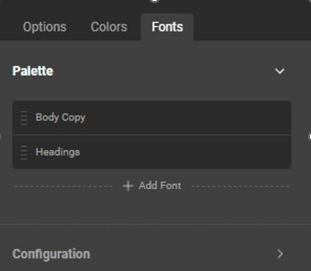
Tested and compared on both websites: Cornerstone - Globals – Fonts (Configuration)

Original Website Cornerstone 7.8.1 shows:
image

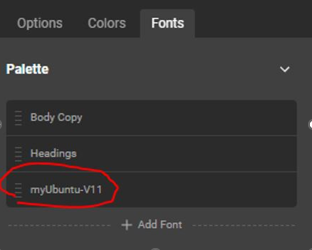
The Staging Site - Cornerstone 7.8.12 shows:
image

Why does this palette suddenly appear, and why is it V11 behind myUbuntu?

Is this the cause of the display problem in Safari?

I’ve read and tried various things, including the following:

In Options - Typography

  • Toggling the Font Manager on and off
  • Switching the Body and Content from Inherit to the Custom Fonts family.

None of this worked.

What can I do to make Safari display the embedded Ubuntu font?

Thank you for your help.
Hello @OlKR17,

Thanks for writing to us.

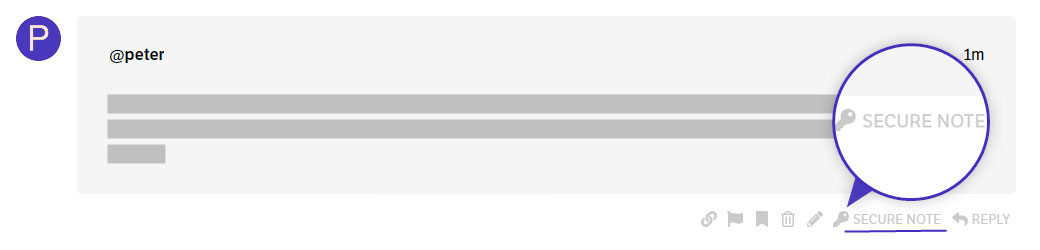
To help help your concerns, we need to check your settings. I would request you please share the admin login details. Meanwhile, I would suggest you troubleshoot a few of the common issues before we investigate your settings. Please share your details in a secure note. Please provide the following details

  • WordPress Login URL
  • Admin-level username and password
  • Exact page URL

You can find the Secure Note button at the bottom of your posts

Thanks

Hello @OlKR17,

I checked your site it seems that you have set the font to Inherit. I would suggest you please set your custom font in the Body and Content. Please have a look at the screenshot below.

Hope it helps
Thanks

I switched it to myUbuntu-V11 in the Fonts palette, as suggested.

Unfortunately, no change.

On my iPhone: Safari is showing Times New Roman.

Feel free to take a look at the project. I haven’t reverted it and would be happy to test it. I have a backup from the staging site.

Or have I misunderstood something?

Do you have any other ideas?

Hey Olaf,

I have tested your staging site in Safari, and I can confirm the issue: the custom font myUbuntu is not rendering, falling back to a default serif or system font.

Based on your detailed report and my testing, the problem is not a bug in the X Theme or Cornerstone. It is a server configuration issue specific to how your font files are being served over HTTP.

The Root Cause: Missing MIME Types on the Server

When Safari requests a font file (like .woff or .woff2) over a standard HTTP connection, it requires the server to send the correct Content-Type header (the MIME type). If the server does not send the correct MIME type, Safari will block the font from loading, while other browsers like Chrome or Firefox might be more lenient.

This is why the font works on your original site (which likely has the correct configuration) but fails on your staging site after the update.

How to Fix It: Add MIME Types to Your Server

The solution is to configure your web server to serve font files with the correct MIME types. Since you are on a staging server, you will need to ask your hosting provider to add these rules, or you can add them yourself if you have access to the server configuration.

For an Apache server (using .htaccess file):
Add the following code to the root .htaccess file of your WordPress installation:

<IfModule mod_mime.c>
    AddType font/woff  .woff
    AddType font/woff2 .woff2
    AddType font/ttf   .ttf
    AddType font/otf   .otf
    AddType font/eot   .eot
    AddType font/svg   .svg
</IfModule>

For an Nginx server:
Add the following to your server block configuration:

types {
    font/woff  woff;
    font/woff2 woff2;
    font/ttf   ttf;
    font/otf   otf;
    font/eot   eot;
    font/svg   svg;
}

Additional Checks

  1. Verify the Font File Paths: In your Cornerstone Font Manager, ensure that the URLs to your font files use relative paths (e.g., /wp-content/uploads/your-fonts/ubuntu.woff2) rather than absolute URLs with http://. This avoids any potential mixed-content issues, even on an HTTP site.

  2. Test with a Different Font: As a quick test, try adding a standard Google Font (like “Open Sans”) through the Font Manager. If that font works in Safari, it confirms the issue is specific to your custom font files and their server delivery.

  3. Clear All Caches: After making server changes, clear your browser cache and any server-side caches to ensure the new headers are applied.

The “V11” label you see is not the cause; it’s simply a version marker in the new Font Manager. The core issue is that Safari is strict about MIME types, and your server is not sending the correct ones for your font files.

Please ask your hosting provider to add the MIME types for .woff and .woff2 files. Once that is done, your custom fonts should render correctly in Safari.

Best Regards.