Shop and Blog Page Titles

Good evening,

I posted some time ago about the page titles missing from my Shop and Blog pages on denverhighrises.com. For some reason that is the default… You can see my original post here: https://theme.co/apex/forum/t/missing-page-titles/23641. I implemented the code suggested there, and later customized it based on a second thread concerning this topic (now deleted for some reason). Basically the solution was for me to create a custom Pro header that is applied to those two pages specifically.

I now need a little further assistance editing those pages:

  1. The page title has now disappeared from https://denverhighrises.com/condo-search/. It was working but randomly disappeared. It should simply read “Condo Reports” with no sub-heading.
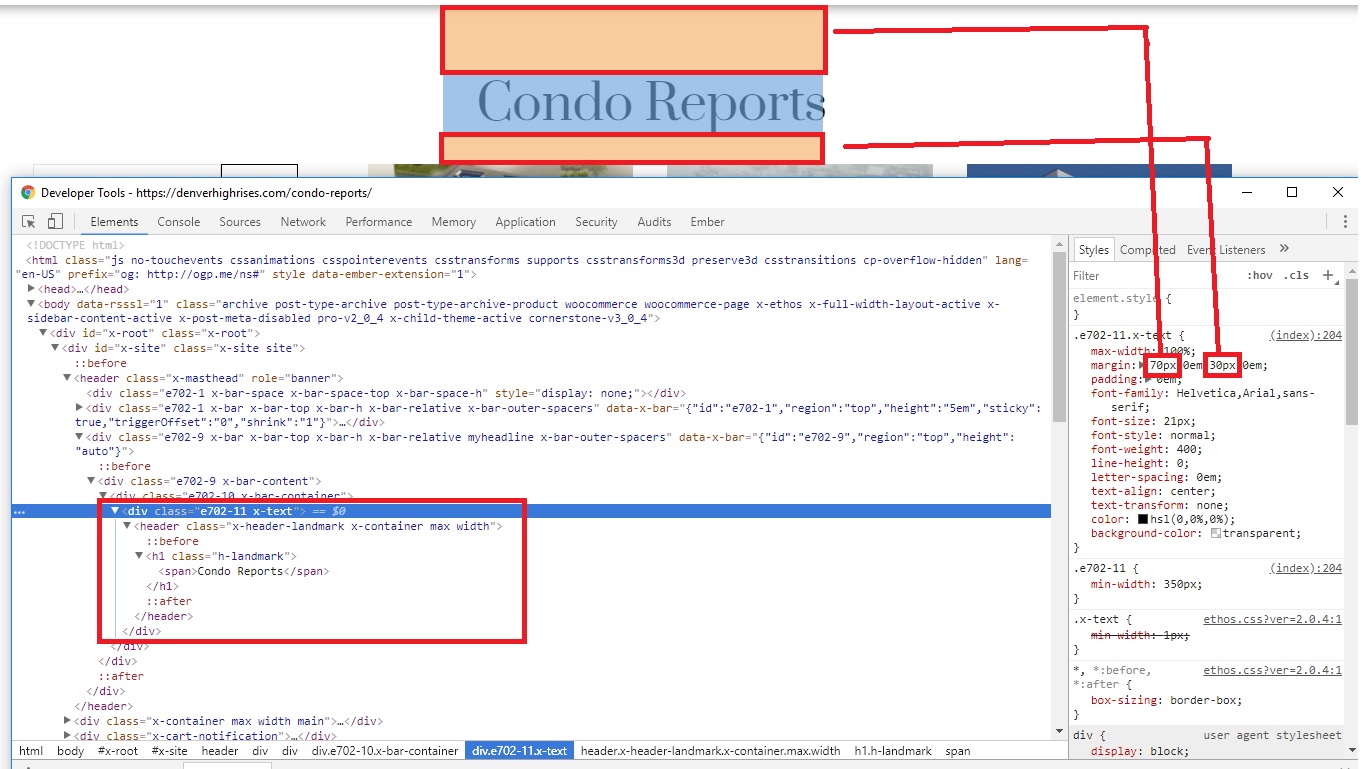
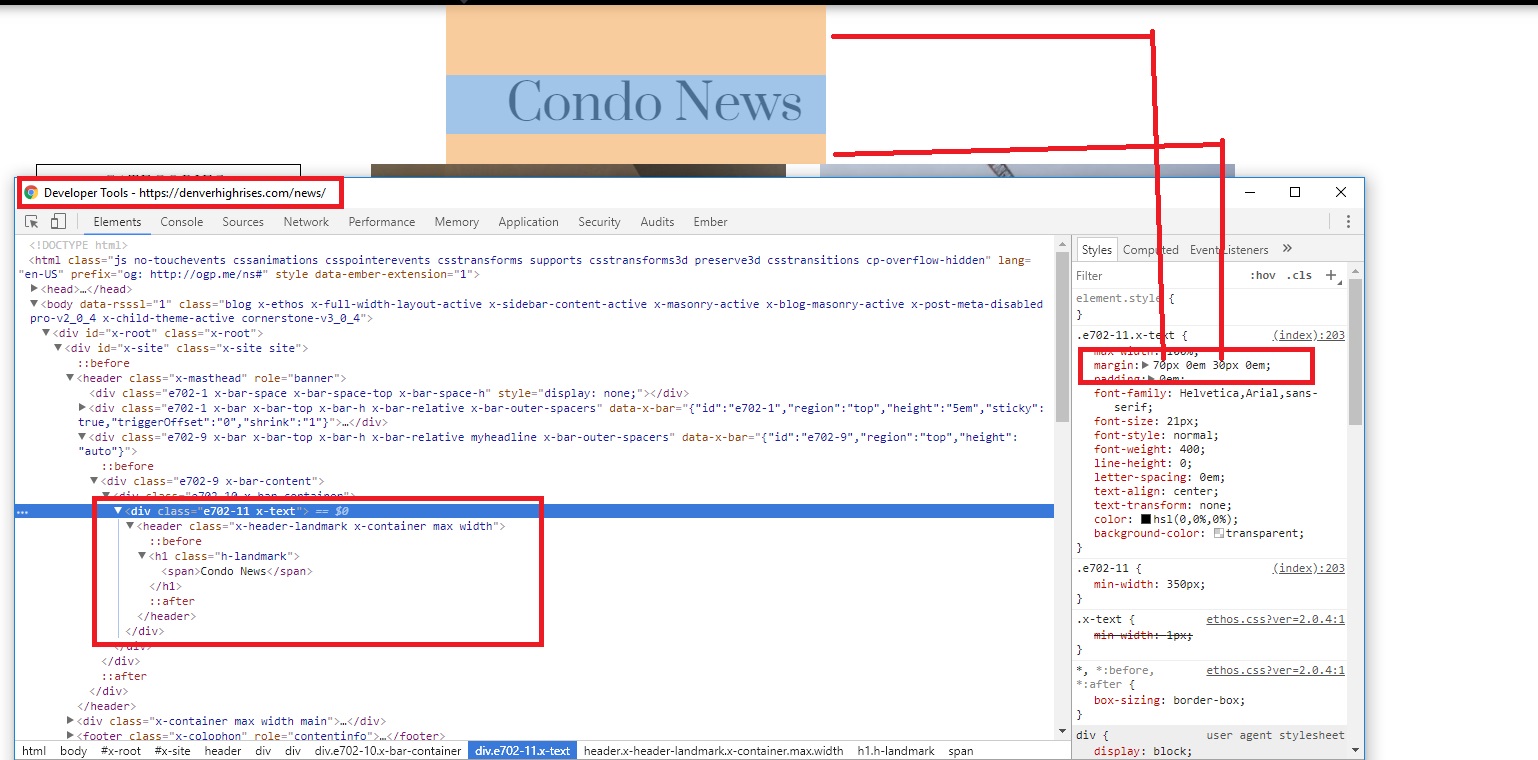
  2. A title is showing on https://denverhighrises.com/news/, but it needs to be customized to change “The Blog” to “Condo News” and the sub-heading should be removed. Furthermore, there should be a 70px margin above this title instead of a 60px margin. Likewise, there should be a 70px margin below the page title instead of the current 120px.

Can you please assist?
J
Hello There,

Thanks for writing in! I have logged in and I have investigated your issue.

1.) I forced the header to display in your shop and news pages. The sub heading were now removed as well.

2.) The Blog were changed to Condo News as well. The height of the header were also reduced from 200px to 140px at the moment.

Please check your site now.

Hello,

Thank you for your response. Unfortunately, I think you missed a couple notes from my first post:

  1. The title on https://denverhighrises.com/condo-search/ should read “Condo Reports” instead of “The Shop.”
  2. The margins above and below the page titles on https://denverhighrises.com/condo-search/ and https://denverhighrises.com/news/ should be 70px.
  3. On mobile devices, the header is now on top of the menu on both of the pages referenced above. Here is an example of one of those pages: https://prnt.sc/iq9aum. Not only does the menu appear behind the second bar, when you scroll down the first bar goes under the second bar.

Please advise,
J

Hi,

  1. I can see you have created a shortcode [awesome_landmark] but that code is for integrity stack. Please change it to this.
  add_shortcode('awesome_landmark','awesome_landmark');

function awesome_landmark ( $atts ) {

    ob_start();

    $disable_page_title = get_post_meta( get_the_ID(), '_x_entry_disable_page_title', true );
    $disable_filters    = get_post_meta( get_the_ID(), '_x_portfolio_disable_filtering', true );

    ?>

    <?php if ( is_home()  ) : ?>

      <header class="x-header-landmark x-container max width">
        <h1 class="h-landmark"><span><?php echo  x_get_option( 'x_ethos_shop_title' ); ?></span></h1>
       
      </header>


    <?php elseif ( x_is_shop()  ) : ?>

      <header class="x-header-landmark x-container max width">
        <h1 class="h-landmark"><span><?php echo  x_get_option( 'x_ethos_shop_title' ); ?></span></h1>       
      </header>
      
    <?php endif;

    return ob_get_clean();

}
  1. Add this in Theme Options > CSS
.archive .x-container>.offset {
    margin: 0 auto 35px;
}
.archive .x-header-landmark {
    padding: 0;
}
  1. Adjust z-index of your bars.

Make z-index of your first bar greater than the second.

Hope that helps.

Thank you for your assistance. We are almost there, but the most recent code erased some previous progress:

  1. The title on https://denverhighrises.com/condo-search/ should read “Condo Reports” instead of “Reports.”
  2. The title on https://denverhighrises.com/news/ should read “Condo News” instead of “Reports.”
  3. The margin above the page titles on both of the pages referenced above should be 70px. The margin below each of those page titles should be 30px.

Thank you!
J

Hi there,

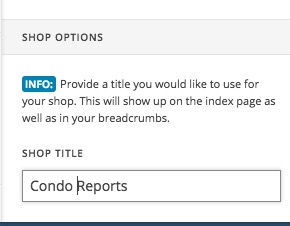
  1. I went to Pro > Theme Options > Ethos and set the name of the shop page archive to whaty ou wanted to be:

  1. Unfortunately, Ethos stack does not have a title section for the blog so I had to add the JS code below to Pro > Theme Options > JS:
jQuery('.blog h1.h-landmark span').text('Condo News');
  1. Please add the CSS code below to Pro > Theme Options > CSS:
.blog .x-header-landmark {
    padding-top: 70px;
    padding-bottom: 30px;
}

But for the condo search page you need to go to Pro >Headers and set the height of the Container including the Awesome Landmark higher.

Thank you.

Hello,

Thank you once again for your assistance as I try to configure the page titles on my Shop and Blog pages. I have toyed with the headers and custom CSS to no avail… Unfortunately I am still running into a couple issues. Here is the Custom CSS in place in addition to the JS I was previously given:

/Blog Header Padding/
.blog .x-header-landmark {
padding-top: 70px;
padding-bottom: 30px;
}

/Shop and Blog Page Title Margins/
.archive .x-container>.offset {
margin: 0 auto 35px;
}
.archive .x-header-landmark {
padding: 0;
}

  1. No matter how I adjust the margins, I am still seeing 90px above the page title on my blog https://denverhighrises.com/news/ instead of 70px. Likewise, I am seeing a 40px margin below instead of a 30px margin. Only the top margin is wonky on mobile.

  2. My shop page https://denverhighrises.com/condo-search/ finally has a 70px margin at the top, but for some reason the page title “Condo Reports” is split onto two lines instead of staying on one line. This looks bad on large screens and is disastrous on mobile.

I realize this has been a journey, but really all I have wanted is my Shop and Blog pages to have titles consistent with the rest of the site. :persevere:

Thank you,
J

Hi there,

Tha’s the height of your header bar where you placed your landmark shortcode. Please set your CSS padding and margin to zero, instead, set them in header bar and also change its height.

Let’s do that first then let’s go to the second issue as it may change as well.

Thanks!

Hello,

I am beginning to feel that even though this should be so simple, it is impossible. I followed your guidance once again (this is literally the third thread about this… :disappointed:) and now have a 35px margin above the page title on https://denverhighrises.com/condo-search/, instead of a 70px margin. However the title is still split onto two lines (should be one) so that might be affecting it… it also means I can’t tell if the 30px margin that should be below is correct or not. Also, I have now lost the page margin at the bottom of https://denverhighrises.com/condo-search/. Things are getting worse, not better. :frowning:

Additionally, there is a 65px margin above and below the page title on https://denverhighrises.com/news/, instead of a 70px margin above and a 30px margin below. Every time one page gets close, the other gets more screwed up and we start over…

All I want is 70px above and 30px below the page titles on my Shop and Blog pages! Thank you for your support - hopefully this time we can finally get it figured out.
J

Hi,

Your margin is not working because you set a fixed height to your bar element.

Please set height to Auto

Then add this in Header > CSS

.myheadline .h-landmark {
         min-width: 380px;
}

Hope that helps.

Hello,

I implemented your suggested code but still am not achieving quite the right margins:

  1. 5px too many above page title on https://denverhighrises.com/condo-search/.
  2. Margin at the bottom of https://denverhighrises.com/condo-search/ has completely disappeared.
  3. 48px too many below page title on https://denverhighrises.com/news/.

Again, all I want is 70px margin above and a 30px margin below each of those page titles.

Thank you so much,
J

Hi,

I went ahead and fix it.

1&2) https://denverhighrises.com/condo-search/

70px on top and 30px at the bottom

  1. https://denverhighrises.com/news/

70px on top and 30px at the bottom

Please clear your browser cache and check on your end.

Thanks

Hello,

I examined this in incognito mode, and unfortunately it is not quite right yet:

  1. 75px top margin, and 30px bottom margin on page title on https://denverhighrises.com/condo-reports/. This is still 5px too many on top.
  2. Still no margin at page bottom of https://denverhighrises.com/condo-reports/.
  3. 75px top margin, and 43px bottom margin on page title on https://denverhighrises.com/news/. This is 5px too much on top, and 13px too many on the bottom.

I realize this may seem anal, but I am just trying to have consistent page titles with a 70px margin above and a 30px margin below.

Thank you,
J

Hi,

  1. I am not sure how you calculate the pixels but I can see it using chrome developer tools that it has 70px space above and 30px space below.

  1. Same link as no. 1 ?

  2. Same as no. 1 70px on top and 30px below.

Thanks

Hello,

I am using MeasureIt! which is a Chrome extension. It allows me to measure the actual pixels rather than relying on the code, which I can also see by Inspecting the page.

  1. On the “About” page, for example, the top margin is correct: https://prnt.sc/iwv8xt.
  2. On the “Condo Reports” page (https://denverhighrises.com/condo-reports/) the margins above and below the page title are not correct: https://prnt.sc/iwv9pn. This is also the case on the “News” page: https://denverhighrises.com/news/.
  3. There is no margin at the bottom of the “Condo Reports” page (https://denverhighrises.com/condo-reports/) as seen here: https://prnt.sc/iwv9cq. Yes, that is really the right page link… I am referring to the same page.

Feel free to correct me if I am wrong, but even looking closely with my eyes and clicking between pages I can tell the margin is not the same…

Thank you,
J

Hi J,

Please add the code below in Theme Options > CSS then edit the margins and line height to adjust spacing.
That way you can edit and at the same time check the spacing using your chrome extension.

For https://denverhighrises.com/news/


.blog .my-headline {
    margin-top:70px !important;
    margin-bottom:30px !important;
}
.blog .my-headline h1.h-landmark {
    font-size: 49px !important;
    line-height: 60px !important;
}

For https://denverhighrises.com/condo-reports/

.archive .my-headline {
    margin-top:70px !important;
    margin-bottom:30px !important;
}

.archive .my-headline h1.h-landmark {
    font-size: 49px !important;
    line-height: 60px !important;
}

Thanks

This solution finally worked!

Thank you!
J

Glad we were able to help :slight_smile:

Hello,

I thought this was totally good, but I just checked it on mobile. I thought I would post here in case anyone else is following the thread. Can you help me center the page titles on both https://denverhighrises.com/condo-reports/ (i.e. https://prnt.sc/ixcp4b) and https://denverhighrises.com/news/ (i.e. https://prnt.sc/ixcpgx).

Thank you,
J

Hi There,

To make the texts center and reduce the font size on mobile, please add this custom CSS:

@media (max-width: 480px){
    body.archive .my-headline h1.h-landmark,
    body.blog .my-headline h1.h-landmark {
        min-width: 100%;
        font-size: 40px !important;
    }
}

Hope it helps :slight_smile: