Pro header bar jumping

Hi!
I created a header from the sticky header template and changed it quite a lot. I have it looking almost the way I want it exept for the fact it keeps jumping up to the top and down again. I´d like for it to just stay below the top bar at all times with no scrolling or shrinking or jumping, I tried putting to to position: absolute but then it disappears completely. How can I make both of the bars stay at same size all the time at the top?

site is https://designedbydean.com

Also I was wondering about these things:

  1. How to make check boxes and radio buttons on the checkout page bigger? https://designedbydean.com/checkout/
  2. How to change the color of the product overlay on this page https://designedbydean.com/shop/
  3. How to change the color of the price and heading on the product overlay on this page: https://designedbydean.com/shop/
  4. How to make the gap between the product name and the price smaller https://designedbydean.com/shop/
  5. How to make the product title bigger? https://designedbydean.com/shop/
  6. How to create a 1 pix gray border around the products https://designedbydean.com/shop/
  7. How to change the gap size between the products on the product page https://designedbydean.com/shop/
  8. How to change background color of the page on individual products such as this https://designedbydean.com/product/thermosculpt-pro-tr-booster/
  9. How to remove the option to magnify the product image and remove the mini magnifying glass icon and the grid menu icon in the top left corner of the single product page, such as this one https://designedbydean.com/product/thermosculpt-pro-tr-booster/
Hi Ariell,

The answer depends if you want it fixed on top or not. If you don’t want it fixed on top, Just reset Sticky setup settings or didable Sticky Option. See this: https://screencast-o-matic.com/watch/cqQnQktt2f

If you want it fixed top, the bar ion top even when you scroll down, try adding the content of the bluebar inside the first bar. This means, you will setup just 1 bar. Add another full container and then rebuild the blue bar.

Custom CSS can be added on Theme Options > Global CSS

  1. Try adding this custom CSS
.woocommerce-checkout input[type="radio"], .woocommerce-checkout input[type="checkbox"]{
    transform: scale(2);
}

2.) If you mean the gray box, try this custom CSS:

.woocommerce li.product .entry-wrap:before {
    background-color: red; /*Change to your preferred color*/

}
.woocommerce li.product:hover .entry-wrap:before {
    background-color: green; /*Change to your preferred color on hover*/

}

.woocommerce li.product .entry-header .price>ins>.amount {
    color: blue; /*Change to your preferred price color*/
}
.woocommerce li.product .entry-header h3 a {
    color: green; /*Change to your preferred heading color*/
}

.woocommerce li.product .entry-header h3 {
    padding-bottom: 1.5em; /*This is the default value. Adjust as needed*/
}
.woocommerce li.product .entry-header h3 {
    font-size: 14px; /*Adjust as needed*/
}

.woocommerce li.product .entry-product {
    border: 1px solid #333;
}

.woocommerce .cols-4 li.product, .woocommerce.columns-4 li.product {
    width: 23%;
}
.woocommerce li.product {
    margin: 0 2% 2.5% 0;
}

.single-product .x-root .site{
    background: red; /*Change to you preferred background color*/
}

.single-product .entry-top-navigation { /*HIDE GRID MENU ICON*/
    display: none; 
}

To disable zoom, check this thread.

For further CSS changes, please check the following guide:

Great, these worked thank you, however when I try to add an additional container inside the top white bar to recreate the blue header bar it is only blue behind the elements, how can I get it to be blue across the entire top over the white bar? This is as fas as I have gotten https://designedbydean.com/test/

Hi Ariell,

Can you try the following FLEXBOX settings for both bar and container: https://screencast-o-matic.com/watch/cqQf6Vtv00

Hope this helps.

Hi! thank you again, helped a lot but there´s still some white space on each side of the blue bar: https://designedbydean.com/test/

Hello Ariell,

There is white space because you added a solid background color in the container and not in the bar settings.
Please edit your header and change the white background in your bar settings to blue so that the entire bar will become blue.

Hope this helps.

Hi!
this made the bottom bar blue too and when I try to change the bottom bar background to white it now has the same problem the blue bar does. It is not white all the way to the edges… check it out:

Hi Ariell,

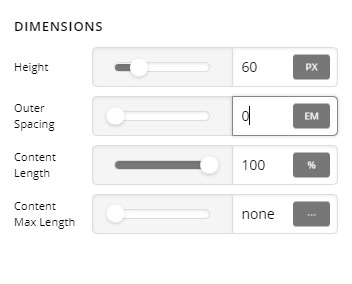
Please remove the background on the BAR. Then on BAR > DIMENSIONS tab > Outer Spacing: set this to 0

That space around the container is the Outer spacing settings for BAR.

Hope this helps.

Hi!
It made it go a litte bit wider but now there´s light gray on the sides and neither the blue or the white bar goes all the way to the edges. check to see again: https://designedbydean.com/test/1

Hello Ariell,

Since in one bar, you have two rows, please do this:

  • Make sure that the container has 100% width so that the blue bar will also be 100%.
  • In the second container, set a maximum width so that it will have the same width as your content area.

If nothing is helping, please provide us access to your site. We’d like to check your settings and somehow resolve your header issue.

Thanks.

Now it looks perfect! thank you so much for your help!

You’re most welcome Ariell!
We’re glad we were able to help you out.

This topic was automatically closed 10 days after the last reply. New replies are no longer allowed.