Pro footer, 2 issues!

Just working on upgrading the site from x-theme to pro theme, and using the footer builder it all looks nice, but having a couple of issues with it.

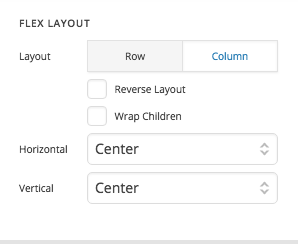
  1. 2nd bar in footer won’t centralise the content. I’ve looked into it, and it should change when this is altered to center center.

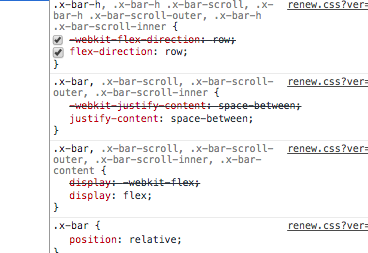
    But it doesn’t save for some reason, looking in the inspector:

    is still seen?! If I manually change it in the inspector to center, then it’s all okay.

Until a solution is sorted, in the footer css I’ve put in .x-bar { justify-content: center!important; }

  1. Images keep changing in the footer to the website icon. They’re all set as different icons as you can see in the images.
    Should be… (displaying correctly on all pages aside home page)

    On the home page it’s displaying…

Hi,

Would you mind providing us with login credentials so we can take a closer look? Please provide following information:

Set it as Secure Note

  • Link to your site
  • WordPress Admin username / password

All the best!

Noticed another issue just now, when trying to save some custom js into the Travel Alert page, it doesn’t save it - reload pro and it’s not there after pressing save each time!
The JS is:
jQuery(document).ready(function($) { var width = $(window).width(); console.log('test'); if (width > 650) { console.log('added'); $('.travelalertvideo').prepend('<video style="z-index: 998;object-fit: cover; background-size: cover; width: 100%; height: 100%;transition: none; text-align: inherit; line-height: 0px; border-width: 0px; margin: 0px; padding: 0px; letter-spacing: 0px; font-weight: 400; font-size: 13px; display: block; visibility: inherit; opacity: 1;" loop preload="auto" autoplay><source src="http://business.travelwise.co.uk/wp-content/uploads/2018/03/AdobeStock_37837969_Video_HD_Preview.mov" type="video/mp4" style="transition: none; text-align: inherit; line-height: 0px; border-width: 0px; margin: 0px; padding: 0px; letter-spacing: 0px; font-weight: 400; font-size: 13px;"></video>'); } else { console.log('not added'); } });

Hi There,

It seems that you have JS errors on your code. Always use a tool like JS Lint (http://www.jslint.com/) to check your code before adding it into your site.

With regard to your original issue, I see that you’re not fully updated as we have released some patches recently after the major release. Please update your Pro theme, purge your server cache and re-test again.

Let us know how it goes.
Thanks!

There aren’t errors in the JS code?! Regardless, if there were errors in the code, then it’d still save it, and run the code, then the console would tell me that there has been errors in the scripts?

I’ve updated the theme, and it’s still not saving the changes to the js on the Travel Alert page, even if I put the only line of code as console.log("test");.

After updating the theme, neither of the other 2 issues have been fixed.

EDIT:

After further testing with the JS code above, I put it in an raw content element, wrapped in a tag, and it worked perfectly. Although this is now how I want the code to be initialised.

Hi There,

Thanks for the update!
We are glad that it works you. Actually raw content is best for adding the script to pages.

Thanks

The raw content element is preferred over adding it into the js section on each page? That makes no sense, if that’s so, then why even have the js section?

Still waiting on a solution for the footer issues. Images changing for home page, and the footer spacing. This site is not far off going live for our business, but I need this footer issue fixed before hand.

Hello There,

Thanks for updating in! The Raw content element is only preferred if you add a custom code specifically on the page if it includes both the js code and some html code. If it is purely JS code, it can be added in the custom section. If the JS code will be applied globally, you can insert the JS code in the X/PRO > Theme Options > Custom JS section (http://prntscr.com/iuhlw8).

The images were changing in the homepage because of you custom JS code. You have added this:

jQuery(document).ready(function($) {
  
  var widthofdisplay = $(window).width();
  function navbar_transparent() {
    widthofdisplay = $(window).width();
    let bottomOfVideo = $('#first_block').offset().top;
    let barHeight = $('.x-bar').height();
    if ($(window).scrollTop() + barHeight > bottomOfVideo) {
      $('.x-bar').removeClass('x-navbar-transparent');
      $('.x-bar img').attr('src', 'http://business.travelwise.co.uk/wp-content/uploads/2018/03/tw_2018_full_color.png');
    } else {
      $('.x-bar').addClass('x-navbar-transparent');
      $('.x-bar img').attr('src', 'http://business.travelwise.co.uk/wp-content/uploads/2018/03/tw_2018_whiteout.png');
    }
  }
  $(window).scroll(function() {
    navbar_transparent();
  });
  navbar_transparent();
  
});

I have removed it temporarily and the images in your homepage is now displaying correctly.

Please check your site now.

Okay thanks, is there a built in feature to work with the changing of the navbar as I had it with the above code? Where it goes from white-out to full colour?

I figured as much about the raw content element, I’ve done it another way for this feature anyway, I’ve moved them into a header section anyway as it’s going to be repeated on multiple pages.

The footer section still has the issue where I have to manually over-ride the .x-bar { justify-content: space-between; } with .x-bar { justify-content: center!important; } is there a fix for this?

Another issue I’ve found is that when using a google map, and putting in custom JSON, it’s hiding the map altogether when viewed. If you look on my contact us page you can see what I mean. Is there a solution for this? You can see the error from the console below:

VM7188:3 Uncaught SyntaxError: Unexpected token & in JSON at position 10
at JSON.parse (<anonymous>)
at HTMLDivElement.<anonymous> (cs-body.js?ver=3.0.4:1)
at cs-body.js?ver=3.0.4:2
at NodeList.forEach (<anonymous>)
at cs-body.js?ver=3.0.4:1
at Array.forEach (<anonymous>)
at o (cs-body.js?ver=3.0.4:1)
at Array.forEach (<anonymous>)
at HTMLDocument.<anonymous> (cs-body.js?ver=3.0.4:2)

Hello There,

Thanks for getting back to us. You can still use the JS code above with a minor modifications of the class selectors. You must target the header bar and exclude the footer. For example, you use this:

$('.x-masthead .x-bar').....
$('.x-masthead .x-bar img').....

For you manual override, please make sure that you have set the flex layout in the bar and container settings.

For your map, where can we find it? Please provide the url of the page in question.

Thank you.

The map is on http://business.travelwise.co.uk/contact-us/ above the footer, I’ve taken the JSON out for now, it’s here so you guys can have a play with it.

[
	{
		"elementType": "geometry",
		"stylers": [
		{
		"color": "#f5f5f5"
		}
		]
	},
	{
		"elementType": "labels.icon",
		"stylers": [
		{
		"visibility": "off"
		}
		]
	},
	{
		"elementType": "labels.text.fill",
		"stylers": [
		{
		"color": "#616161"
		}
		]
	},
	{
		"elementType": "labels.text.stroke",
		"stylers": [
		{
		"color": "#f5f5f5"
		}
		]
	},
	{
		"featureType": "administrative.land_parcel",
		"elementType": "labels.text.fill",
		"stylers": [
		{
		"color": "#bdbdbd"
		}
		]
	},
	{
		"featureType": "poi",
		"elementType": "geometry",
		"stylers": [
		{
		"color": "#eeeeee"
		}
		]
	},
	{
		"featureType": "poi",
		"elementType": "labels.text.fill",
		"stylers": [
		{
		"color": "#757575"
		}
		]
	},
	{
		"featureType": "poi.park",
		"elementType": "geometry",
		"stylers": [
		{
		"color": "#e5e5e5"
		}
		]
	},
	{
		"featureType": "poi.park",
		"elementType": "labels.text.fill",
		"stylers": [
		{
		"color": "#9e9e9e"
		}
		]
	},
	{
		"featureType": "road",
		"stylers": [
		{
		"color": "#091b2e"
		},
		{
		"visibility": "simplified"
		}
		]
	},
	{
		"featureType": "road",
		"elementType": "geometry",
		"stylers": [
		{
		"color": "#091b2e"
		}
		]
	},
	{
		"featureType": "road",
		"elementType": "geometry.fill",
		"stylers": [
		{
		"color": "#091b2e"
		},
		{
		"visibility": "on"
		}
		]
	},
	{
		"featureType": "road",
		"elementType": "geometry.stroke",
		"stylers": [
		{
		"color": "#017097"
		}
		]
	},
	{
		"featureType": "road",
		"elementType": "labels",
		"stylers": [
		{
		"visibility": "on"
		}
		]
	},
	{
		"featureType": "road",
		"elementType": "labels.icon",
		"stylers": [
		{
		"visibility": "off"
		}
		]
	},
	{
		"featureType": "road",
		"elementType": "labels.text.fill",
		"stylers": [
		{
		"color": "#017097"
		},
		{
		"visibility": "on"
		}
		]
	},
	{
		"featureType": "road",
		"elementType": "labels.text.stroke",
		"stylers": [
		{
		"visibility": "off"
		}
		]
	},
	{
		"featureType": "road.arterial",
		"elementType": "labels.text.fill",
		"stylers": [
		{
		"color": "#757575"
		}
		]
	},
	{
		"featureType": "road.highway",
		"elementType": "geometry",
		"stylers": [
		{
		"color": "#dadada"
		}
		]
	},
	{
		"featureType": "road.highway",
		"elementType": "geometry.fill",
		"stylers": [
		{
		"color": "#091b2e"
		}
		]
	},
	{
		"featureType": "road.highway",
		"elementType": "labels.text.fill",
		"stylers": [
		{
		"color": "#616161"
		}
		]
	},
	{
		"featureType": "road.local",
		"elementType": "labels.text.fill",
		"stylers": [
		{
		"color": "#9e9e9e"
		}
		]
	},
	{
		"featureType": "transit.line",
		"elementType": "geometry",
		"stylers": [
		{
		"color": "#e5e5e5"
		}
		]
	},
	{
		"featureType": "transit.station",
		"elementType": "geometry",
		"stylers": [
		{
		"color": "#eeeeee"
		}
		]
	},
	{
		"featureType": "water",
		"elementType": "geometry",
		"stylers": [
		{
		"color": "#c9c9c9"
		}
		]
	},
	{
		"featureType": "water",
		"elementType": "labels.text.fill",
		"stylers": [
		{
		"color": "#9e9e9e"
		}
		]
	}
]

I sorted the JS code above, did it similar way to what you mentioned, but put a specific class on the navbar instead, then I know it’ll work with any updates to the theme in the future.

I’ll look into the flex further for the footer.
Hi there,

Glad it’s sorted now and thanks for sharing.

Thanks!

There is one of the issues sorted, the map isn’t sorted. If I could get help with this please?

Hi There,

Thanks for the update!
The mentioned map styling issue is a known bug and It has been fixed in our development cycle and will be released in next update.

For the time you can fix it by replacing a single line of code.
Please go to
pro/cornerstone/includes/elements/mixins/map.php

Replace this line
'map_google_styles' => x_module_value( '', 'markup' ),
with
'map_google_styles' => x_module_value( '', 'markup:raw' ),

For x theme the path would be cornerstone/includes/elements/mixins/map.php

Hope this helps!

Thanks

Thanks, is there any plans to implement a map marker to this element? Like the one on visual composer?

Hi there,

There is and it still in our issue tracker. Please try the classic map element for now.

Thanks!

Thanks, for a future update to the map element, it’d be great if it’d support loads of pointers on one map, and have clickable markers with customisable content :smiley:

Thanks for all the help all!

1 Like

You’re welcome and thank you for your feedback.

This topic was automatically closed 10 days after the last reply. New replies are no longer allowed.