Hi, I have built HappySoulHungryMind with pages until now. I am wondering if I should use posts? Everything I have read so far, I have not been able to find how to easily format posts in CornerStone like it is to do with pages. Should I use CornerStone to edit posts or is that not a good idea? And, should I do posts or should I stick with pages as they are easier. I am confused since I am a wordpress novice. Are there tutorials on using CornerStone for posts. I need posts to look as succinct and well laid out as pages. Thanks.
Hello Ravi,
Thanks for writing in!
By default, WordPress gives you two different ways to create content – posts and pages. To make your site more user-friendly, it’s important that you properly use posts and pages when you add new content. But when you’re just getting started, it can be difficult to know when you should use a post and when you should use a page.
Posts are blog content listed in a reverse chronological order (newest content on top). You will see posts listed on your blog page.
Pages are static “one-off” type content such as your about page, privacy policy, contact page, etc. While the WordPress database stores the published date of the page, pages are timeless entities.
And if you want to edit Posts with Cornerstone, simply allow Posts to be editor in Cornerstone by going to X > Settings > Permissions > General. The layout of the post is depended of the Global Content Layout. Unlike with pages that you can make use of the page templates. If you want fullwidth posts, you will have to set “Fullwidth” as your Global Content Layout in X > Theme Options > Layout and Design > Content Layout.
Hope this helps.
I am going to start using posts. I configured the settings to allow editing of posts in CornerStone. However, in CornerStone, it shows me the post but does not allow adding elements like columnize. Is that because you are not supposed to edit a post in CornerStone. Is a post limited to adding text and an image without any page layout-customization ability?
I have written articles using pages, and they look great using columnize. Is it possible to duplicate that look in a post - with the three columns?
Hi Ravi,
Would you please give us a screenshot of the Columnize option that you are talking about? If you are talking about the normal Sections/Rows/Columns you have access to those using the Cornerstone in posts with no problem.
Just to make sure we are on the same page, the posts are consist of the excerpt and single pages. The excerpt is used to show the posts in the blog listing page which you can set in WordPress Dashboard > Settings > Reading > Posts Page.
You do not have access to Cornerstone for that listing page and whatever you add to Excerpt will show there. You can enable the Excerpt box by going to WordPress Dashboard > Posts > The post in question and click the Screen Options at the top right section and enable excerpt:
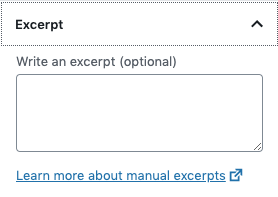
Now if you click on the title of the post in a post listing at the front end of the website, you will see the single post which is the complete version of the post, and that is where you will see all the stuff that you used in Cornerstone.
kindly get back to us with the result of the steps above and URL/User/Pass of your WordPress dashboard using the Secure Note functionality of the post to follow up the case if you still have problems.
Thank you.
Thank you for your help. I figured out how to use Cornerstone to edit a post.
I need help with adjusting the font size of the Post’s “Title” “Comments” “Leave a Reply”
I used the below code and it only affects the title. Thanks.
.single-post h1, .single-post .h1 {
font-size: 24px;
}
Hi Ravi,
For the “Leave a Reply” headline, please add this:
#reply-title.comment-reply-title {
	font-size: 185%;
}
for the comment, name, email, website label, please add this:
.comment-form-author label, .comment-form-email label, .comment-form-url label, .comment-form-rating label, .comment-form-comment label {
	font-size: 125%;
}
Feel free to adjust the font-size values.
If you’re wondering how I came up with those custom CSS, you can find the proper CSS code selector using the Chrome browser Developer Toolbar
For the CSS code itself, I suggest that you get started with this tutorial
Hope it helps,
Cheers!
Thank you so much!
You are most welcome!
This topic was automatically closed 10 days after the last reply. New replies are no longer allowed.