I added two posts, Homecoming and Youth Presentation in the Announcements Category and I added Announcements to the Navigation bar under Features. When I go to Announcements from the navigation bar, the images are not shown. How can I get the images to show on this page?
Hi There,
Thanks for writing in!
I Can see you have not added any image to both the post.
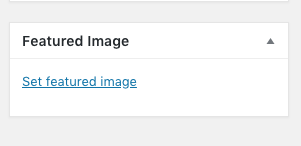
Please add feature image so that it will show.
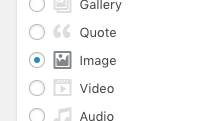
Also, Youth Presentation is a gallery type post. Please upload multiple images to show in the gallery.
Otherwise you can change it to standard post type.
Hope this helps!
Thank you. I added the image as a featured image and I see that it is above the image and text that was previously there. That means I only need the featured image and text. However, I want the featured image to be its original size (aligned left) with the text to the right of the featured image. I also want them displayed this way on the Category Archive page. By the way, how do I change the title of the Category Archive page to be the category (Announcements instead of Category Archive)?
Hello @eutaw,
Thanks for updating in!
Do you want something like this?
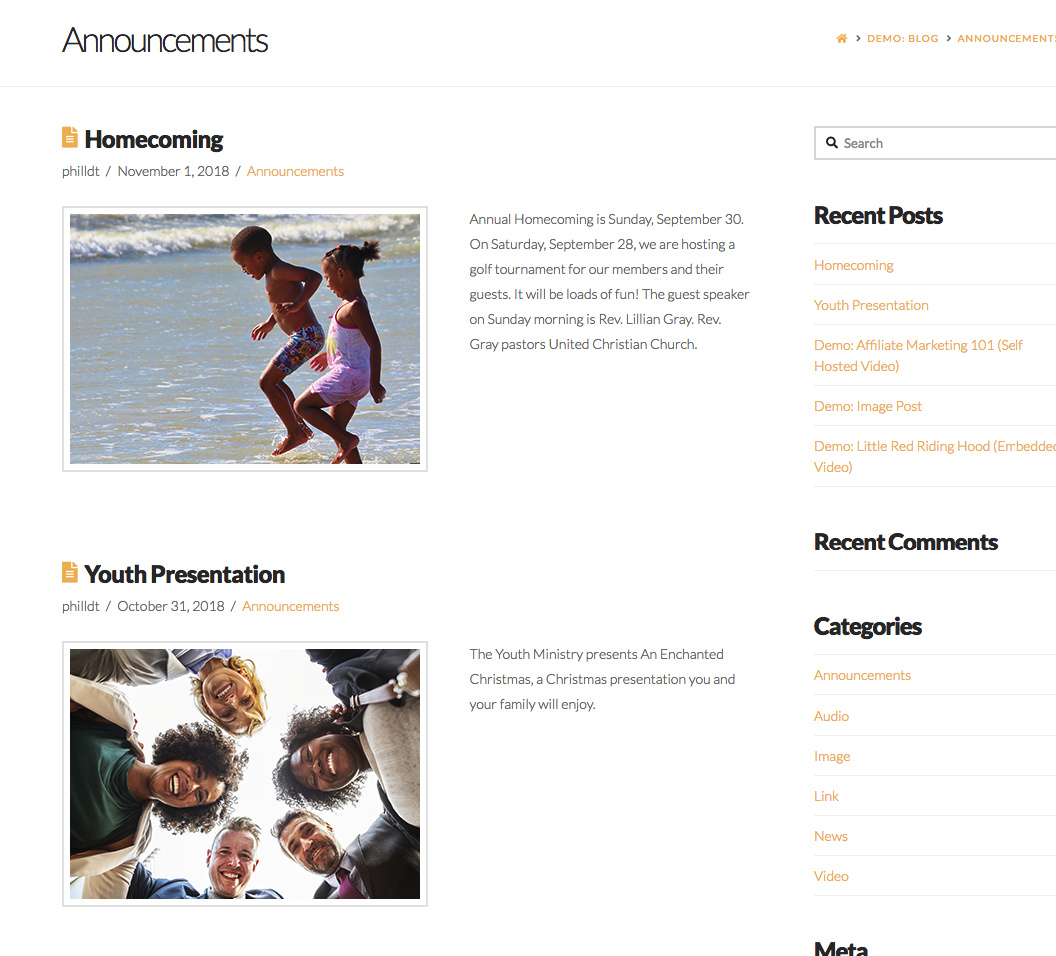
In that case, please do the following:
1.) Please go to Post > Categories and edit your category. You need to add the “Archive Title”. Leaving it blank will display the default “Category Archive” as the title.
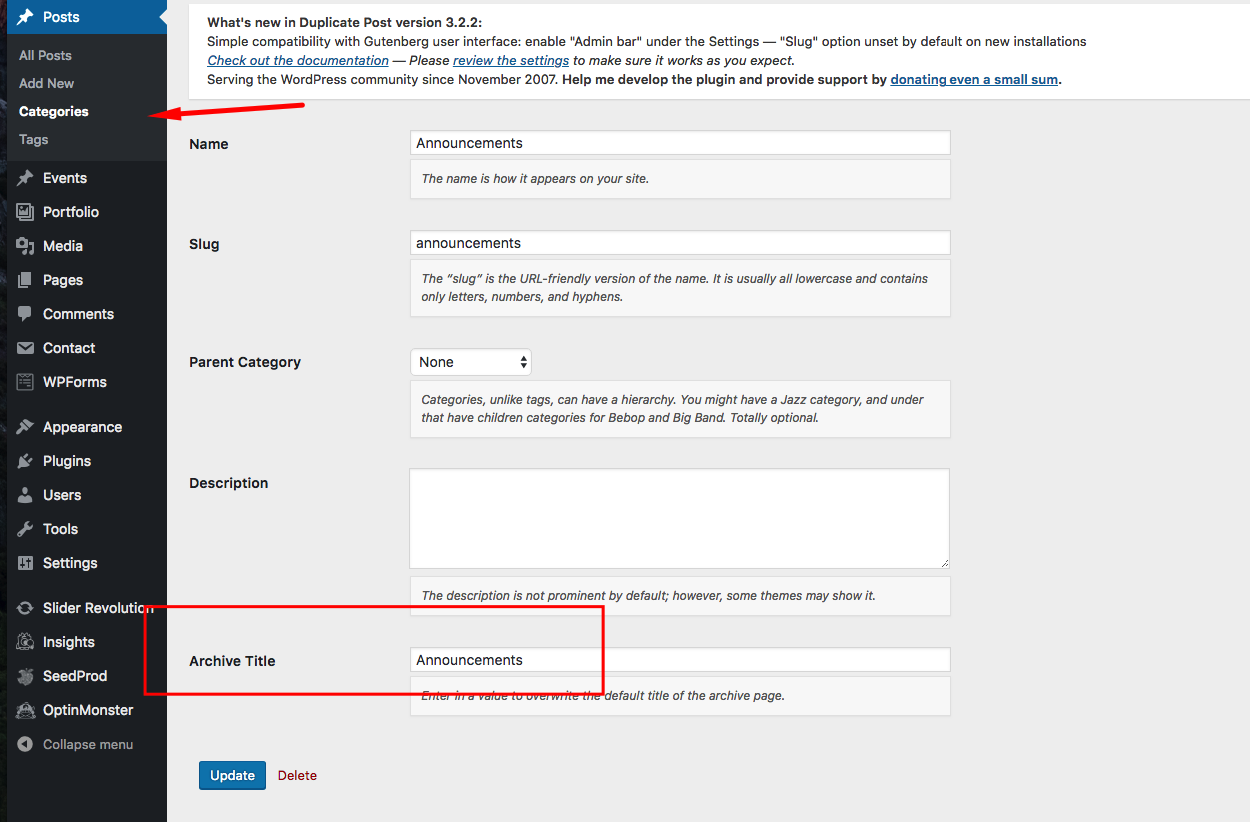
2.) And then please add the following CSS code in the X > Theme Options > Global CSS (http://prntscr.com/evui3r)
@media(min-width: 980px){
  .archive .entry-featured {
    float: left;
    margin-right: 20px;
  }

  .archive .entry-content.excerpt {
    float: right;
    width: calc(96% - 380px);
  }
}
We would loved to know if this has work for you. Thank you.
Thank you very much! That is exactly what I want. How do I get the blog page to look like the category page (Announcements), i.e. with a smaller image floating left and text to the right of the image?
Hi again,
Please add the following code as well:
@media(min-width: 980px){
  .blog .entry-featured {
    float: left;
    margin-right: 20px;
    max-width: 380px
  }

  .blog .entry-content.excerpt {
    float: right;
    width: calc(96% - 380px);
  }
}
Don’t forget to clear all caches including your browser’s cache after adding the code. Let us know how this goes!
No, this did not work. I cleared the cache and still get the large image on the blog page.
Upon checking, I saw that the code provided by Nabeel works.
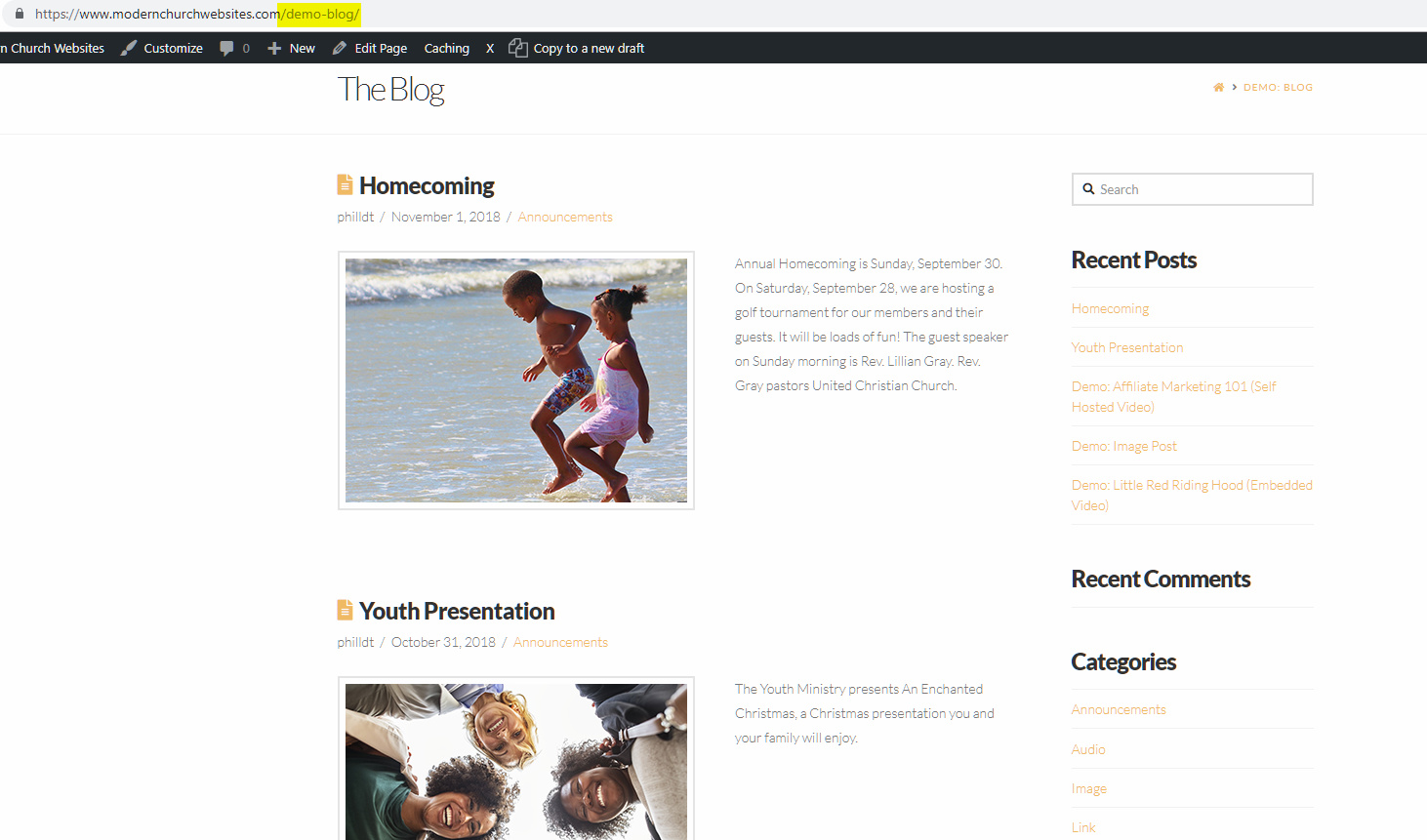
Please just note that this is not a layout offered officially in X and Pro. In case you’ll encounter issues coming from the code in the future or you’ll need further enhancements, you will need to consult with a third party developer because custom development is outside the scope of our support.
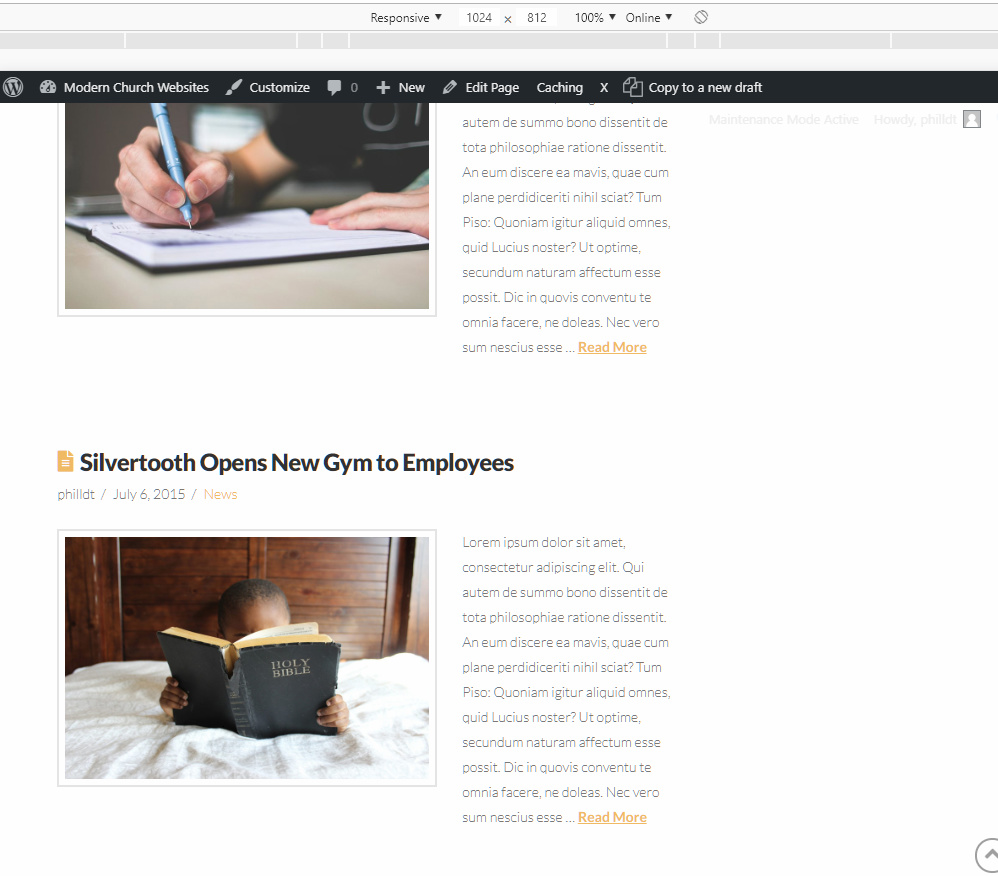
You’ll also need to consider lowering your excerpt length or lowering the image width in the code because in a landscape tablet view, your text overflows so it’s not aligned with your image.
Thank you for understanding.
This topic was automatically closed 10 days after the last reply. New replies are no longer allowed.