Hello @Lutz,
Thanks for writing in!
With the classic image, you do not have any controls over the styling like borders, padding, margin, etc. With the new image element, you can do more. You can insert the image and also link it to itself so that when you add a ligthbox shortcode, it will work. You will have to do the following:
1.) Insert an image element.
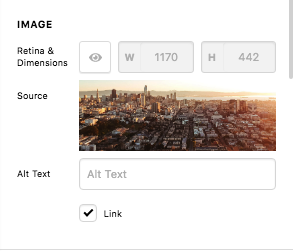
- Before inserting the image url, you must copy the image url first.
- Enable the link in the image element settings.
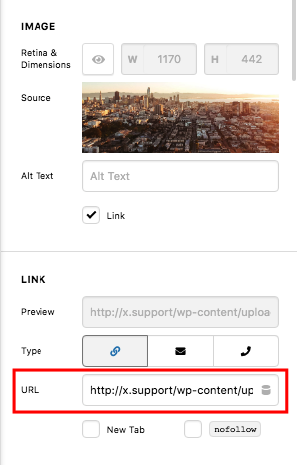
- Insert the copied image url in the link option.
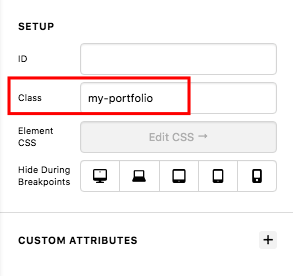
- Find the “Image > Customize” tab and insert the custom class
2.) Insert a content area element and insert the lightbox shortcode. For example;
[lightbox selector=".my-portfolio" deeplink="true" opacity="0.875" prev_scale="0.75" prev_opacity="0.75" next_scale="0.75" next_opacity="0.75" orientation="horizontal" thumbnails="true"]
3.) Save your changes and test the page. As soon as you click the image, the lightbox will display with the bigger image.
Hope this helps.


