Image is full-width in preview but not on page

I’m having a frustrating issue on http://hannahpickeringart.com. The image at the top of the page used to be full-width, but today, when I switched out the jpg, it switched to a container. I’ve looked at everything I can think of.

I’ve tried both “classic image” (which is what it originally was) and the new image element.
Row is set to “Global Container - Off”
Column is set to “Flexbox layout - off”
Page template is “Blank, no container, header footer”

In the preview, the image is full width, but on the page itself, the image is contained. I’ve been at it for over an hour, and I’m ready to give up.
w
Hi @wespickering,

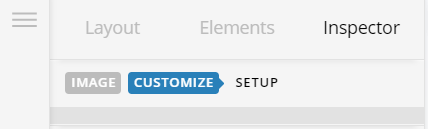
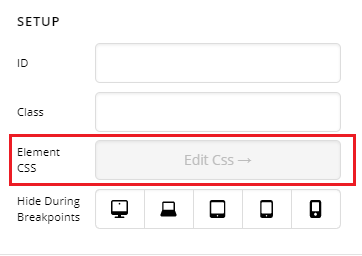
Thank you for reaching out to us. Inspect your Image element in Cornerstone, go to Customize tab and in the Element CSS field, add the following code:

$el > img {
  width: 100%;
}

Let us know how this goes!

Thank you. That worked. However, I’ve never had to do this before. Why has this changed, and why is it now so complicated? It used to be a fairly simple selection inside the Inspector.

Hello @wespickering,

Thanks for the updates. You are having this issue because of the Site Accelerator feature that were enabled in Jetpack plugin. The Site Accelerator will cached all your images and sometimes it has some problems loading the images. One of the limitations of photons:
No cache invalidations – currently the images are cached “forever”. If you want to “refresh” an image you will need to change the name of the image. Adding random query arguments, commonly known as cachebusters, will not work.

You can check it here: https://jetpack.com/support/site-accelerator/ for further information.

For the time being, please disable Site Accelerator module and test your site again. You will find that the full images will be displayed without a hitch.

This topic was automatically closed 10 days after the last reply. New replies are no longer allowed.