Thanks so much for the detailed explanation, I am far less confused now!
Any chance that this information could be added/updated in the docs https://theme.co/docs/image so that its easy to refer back to and for others to find. For example the docs have screenshots from a much older version of cornerstone and the explanation of fields is limited to that old version. So some information seems wrong and a lot of it is missing.
I also have some suggestions for more info in the cornerstone UI itself that would help new users like me.
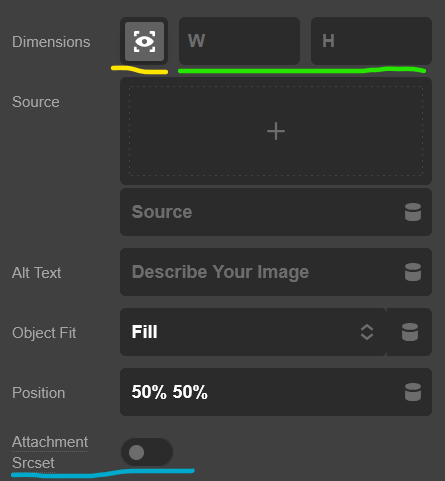
Dimensions
The retina icon looks different in the docs and I totally missed that it was explained their. It also states “Also supports options to set the width and height of the image.” which is no longer the case, as this only tells you the original image dimensions.
I was confused by the W and H because when you are using dynamic content they remain empty, and it looks like an input but its not (you can’t edit them). I would suggest changing the W and H so they don’t look like an input if possible. And maybe hiding them completely unless they have a value to show (so not visible when the source is dynamic content).
Also would be nice if the Dimensions label had a tooltip stating something like “retina support toggle and original image dimensions”.
Source
Would be good to explain the image ID and that you can change the label to an image size to select different versions of the image (maybe point out standard image sizes: full, large, medium, thumbnail and state where these can be changed in WP and that you need a plugin to regenerate them if changed).
I didn’t understand that this was even possible until reading your post and then noticing the :full and playing around with that. So this also would benefit from a tool-tip that says something like “attachment ID followed by a configured image size”.
Attachment Srcset
You did a great job of explaining how to use scrset with an ACF field, although it didn’t work for me the way you explained it helped me figure the following out. When I tried {{dc:acf:post_field field="your_acf_field_name" size="thumbnail"}} it would still just give me the full sized image. But taking into account what I figured out above in the dimensions section I went ahead and tried {{dc:acf:post_field field="your_acf_field_name"}}:thumbnail and that did work.
I am assuming that with the information above on Dimensions about putting the size after the attachment ID is how you use it with an image from my media library? Having this explained in the docs and examples of both a standard image and ACF image would be really helpful.