Hey Jay,
Here is why your previous attempts returned nothing or failed to show the file URL, and how you can correctly print the uploaded file’s URL in your email message.
Why the tags you tried outputted nothing
-
{{dc:file:upload name="file_upload"}} and {{dc:file:all}}:
These tags access the raw PHP $_FILES array (containing server metadata like temporary names, MIME types, and sizes). They do not contain the final upload URL and cannot be printed directly as text because they return PHP arrays.
-
{{dc:form:data key="file_upload"}}:
This retrieves values from the $_REQUEST parameters. Since uploaded files are processed separately through $_FILES rather than request parameters, the key is empty in $_REQUEST.
How to print the File URL in the Email Action
To output the URL of the uploaded file, you need to use nested actions and Cornerstone’s dynamic content post-processing.
Step 1: Nest the Email Action inside the File Upload Action
In Cornerstone, actions can pass outputs to subsequent actions only if they are structured hierarchically. In your editor Outline/Navigator:
- Drag the Email Action to be a child (nested under) the File Upload Action.
- Make sure the File Upload Action has Create Media enabled. This generates a WordPress attachment and returns its ID.
▼ Form
  ▼ File Upload Action
      Email Action
Step 2: Use the Form Action Response Tag with Post-Processing
When the Email Action is nested inside the File Upload Action, it can access the parent action’s output using {{dc:form_action:response}} (which returns the attachment ID).
To convert the ID into a direct public file URL, append the post-processing parameter type="file". Use the following tag in your email message:
{{dc:form_action:response type="file"}}
-
Direct File URL (e.g. PDF, Image):
{{dc:form_action:response type="file"}}
-
Attachment Page URL:
{{dc:post:permalink post="{{dc:form_action:response}}"}} (This uses the attachment ID to look up its permalink page).
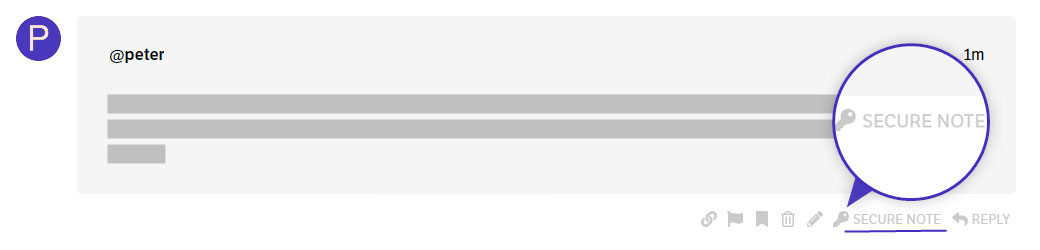
If that doesn’t help, kindly provide the following info in a Secure Note.
- WordPress Login URL
- Admin username and password
- Page URL where we can see the issue
You can find the Secure Note button at the bottom of your posts.
Thanks.