Hi there, I can see there’s lots of fabulous content in this forum, but I’m not very website literate and so I’m not sure what phrases I need to search for to help with the points below. Any pointers anyone can give would be gratefully received.
-
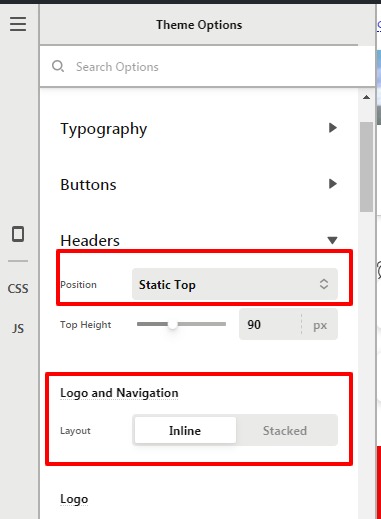
My website currently looks like this (https://femalefitnessmatters.co.uk) and I want to change the homepage so that the menus overlay the new branded images I’ve had done more cleanly and strikingly like this (https://redefiningstrength.com) and full screen. What is this called please so that I can try and track down a guide? The website is built in X-Theme in Integrity.
-
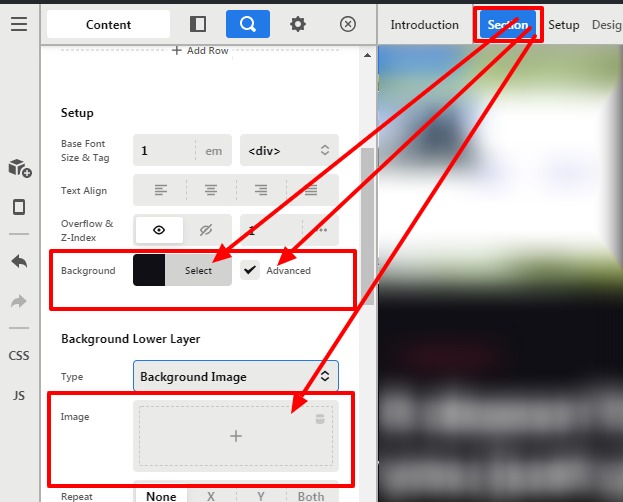
on that full screen theme, how do I have backgrounds of contrasting colours to put text and images over in cornerstone in the same way that https://redefiningstrength.com does, for example? Mine is all white currently and I can’t easily see a way to change this.
-
I want to reduce the number of menus I have at the top as my homepage feels too busy. What’s the best way to (a) move existing pages without breaking the links; and (b) to add extra menu links in the footer instead?
-
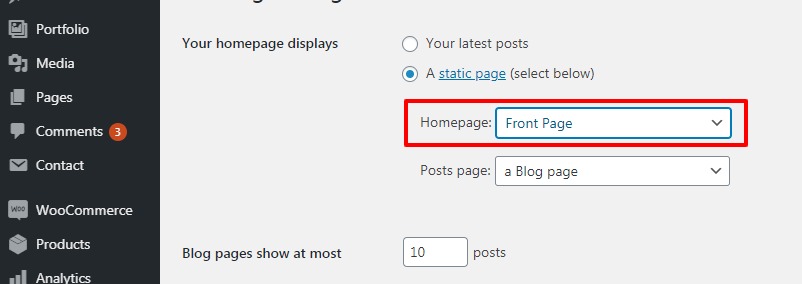
presumably it’s best to create a new private page whilst I design the new homepage and then make it live when I’ve finished? How do I switch the default homepage so that people land on the new one and not the old one (or even worse just get error messages)? And should I delete the old one or just hide it?
Thank you so much in advance for your help. Sorry to ask so many noddy questions.