Hi! I’m using Ethos with the filterable index on for posts. Every post is labeled with a category to group it into the appropriate topics. When I click on the Posts page (“News”), the only thing that displays are the posts within the category that comes first (“Energy & Bioproducts”). I’d like this to display all posts, instead of automatically opening to just the post in that first category.
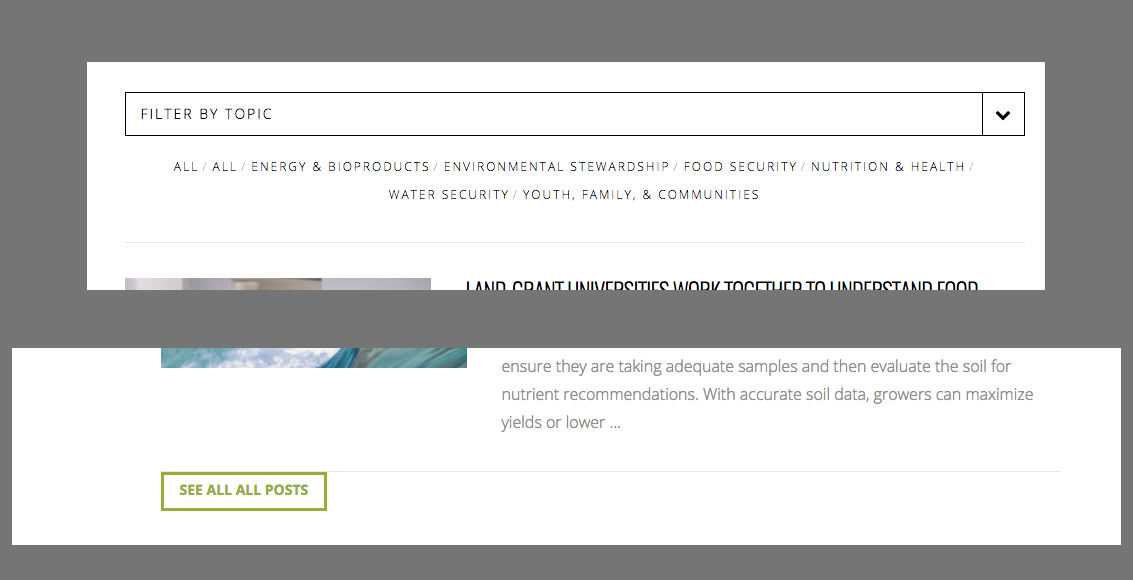
The workaround I’m using now is adding all posts to a category called “All” and since that’s first alphabetically, it displays all posts when the News page is first opened. However, there are a couple problems this workaround causes. First, there are now two categories called All in the filterable index (on is the category All and one is the default setting to display all posts).
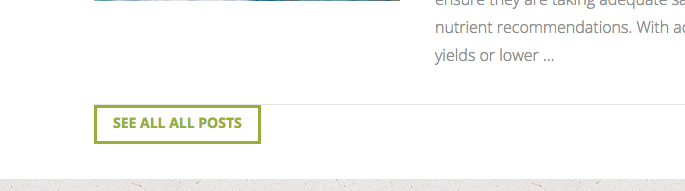
Second, a button displays at the end of the page that says “Show all all posts.” This would normally be something like “Show all energy & bioproducts posts” or something like that with another category.
So how do I get the “News” page to display all of the most recent posts, not just the most recent posts in the category that comes first alphabetically, without having to do this workaround?
Sorry for the long message. And thanks for a great product!! Cheers.