Essential Grid problem load page

We are having problems with essential grid on several pages after the last updates. Directly does not let the pages load. The URL gives an error 500.

I know it is the essential grid since as I remove it from the page it starts working.

Ejem: https://cronicaspuzzleras.com/blog-de-puzzles/
Ejem2: https://cronicaspuzzleras.com/blog-de-puzzles-esenciales/

This page worked perfectly until recently and nothing has been modified in this

Hi @jimenagordillo,

While visiting your given URLs, we faced the same problem. I would suggest you deactivate the Essential Grid plugin from wp-admin, if that is not possible please rename the plugin the folder through the FTP or CPanel and provide the following credentials to investigate further.
Please provide login credentials for your site in a secure note to examine it further, including:

– WordPress Site URL & Login URL
– Specific URL where the issue occurs
– WordPress Admin username/password
– FTP/CPanel Credentials

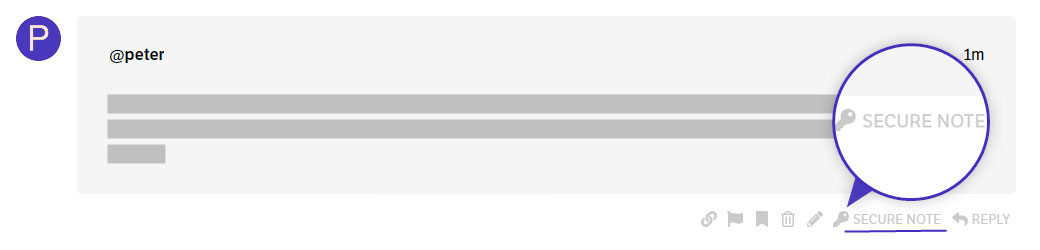
To create a secure note, click the key icon underneath any of your posts.

Thanks

Hi,

I have already left the access credentials. The currently affected URLs are:
https://cronicaspuzzleras.com/blog-de-puzzles/
https://cronicaspuzzleras.com/blog-de-puzzles-esenciales/
https://cronicaspuzzleras.com/puzzles-y-colecciones/
https://cronicaspuzzleras.com/en/jigsaw-puzzle-blog/

Best regards

Hello @jimenagordillo,

Thanks for credentials. I checked your dashboard I confirm that the issue is there with Essential Grid plugin. I was not able to debug the issue at your site since your given FTP details are not working. Can you please recheck and send us again?

Please add the below-given code into your wp-config.php for debug setup, and the error logged into the file name debug.log inside the wp-content folder.
You can let us know so that we can do further investigation based on that.

// Enable WP_DEBUG mode
define( 'WP_DEBUG', true );

// Enable Debug logging to the /wp-content/debug.log file
define( 'WP_DEBUG_LOG', true );

// Disable display of errors and warnings 
define( 'WP_DEBUG_DISPLAY', false );
//SET PHP INI DISPLAY ERROR FALSE
@ini_set( 'display_errors', 0 );

Please find the video that will help you to edit wp-config.php and add the above code: https://www.youtube.com/watch?v=3SDPTafEM8o

Hope it helps.
Thanks

Hi

Ok, I add the lines into wp-config.php.

image

I have added the server address in the secure notes so you can connect. I’ve tested the credentials and they work fine.

Hello @jimenagordillo,

There seems to be a fatal error in your site due to PHP memory limit exhaustion. Although you have given the FTP credentials, we still cannot edit your wp-config.php. To get this error resolve, you need to increase your PHP memory limit. Kindly edit your wp-config.php file and add these lines:

define( 'WP_MEMORY_LIMIT', '512M' );
define( 'WP_MAX_MEMORY_LIMIT', '728M' );

Kindly let us know how it goes.

HI.

Now I am checking and the web does not work. This error appears:

I have not modified anything yet

Hi

I’m looking and the wp-config.php file is empty. Have you changed something in this file?

I have restored a backup copy of this file and the web is working again. I have added the lines that you indicate (the line of “define (‘WP_MEMORY_LIMIT’, ‘512M’);”) was already defined previously, but the original problem continues

Hello @jimenagordillo,

There was a fatal error due to PHP memory limit exhaustion. I have tried editing your wp-config.php file and it seems it failed. Can you please increase your PHP memory limit?

​We recommend that you increase your memory allocated to PHP. To increase it, please edit your wp-config.php file and insert these lines:

define( 'WP_MEMORY_LIMIT', '256M' );
define( 'WP_MAX_MEMORY_LIMIT', '512M' );

You can add it before the line
/*That's all, stop editing! Happy Blogging. */

We would love to know if this has worked for you. Thank you.

Hi

I have added the lines, but it remains the same. The URLs that I indicate still do not work

Hello @jimenagordillo,

Please check your debug log in the /wp-content/debug.log file. You should see some error message that indicates what is going on with the server. If you wouldn’t mind, please share the error with us in your next reply.

Thank you.

Hi @ruenel

These are the messages that appear.

But even though I load the failed URLs again, they don’t log any more messages from memory, so I don’t think this is the problem. I still think that the problem is in the essential grid plugin since it is happening since one of the updates.

Hi @ruenel

I’ve already got it to work. The problem was not the essential grid, Is the PRO theme. I have restored the previous version and now everything works correctly.

The current version is:

image

With this version everything works fine.

Hello @jimenagordillo,

"Allowed memory size of xxxxxxx  bytes exhausted....."

This error means that your PHP memory limit is not enough. ​By default, WordPress sets a limit of 40MB for the PHP memory limit. As soon as the Pro theme is installed along with your several plugins, it is no longer enough. You need to increase the PHP memory limit a little bit more. To increase it, please edit your wp-config.php file and insert these lines:

define( 'WP_MEMORY_LIMIT', '512M' );
define( 'WP_MAX_MEMORY_LIMIT', '728M' );

You can add it before the line
/*That's all, stop editing! Happy Blogging. */

We would love to know if this has worked for you. Thank you.

Hi.

Those values you already indicated to me in this comment. I already tried them and kept failing. I have tried again to upload the PRO theme version to 4 and as I upload it, it starts to fail again. Please, check your topic to see what may be happening as incompatibilities arise with the essential grid.

Hi @jimenagordillo,

If you are not able to upload the Pro, there might be some issue with the File Upload permissions or the Maximum Upload Filesize value. Please make sure that the File Upload is On and the Maximum File Upload Size value more than 64MB. If still not work for you, I would suggest you upload the unzipped version of the theme through the FTP into the wp-content/themes.
To set the above values, the following article may help you.

  1. https://www.wpbeginner.com/wp-tutorials/how-to-increase-the-maximum-file-upload-size-in-wordpress/
  2. https://www.cloudways.com/blog/increase-media-file-maximum-upload-size-in-wordpress/

Hope it works for you.
Thanks

Adding these values to wp-config will not ALWAYS update your server’s memory limit, it truly depends on your server setup. You can check if these are actually being done by creating a phpinfo file, and if they are not changing, you may need to reach out to your server provider to increase your memory limit.

Hi @michigancreative,

Thanks for sharing your ideas and we appreciate your time to comment your input.

Thank you.

Hi

If I upload the PRO version to 4 -> Essential grid fails
If I keep the version in 3.2.3 -> Everything works fine

I think the problem is the new PRO version …

Hello @jimenagordillo,

If you go to Pro > Status, your PHP memory limit is just 256MB. Can you please increase it to a bit more like 512MB. With your server limitation, you might have to contact your hosting provider and ask for further assistance. Setting the PHP time limit, memory limit, upload max size, and many more will surely help since you have more than 20 active plugins plus the latest enhancements of the Pro theme that requires those numbers as well.

Thank you for your understanding.