Element is ghosting and causing an error

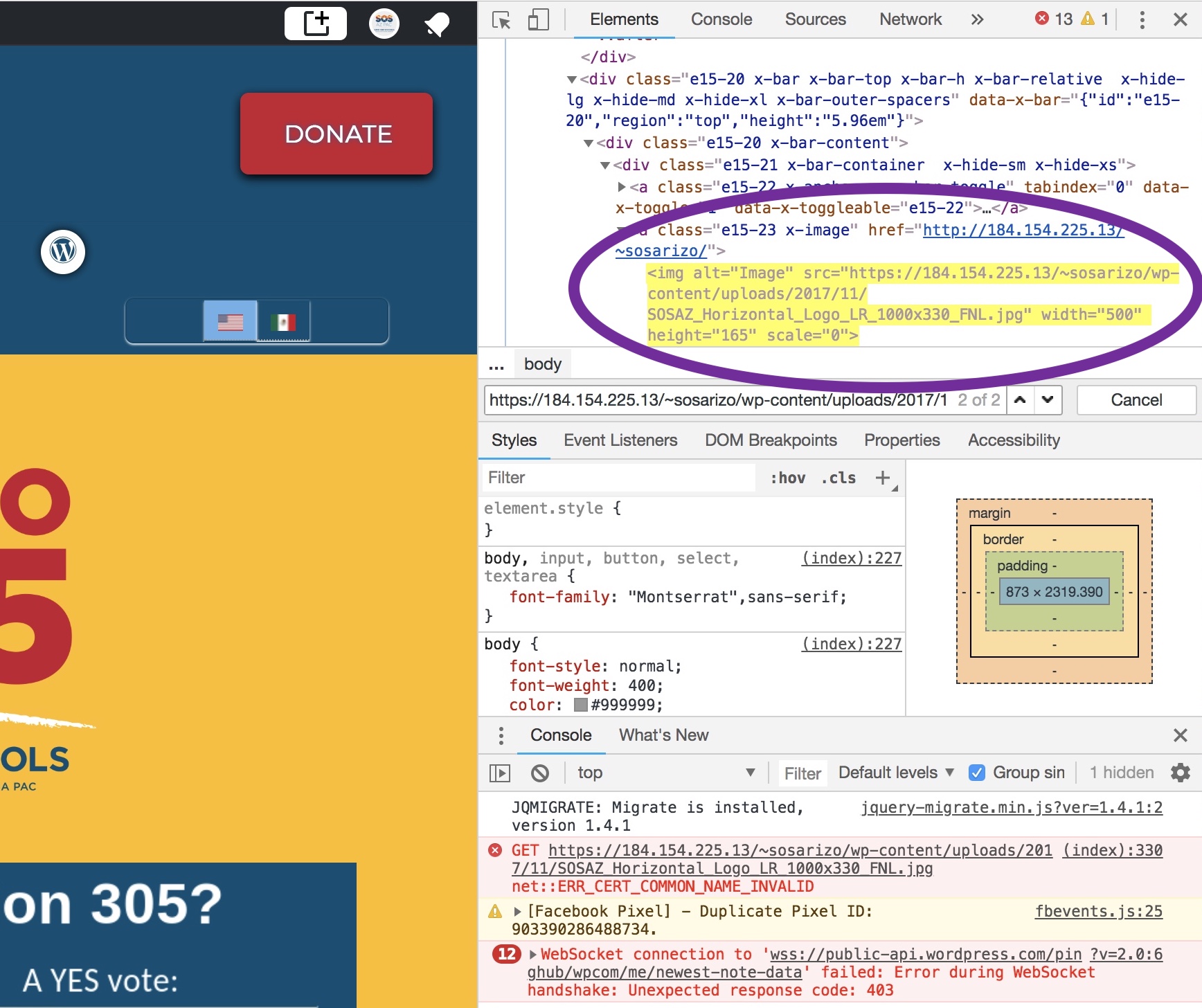
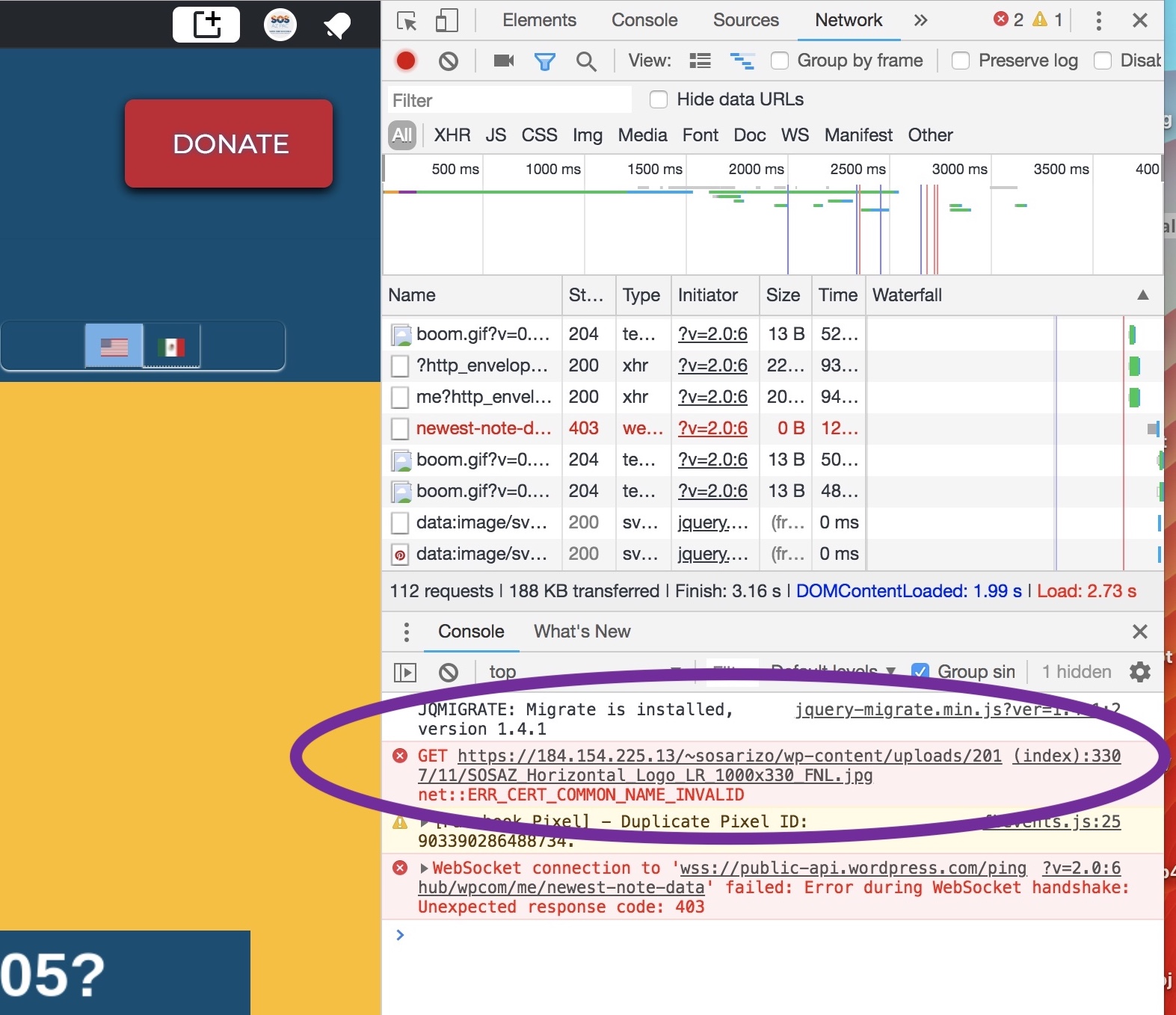
Hey guys and gals! I need some help. My website was created based on an export and import of another website I also administrate. While the images have been changed, it seems like a portion of it is remaining in the code and causing an error on the home page. On developer tools in Chrome, I can see the error is
https://184.154.225.13/~sosarizo/wp-content/uploads/2017/11/SOSAZ_Horizontal_Logo_LR_1000x330_FNL.jpg

The image doesn’t exist in a visible form on the site, but it is in the code of the header in two places. I have toggled between Pro and Original headers and still can’t manage to pinpoint it. Though I can see it, I don’t have the expertise to delete it. Can you assist?

Hello There,

Thanks for writing in! This issue is because the image no longer exist or there is a CORS (Cross Origin Resource Sharing) issue on the page. Please install Better Search and Replace so that you can perform a search for https://184.154.225.13/~sosarizo/ and replace it with your new domain name like https://example.com/

Hope this helps. Please let us know how it goes.

I tried that. It didn’t work. Didn’t find it. The error is still there. Again, the image doesn’t exist visibly, so even if I could find it, I wouldn’t want to replace it with anything.

Hey Mary,

The method that @RueNel suggested should work. I checked the Image element with the missing image and found that the URL’s still the same so not sure if you’ve followed what was suggested.

Another solution which does not involve working with a search and replace plugin nor the database is updating the Image element manually. This has an advantage because you can see the builder’s preview.

I checked your header setup and the reason why you can’t see the image is because of Responsive Visibility conflict. You’ve hidden your Bar in small screens while you’ve hidden the Container where you’ve added the Image element with missing image in tablet to large screens.

Deactivating the responsive visibitliy (Hide During Breakpoints), you will be able to see the Image element with missing image like this. Please watch the screencast in the secure note to clearly see what I mean.

You can then update the image manually or follow @RueNel suggestion.

Thanks.

Yes, I had tried search/replace, but it didn’t work. It was hiding! Thanks so much for the video. I was able to locate both instances of the broken image and it is resolved! :kissing_heart: Yay!

Hello Mary,

It’s good to know that you have found a way to resolved the issue.
If you need anything else we can help you with, don’t hesitate to open another thread.

Best Regards.

This topic was automatically closed 10 days after the last reply. New replies are no longer allowed.