I have read in the forum very often that many can not edit their page after the update, I can not. what’s going on there?
Hello There,
Thanks for writing in! In most cases, you will encounter that you cannot edit the page after the update because of Caching. This usually occurs when you have install Autoptimize, W3 Total Cache or using CloudFlare. You must clear all your caches right after the updates to resolve this issue.
Hope this explains it briefly.
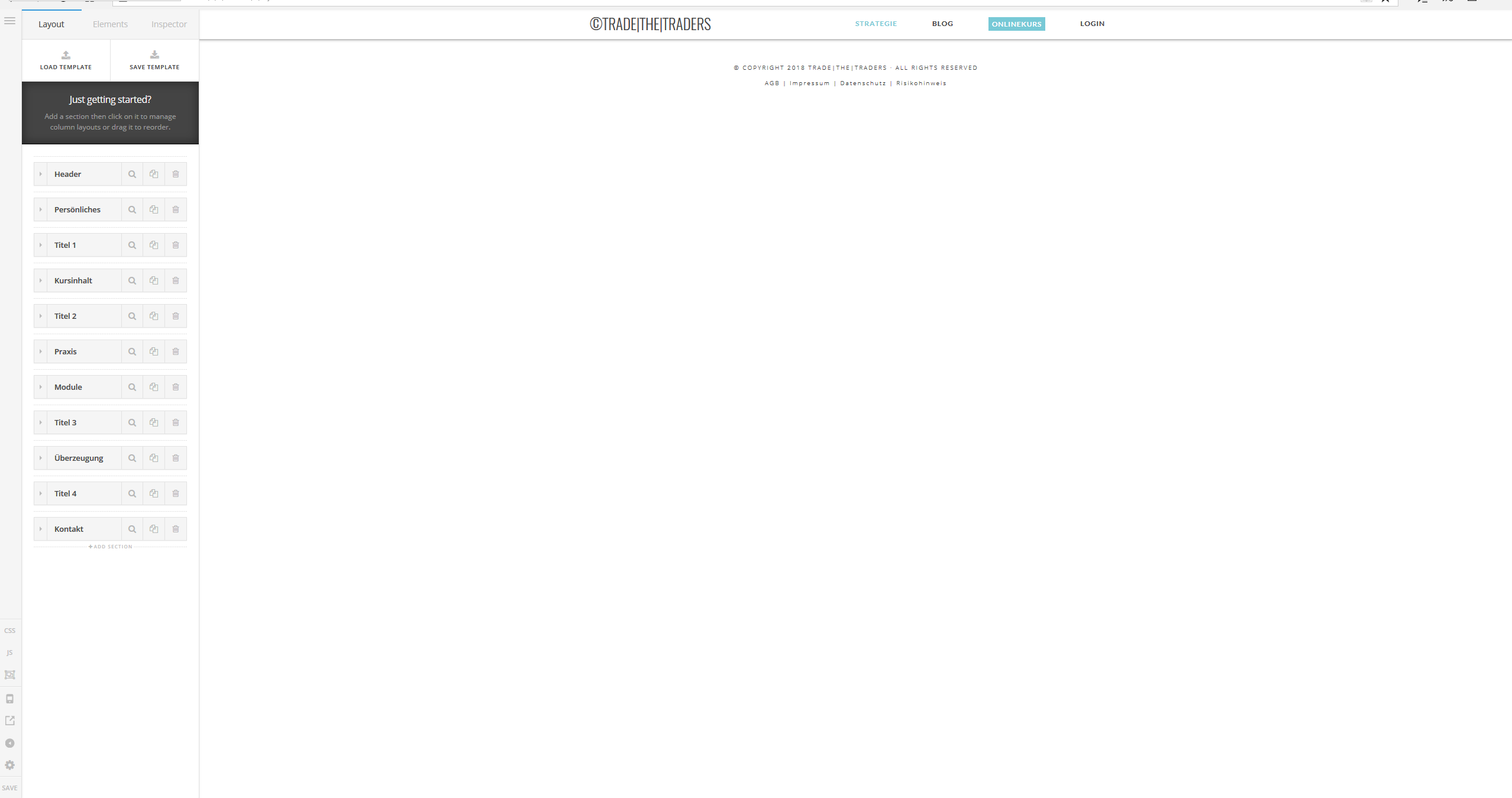
I already tried everything. It does not work. I do not see any content
Hey There,
To assist you better with this issue, would you mind providing us the url of your site with login credentials so we can take a closer look? This is to ensure that we can provide you with a tailored answer to your situation. Once you have provided us with your URL, we will be happy to assist you with everything.
To do this, you can create a secure note with the following info:
– Link to your site
– WordPress Admin username / password
Thank you.
please look at my page
Hi There,
Thanks for the info!
I can see there is several JS error in your site which is causing the issue.

This may be due to a plugins conflict, I would like to follow few steps to fix the issue.
-
Ensure everything is up to date according to our version compatibility list at https://theme.co/apex/forum/t/troubleshooting-version-compatibility/195. Please follow the best practices when updating your theme and plugins. See https://theme.co/apex/forum/t/setup-updating-your-themes-and-plugins/62 for more details.
-
Clear all caches including browser cache then deactivate your caching plugins and other optimization plugins.
-
If you’re using a CDN, please clear the CDN’s cache and disable optimization services.
-
Test for a plugin conflict. You can do this by deactivating all third party plugins, and seeing if the problem remains. If it’s fixed, you’ll know a plugin caused the problem, and you can narrow down which one by reactivating them one at a time.
-
Remove custom CSS, Javascript and templates.
-
Reset your htaccess file by renaming it to .htaccess-bak. Then in WP Admin Menu, go to Settings > Permalinks and just click the Save Changes button.
-
Contact your host to increase your allocated memory or do it yourself by adding this code in your wp-config.php
define( 'WP_MEMORY_LIMIT', '256M' ); define( 'WP_MAX_MEMORY_LIMIT', '512M' );
Hope this helps!
This topic was automatically closed 10 days after the last reply. New replies are no longer allowed.