Design setup not working

Hi there,

I was trying to delete white spaces to the sides of an image (and it’s container), to make the image show in full width.
There seems to be a setting, called “design setup”, see image attached. But somehow I am unable to change both options. Is there any way to unlock this feature? Or to make the changes I want another way? Thanks in advance.


The image doesn’t seem to show right here, another try:
The problem is inside the Cornerstone editor btw.

Hi there,

Please enable the Advanced Mode option which was introduced in the previous update.

https://theme.co/changelog/#theme-pro-2-1-0-theme-x-6-1-0-cornerstone-3-1-0

Hope this helps.

Thanks! I changed the settings and now it seems to work when I type a number next to the slider, but the slider seemed not to be working still before I type a number though. The slider is only moveable after I put in a number.

Now the whitespace on the left side of the image is removed when I set up 100% width. But the right side still has whitespace. Perhaps it’s due to the canvassize of the image, but I wonder if there is a solution to this, even when the image would be more zoomed in because of it.

Hi,

To further assist you with this issue, we’ll first need you to provide us with your URL. This is to ensure that we can provide you with a tailored answer to your situation.

Thank you.

It’s the first image which has the whitespace on the right side.
When I added the larger image below (3rd picture) it does fit right.
Is there a way to make the first picture fit like the last one?

Another problem I have is the alignment of the (inline) logo which is put on top of the navbar instead of left.
Would be great if you can help me with this as well.

Hi Sitepower,

1- Please go to the Image Element that you added and want to be full width and click on the Customize tab at the top and click on the Element CSS option and add the code below:

$el > img {width: 100%;}
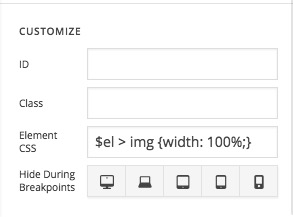
1- I have found the proper CSS code selector using the Chrome browser Developer Toolbar:

https://www.youtube.com/watch?v=wcFnnxfA70g

2- For the CSS code itself, I suggest that you get started with this tutorial:

https://www.youtube.com/watch?v=yfoY53QXEnI


The problem with the logo seems to be because the menu font is too big and there is not enough space for the logo. You either need to make the font of the menu smaller or upload a smaller logo.

Kindly open up new threads for additional questions as it will help us to focus on each issue and give you a better support which you deserve. Having a long threads makes the maintaining job harder and also it will be harder for the other customers to find the correct information if they have similar issues. You are always welcomed to reply to this thread to follow up the same question.

Thank you.

Thanks! I didn’t know I could target an element with CSS that way inside the Cornerstone editor.

If you need anything else please let us know.

This topic was automatically closed 10 days after the last reply. New replies are no longer allowed.