CSS sometimes does not get applied

I have a problem that has me stunned. I have a CSS that gets applied correctly on some pages, and does not get applied on other pages. On the “wrong” pages, it works correctly inside the builder.
Examples for correct pages:
https://stria.tech (The section “OUR PRODUCTS”)
https://stria.tech/optodrum (The section “ACCESSORIES”)

The CSS code is applied to the whole section, the purpose is to style the images in each column. Each Image element has the class “accessory-image”:

$el .accessory-image img {
margin-left: auto;
margin-right: auto;
height: 200px;
object-fit: cover;
}

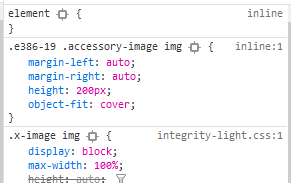
If you inspect the element with the developer tools, all is good (Screenshots are from Firefox “Inspect” tool).

image
The custom CSS gets applied:
image

Here is an example for a “wrong” page. Same setup, and it works inside the builder, but is not displayed properly in the front-end:
https://stria.tech/scotopickit (Section “ACCESSORIES AND RELATED PRODUCTS”)

image
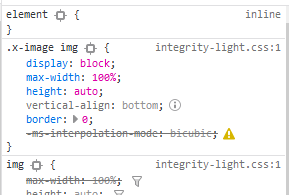
But the custom CSS does not get applied:
image
I don’t understand it. By the way, the CSS works on the wrong page if it is directly applied to the Image elements themselves.
Hi @striata,

I compared the code of both pages and I see no difference. The only difference that I see is a console error in Chrome Developer Toolbar for the page that is not working correctly. It says:

Uncaught SyntaxError: Invalid or unexpected token

And the code that causes the problem is:

(function (i, s, o, g, r, a, m) {
        i['GoogleAnalyticsObject'] = r;
        i[r] = i[r] || function () {
            (i[r].q = i[r].q || []).push(arguments);
        }, i[r].l = 1 * new Date();
        a = s.createElement(o),
            m = s.getElementsByTagName(o)[0];
        a.async = 1;
        a.src = g;
        m.parentNode.insertBefore(a, m);
    })(window, document, 'script', 'https://stria.tech/wp-content/cache/caos-analytics/analytics.js', 'ga');

Would you please disable whatever code or plugin that you used for the Google Analytics and see if it fixes the issue?

kindly get back to us with the result of the steps above and URL/User/Pass of your WordPress dashboard using the Secure Note functionality of the post to follow up the case if you still have problems.

Thank you.

Thank you for your investigation. Deactivating/Activating this plugin had no effect, but thanks to your hint I found an error in the page’s JS code, which I corrected. (All the JS gets combined, and the script you pointed out happened to be directly after my other syntax error). The error message in the console disappeared. However, neither of this had any influence on the problem at hand

Hello @striata,

In that case, please provide us with the admin access to your site in a Secure Note so that we can look into this matter:

Hi @striata,

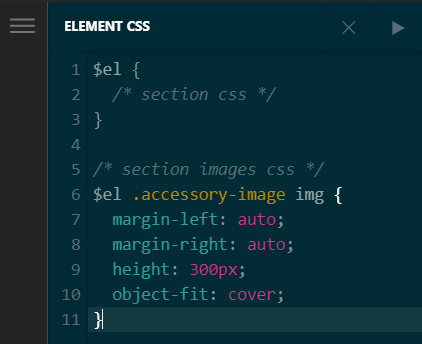
Thank you for providing the credentials. I checked your problematic page, I added some empty element CSS with comments in the section at the top that has images and the your CSS started to work just fine. I also cleared your WP Rocket’s cache, this could only be the cache issue.

image

Instead of applying your CSS on sections I’d recommend you to apply directly on the Image elements where it’s needed. For example in each of yours Image element’s Element CSS, add the following code:

$el img {
  margin-left: auto;
  margin-right: auto;
  height: 300px;
  object-fit: cover;
}

With this you can remove the classes from the images as well. Hope this helps!

Thank you @nabeel for looking into this. Turns out, even with your fix (the empty, additional $el {/*...*/} that you have inserted), it did not work yet. I replaced it with $el {background: red!important;}, and, sure enough, while the background was red in the builder, it was not red on the published website. The images, however, were correct, now! So, it seemed that the first CSS-entry was ignored. In the HTML source, I found that there was a syntax error right before this first entry in the combined CSS of the page, coming from a CSS in the element previous to my problem-section (there was a missing semicolon). After fixing this, it still did not work, and I could trace it back to yet another CSS syntax error even further up the page.
End of the story: it works now, and the reason were several CSS syntax errors on the page, but not in the section were the problem showed up. While your solution did not solve it, it brought me onto the correct path, so Thank you for this! I truly appreciate it.

Hey @striata,

Ah yes the syntax error would be breaking the CSS written after the problematic code. One way to prevent this from happening is to validate your CSS before applying to the site, you can use this online tool http://csslint.net/ for validation.

We’re glad we could help and thank you for sharing the solution with us.

Cheers!

This topic was automatically closed 10 days after the last reply. New replies are no longer allowed.