Hey @CulturalInfusion,
Depending on how your main portfolio Looper Provider is configured to read the form data, there are a few simple ways to change the filtering relationship from OR to AND.
Here are the solutions for each common setup:
Method 1: If using a single name for all lists (or a multi-select parameter)
If all 4 checkbox lists share the same input name (e.g., portfolio-category[] or category[]), or if a list submits multiple values, they are queried as an array within a single taxonomy parameter. By default, WordPress combines these terms using the IN operator (which acts as OR).
A. If your Looper Provider is set to Query Builder:
- Select the Element containing your main portfolio items Looper Provider.
- Under the Taxonomy settings section, locate your category filter.
- Look for the Operator dropdown (or “Must have all selected items” / “All” toggle depending on your Cornerstone version).
- Change the operator from
IN / Any to AND / Must have all selected items.
B. If your Looper Provider is set to Query String:
If you are using the tax_query array structure in your query string, add &tax_query[0][operator]=AND to your query.
Method 2: If using different names for each of the 4 Checkbox Lists
If your checkbox lists have different names (e.g., cat_group_1, cat_group_2, etc.) and submit separate parameters, you need to configure your Looper’s taxonomy query relation to be AND.
A. If your Looper Provider is set to Query String (Using tax_query arrays):
In WordPress, multiple taxonomy queries are combined using a relation parameter. If you have defined multiple tax_query blocks joined by OR, change the relation key to AND.
-
Change this (OR):
post_type=x-portfolio&tax_query[relation]=OR&tax_query[0][taxonomy]=portfolio-category&tax_query[0][terms]={{dc:url:param key="cat_group_1"}}&tax_query[1][taxonomy]=portfolio-category&tax_query[1][terms]={{dc:url:param key="cat_group_2"}}...
-
To this (AND):
post_type=x-portfolio&tax_query[relation]=AND&tax_query[0][taxonomy]=portfolio-category&tax_query[0][terms]={{dc:url:param key="cat_group_1"}}&tax_query[1][taxonomy]=portfolio-category&tax_query[1][terms]={{dc:url:param key="cat_group_2"}}...
B. If your Looper Provider is set to Query String (Using URL parameters directly):
If you are concatenating values into a single query string parameter, WordPress treats commas (,) as OR logic, and plus signs (+) as AND logic.
-
Change this (OR):
post_type=x-portfolio&portfolio-category={{dc:url:param key="cat1"}},{{dc:url:param key="cat2"}},{{dc:url:param key="cat3"}},{{dc:url:param key="cat4"}}
-
To this (AND):
post_type=x-portfolio&portfolio-category={{dc:url:param key="cat1"}}+{{dc:url:param key="cat2"}}+{{dc:url:param key="cat3"}}+{{dc:url:param key="cat4"}}
Method 3: Change the Delimiter in CS Forms Checkbox List Settings
If you have set the Return Type of your Checkbox Lists in Cornerstone Forms to Delimiter:
- Click on each of your Checkbox List elements in the builder.
- In the inspector panel, locate the Delimiter input field under the settings (which defaults to a comma
,).
- Change the delimiter from
, to +.
- Because WordPress natively parses
+ as an AND operator for taxonomy parameters in query URLs, this change will instantly switch your query behavior to match all selected categories!
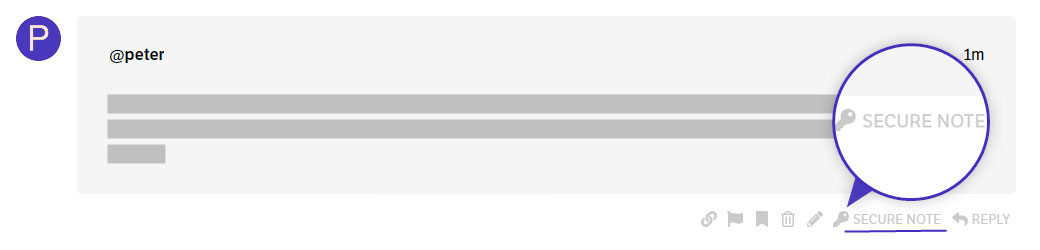
If none of that helps, provide the following details in a Secure Note
- WordPress Login URL
- Admin username and password
- URL of the page where you placed the faceted search.
You can find the Secure Note button at the bottom of your posts.