Cornerstone won't load on new pages

Hi - my site is www.moxie.design. I have just upgraded to the new theme. I can’t even get Cornerstone to open up to edit a new page. On the pages that are already there, I am not able to edit the content items in Cornerstone. Please help. I have many sites that use this theme (not all registered to this account). This is disastrous!

Liz

@lizmcmillen I just did the same thing and am having the same problem! I had created a site, didn’t have it registered yet, just went to register it, updated the theme & plugins and now I can’t edit pages. The cornerstone loading spinner just keeps going and never loads! This is not good. Please tag me if you get an answer from support

  • Tanner

Hi there Liz,

Thanks for writing in and thanks for your patience here.

Don’t worry we’ll get this resolved, can you confirm you are running the latest updates since the initial 5.2.0 was released, you can find that here (theme.co/changelog)

Ensure any caches etc are deactivated and cleared and try editing again. If it still doesn’t work, please provide your FTP and WP Admin Login details for one of the affected sites in a secure note. We’ll then take a look and debug this for you.

@ponberries Sorry to hear you’re having the same issue, if you haven’t already please open a forum topic and someone will be right along to assist.

Thanks!

Hi is there any update here? I’ve provided all the necessary credentials in an email response to support but haven’t heard back in over a week. What is going on?

Hi there,

I am not sure why the system did not give the information, but you’d better use the forum itself to add the information and answers.

Anyway sorry for our late reply as we are getting a little bit of traffic due to the new releases of the theme, but it will be back to the normal mode in a week or two.

I accessed your website and added a new page using the Cornerstone and added the V2 Alert element with no problem:

https://www.moxie.design/test-page/

Then I tried to edit your contact us page and couldn’t do that. So I added a template of the same page called Test Template:
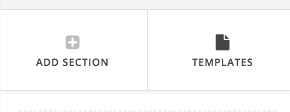
And added another test page and used the template to copy the same content. This time it worked. I added 2 extra dots here:

https://www.moxie.design/test-page-2/

This shows that the Cornerstone is working ok, and there are extra settings in the Contact us page which is not available on the Test Page 2 which is causing an issue.

I suggest that you try to add the settings in the Edit screen of the Test Page 2 and make it like the Contact us and on each step save and check if you can edit the page to find the problem.
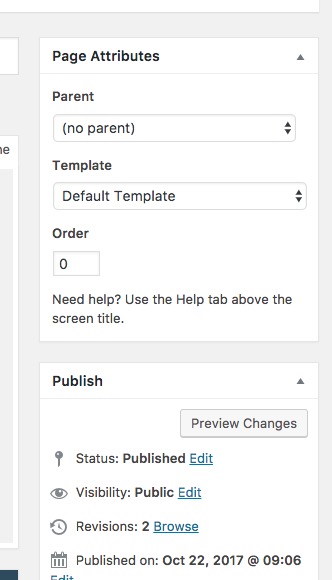
I would also check for 3rd party plugin conflicts by deactivating all plugins except Cornerstone and test the case. If it is working ok then I would activate the plugins one by one and test to find the one responsible for the error.

Thank you
Thanks. I’m sorry, but what do you mean by “adding the V2 Alert element with no problem”… is this something I need to do on all pages moving forward? What is the V2 Alert element? Will I need to created these new templates moving forward and how did you accomplish this?

I have started editing the “test page” you created and am still getting this error message for many of the elements “This is a classic element. These are supported, but have less controls to configure.” I want to add siders to the page https://www.moxie.design/test-page/ but get the same message and am unable to edit the slides.

That message actually even still shows up on the new “contact” page that you created…

I feel like I must have missed a big step here or something… Are there any tutorials on how to successfully edit and manage your site after the upgrade? It’s pretty embarrassing to be a web developer and not even be able to manage your own site. I am terrified to get into all my client sites that I have created using X theme… I definitely won’t be updating them until I have a full understanding of the issues here.

Hi there,

Sorry for the confusion regarding the terminology. The V2 elements are the new sets of elements that are added in the new version and the previous ones are called as classic elements from now on. For more information:

https://theme.co/changelog/#theme-x-5-2-0

The templating which I used was just to show that the page itself is working ok and the problem is originated by the other reason. Maybe a conflict between a 3rd party plugin or something. You do not have to do the templating thing on each page.

By V2 Alert element I meant this one:

I added a classic slider element to the test page and it is working ok:

https://www.moxie.design/?page_id=1214

I use the Google Chrome browser to do so. Would you please kindly give me an exact step by step description of what you do with screenshots? Maybe there is a step that is causing the problem on your workflow that I am not aware of.

Kindly give us as much as information you can, or even better record your screen on what you are doing and give us the video, so we can take the same steps to be able to replicate the issue you are facing.
The problem we have at the moment is that we do not have any issues editing the test page even in the draft mode that it is at the moment.

Thank you.