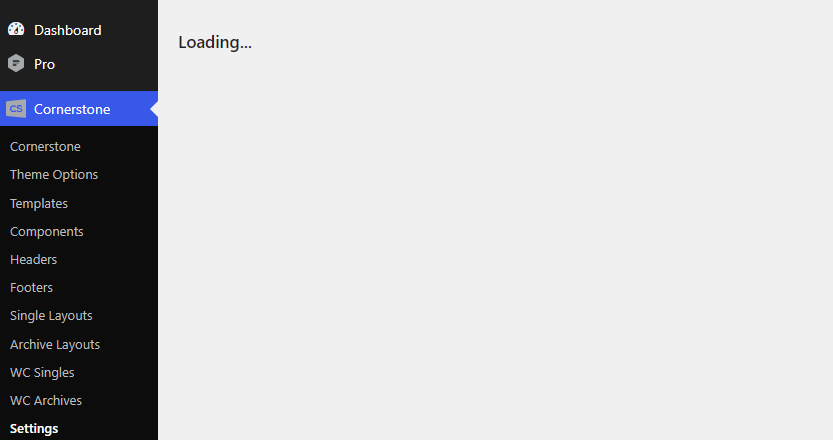
Whenever I click Cornerstone > Settings in the admin panel, the page show “Loading…” but it never actually loads so I’m unable to make the setting changes.
Hello Russell,
Thank you for reaching out!
Since you’re experiencing this issue on the Cornerstone Settings page, it’s almost always caused by a JavaScript conflict or a server configuration issue. Here is a step-by-step troubleshooting guide to identify and fix the problem.
Step-by-Step Troubleshooting
Follow these steps in order. Test the Cornerstone Settings page after each step to see if the issue is resolved.
-
Check for Browser Console Errors (Crucial First Step)
-
Open your browser’s Developer Tools (F12 or right-click > Inspect).
-
Go to the Console tab.
-
Reload the Cornerstone Settings page (/wp-admin/admin.php?page=cornerstone-settings).
-
Look for any red error messages. If you see any JavaScript errors, please copy and paste them here. This will give us the most direct clue to the cause.
-
-
Clear Your Browser Cache and Cookies
- Sometimes, outdated cached files can cause conflicts. Clear your browser’s cache and cookies completely, or try accessing the page in a private/incognito window to rule this out.
-
Deactivate All Third-Party Plugins Temporarily
-
This is the most common cause. A plugin (especially caching, minification, or security plugins) can enqueue a script that conflicts with Cornerstone’s admin panel.
-
Go to Plugins > Installed Plugins and deactivate all plugins except for your Themeco products (X/Pro and Cornerstone).
-
If the settings page loads, reactivate your plugins one by one to find the culprit.
-
-
Check for a PHP Memory Limit Exhaustion
-
A low PHP memory limit can sometimes cause admin pages to time out.
-
Add this line to your wp-config.php file to increase the memory limit:
-
define('WP_MEMORY_LIMIT', '256M');
-
Verify Your Theme and Cornerstone Versions
-
Ensure you are running the latest versions of X/Pro and Cornerstone. Outdated versions can have known issues that are already fixed.
-
Go to Themeco > Updates to check for and apply any available updates.
-
If the Issue Persists
If you’ve worked through these steps and the Cornerstone Settings page still won’t load, there might be a more specific conflict with your server environment or a plugin that’s not immediately obvious. To help us investigate further, please provide the following information in a reply:
- WordPress version
- PHP version
- X or Pro theme version
- Cornerstone version
- Any errors from the browser console (from Step 1)
- A list of your active plugins
This information will allow one of my colleagues or me to give you a more targeted solution.
We’re here to help you get this resolved quickly. Let me know what you find after trying the steps above.
Thanks for your reply. I checked the console and nothing shows up but the page continues to try to load. I cleared the cache & cookies and used a private window and the page didn’t load. The memory limit is set to 512 MB.
I deactivated all the plugins on the site and a error 500 was thrown.

Here’s the info from my Wordpress installtion
WP version: 7.0.2 (issue started before upgrade)
PHP: 8.3.31
Pro: 6.8.12
Cornerstone: Not sure but I believe the latest version
No console errors
All plugin deactivated
Hello @justjax36,
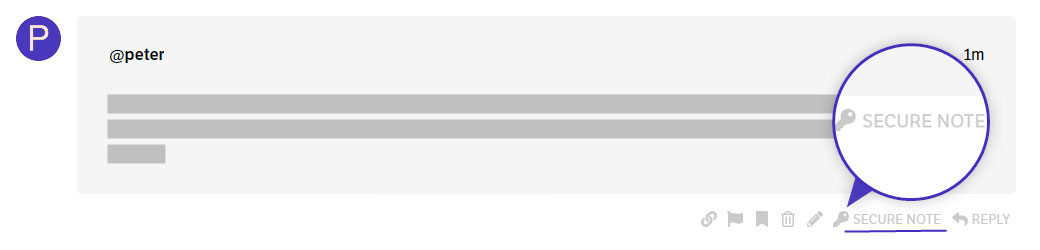
To help you with your concerns, we need to check your settings. I would request please share the admin login details. Meanwhile, I would suggest you troubleshoot a few of the common issues before we investigate your settings. Please share your details in a secure note. Please provide the following details
- WordPress Login URL
- Admin-level username and password
- Exact page URL
- FTP login details
You can find the Secure Note button at the bottom of your posts
Thanks
I’ve added the requested details in a Secure Note and I’ve gone through all the troubleshooting steps to no avail. I will advise that I have re-enabled the WooCommerce plugin as I’m making updates to the website.
Hello Russell,
A 500 Internal Server Error means the server encountered an unexpected problem and could not complete the request. In WordPress, one common cause is a corrupted .htaccess file. Please take a look at this article to learn more about how to resolve the issue, or contact your hosting provider to fix it for you.
Hope it helps
Thanks
I have a brand new site and I’m getting the exact same error when i click on settings, it only happen on that one webpage. I don’t beleive its the .htacess file, there is nothing in mine and its a brand new site, can you advise?
GoDaddy hosting has not been able to fix the problem, I’ve been on the line with them for over an hour and they are trying to get me to pay for additional support. Can you please advise on how to get to the setting page?
Hey @mhannor,
Please create a new thread and include your FTP and WP Access in the secure note so our staff can log in and check your site.
Thanks.
This topic was automatically closed 10 days after the last reply. New replies are no longer allowed.