I am trying to place a button on the main navigation menu. Is this possible? I have attached a pic of what I am tring to achieve. When a person clicks the button they will be taken to another website
Hi there,
Thanks for posting in.
You mean the shop icon? You can do that by replacing the logo with a button. You can edit this file and replace its content with your button’s code.
\framework\legacy\cranium\headers\views\global\_brand.php
Replace this specific code
<?php echo ( $logo == '' ) ? $site_name : $site_logo; ?>`
Thanks!
Thanks for quick response but I still need the logo on the page, here is URL gunstocarry.com so if that is not possible how about just adding shop to the main menu and then just setting a different background color for that one menu item. I need it to stand out from all the other menu items. Want the shop button or menu next to the menu that says State Gun Laws.
Hi there,
In that case, instead of replacing the logo code, just add your button below it. Your header layout is inline so the logo, button, and menu will still inline. Or, same instruction but with this template \framework\legacy\cranium\headers\views\global\_nav-primary.php.
The outcome should still the same as they are only separated as template parts.
If you add a button as part of the menu (as menu items), then you’ll need to apply customization too since the button is a box which not properly align with other menu items.
Thanks!
Sorry I am bit of a novice at coding, in order to place the button short code next to the logo where do I need to go to enter the code, under customize? thanks.
I see. I that case, I would not recommend that you proceed with modifying template files and instead opt for much simpler design that can be achieved using simple CSS. To achieve something like this:
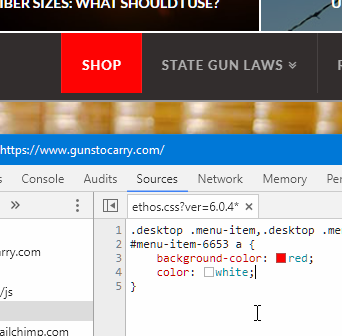
Please add this code in Theme Options > CSS
#menu-item-6653 a {
    background-color: red;
    color: white;
}
That code is specific to your current Shop menu item. If you will change the order in the future, that will change. If that happens, you need to inspect the Shop menu again and change the dynamic ID (menu-item-6653). Here’s an instruction to inspect an element in a page.
You should see something like this.
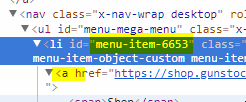
You can also change the colors with predefined color values.
Hope that helps.
thanks for that, it was perfect, just what I was looking for.
You are most welcome!
Thanks
This topic was automatically closed 10 days after the last reply. New replies are no longer allowed.