Hi there,
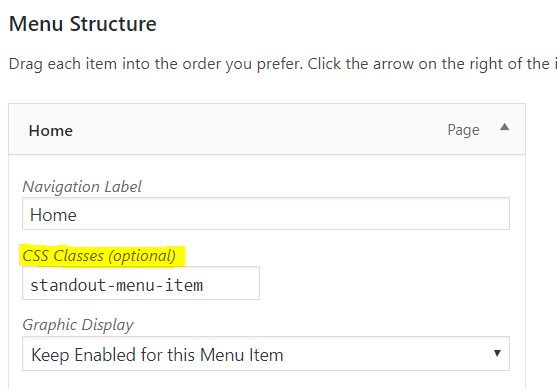
Thank you for reaching out to us. You can first add a menu item in your navigation menu and assign it a class by navigating to Appearance > Menus then expand your newly added menu item and in the CSS Classes (optional) field enter standout-menu-item (see screenshot)
If you don’t see the CSS Classes (optional) field you’ll need to first enable it by clicking on Screen Options in the upper right corner of the screen (see screenshot)
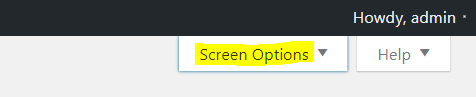
In Show advanced menu properties section enable CSS Classes option (see screenshot)

You can then add the following code in the Theme Options > CSS:
.standout-menu-item > a > span {
    border: 2px solid #559D07;
    padding: 20px;
    background: #c2ffb5;
    color: #559D07;
}

.standout-menu-item > a {
    padding-top: 15px !important;
}
If you would like to learn CSS, I am sharing few resources that you take a look to get started with CSS and an interesting tool that you can use to speed up the development process.
I recommend you to watch following video that will help you to get started with CSS.
https://www.youtube.com/watch?v=MFR4WXiLzpc
Sometimes it can get a bit difficult to find out the right selector to be able to write the required CSS codes. A handy tool that can help you in this is Google Chrome dev tools. I am sharing the resource that you can refer to get started with dev tools.
https://developers.google.com/web/tools/chrome-devtools/css/
https://developers.google.com/web/tools/chrome-devtools/
https://www.youtube.com/watch?v=tP_kXBJWPhQ&t=200s
Cheers!
