Background Color and Images Floating

Good morning,

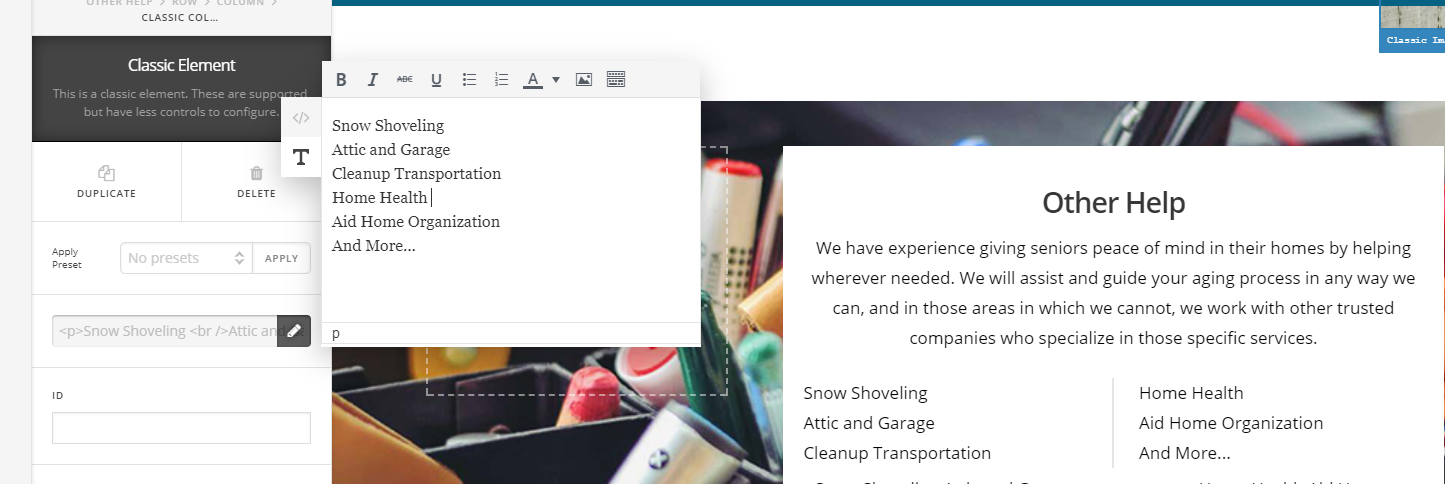
If you will kindly visit this page of my website Home and Healthy,https://homeandhealthy.net/services/, you should be able to scroll down to a section labeled “Other Help”. You will notice that the subitems are set up in two columns but, unlike other sections, there is a gap between them. How can I remove that and make it a solid color?

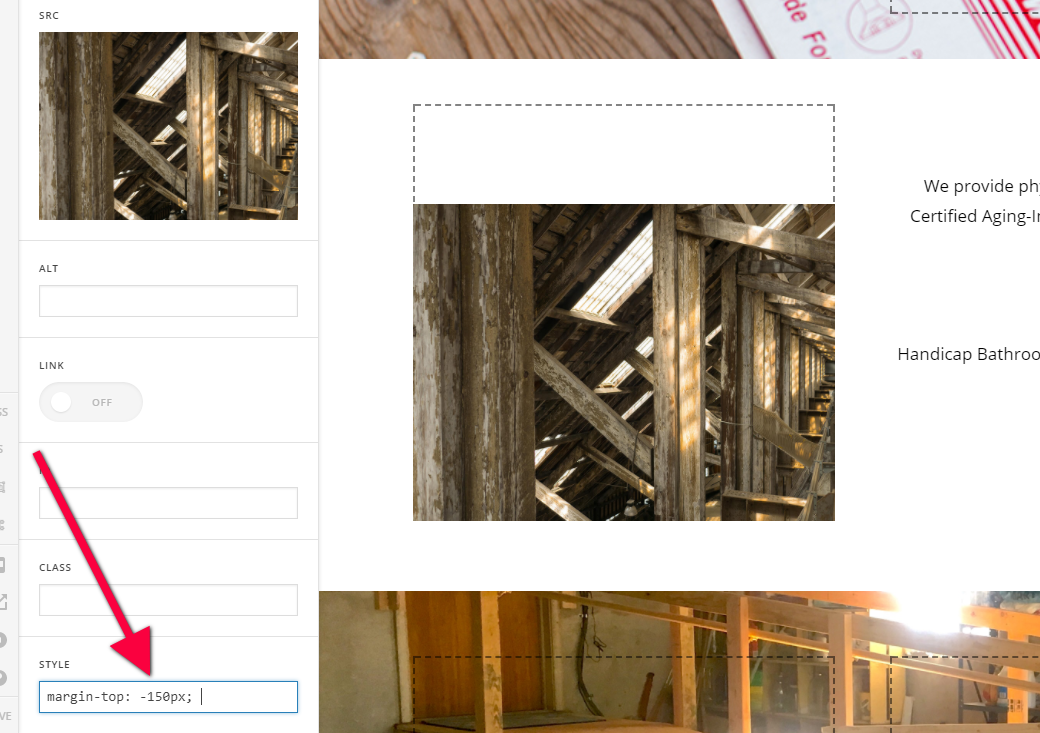
Additionally, if you load the website on mobile, you will find that the Services page cannot be read because images are on top of text. Is there a way to vertically center those images other than with negative margins, so they won’t load on top of text in mobile?

Thank you!
J
Hi J,

Please avoid moving a block by using a negative margin as it is not recommend especialy for its effect for the site’s mobile view.

Instead of creating a new row and setting a negative margin to move the columns up, add a Classic Columnize element in the middle content like the screenshot below:

This is because of the negative margin added to the column that breaks the mobile view. Try adding the image in the left column of the text.

Hope this helps.

Hello,

I was able to implement most of your suggestions! However, is there a way to center two images vertically?
The first image is of an attic and is next to “Home Renovations.”
The second image is of a yard with a fence and it is next to “Lawn Care.”

Thank you!
Josh

Hi there,

Please kindly go to the section which you have added the image and the writing and add a class to it. for example: img-center.

Then please kindly go to X > Launch > Options > CSS and add the code below:

.img-center {
    display: flex;
    flex-flow: row wrap;
    justify-content: center;
    align-items: center;
}

Hope it helps.

Hello,

Sorry for taking so long to get back to you. Unfortunately, the code you provided does not achieve the desired effect. The images are still not vertically centered.

Please advise,
Josh

Hi Josh,

Please try this:

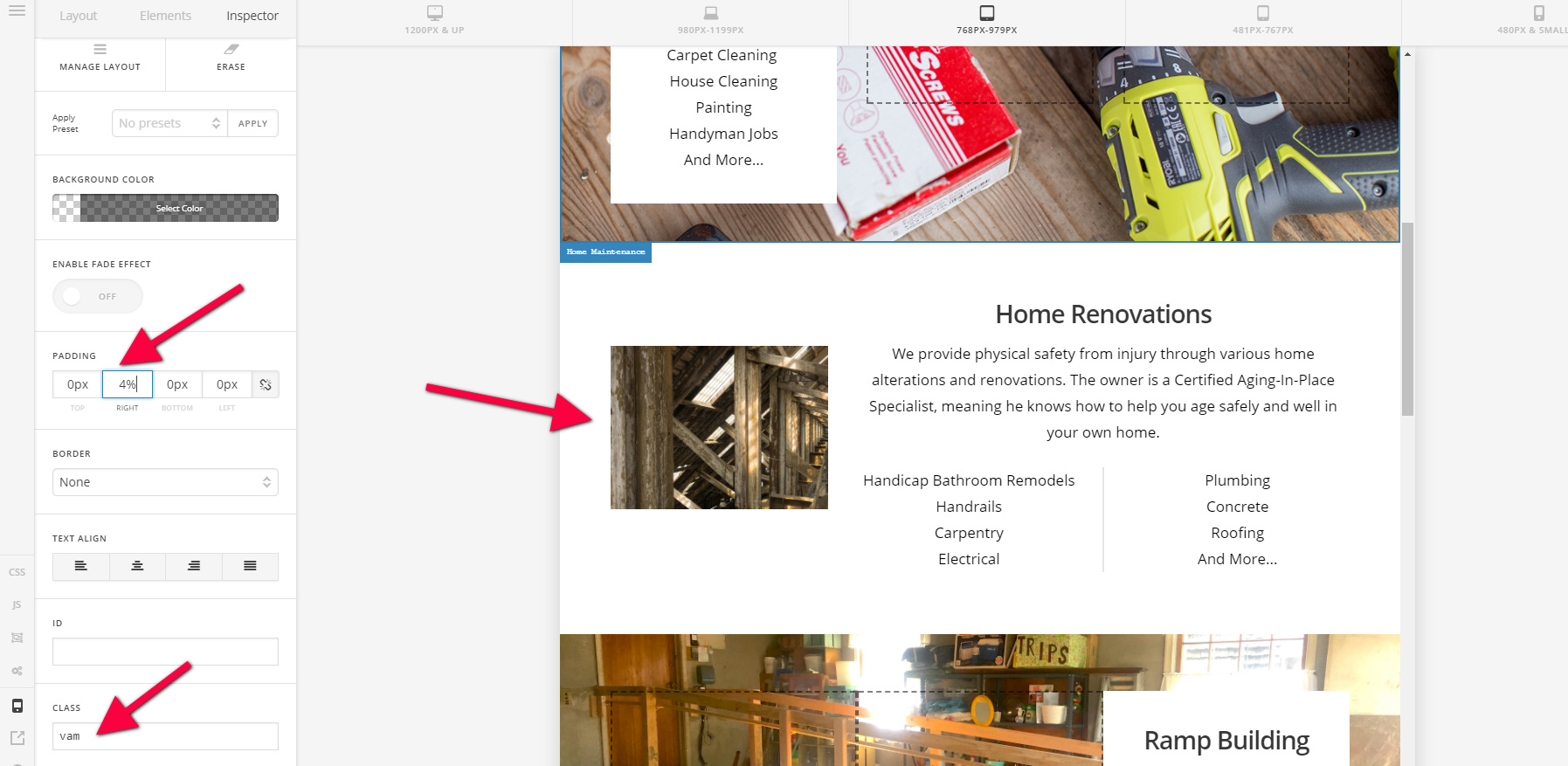
  1. Enable the Marginless Columns under the Row settings of the section.
  2. Depending on which side the image is placed, add a padding to either the left of right part of the column that contains the image for the spacing lost when the first step was done. it should be around 4%.
  3. Then add the class vam to the column that contains the image.
  4. Add this code in the custom CSS:
.vam {
  vertical-align: middle !important;
}

The result should look like this:

Hope this helps.