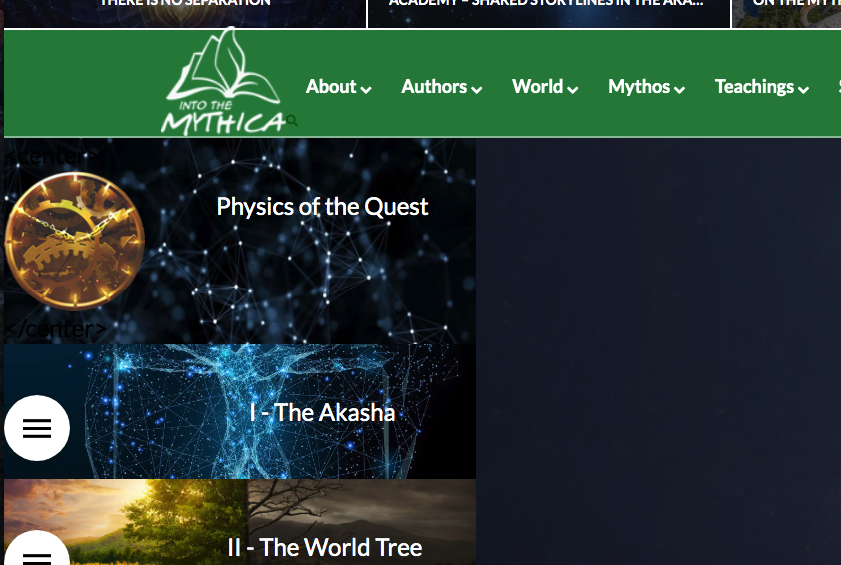
Adding a modal menu to sidebar

Your Xness. bows

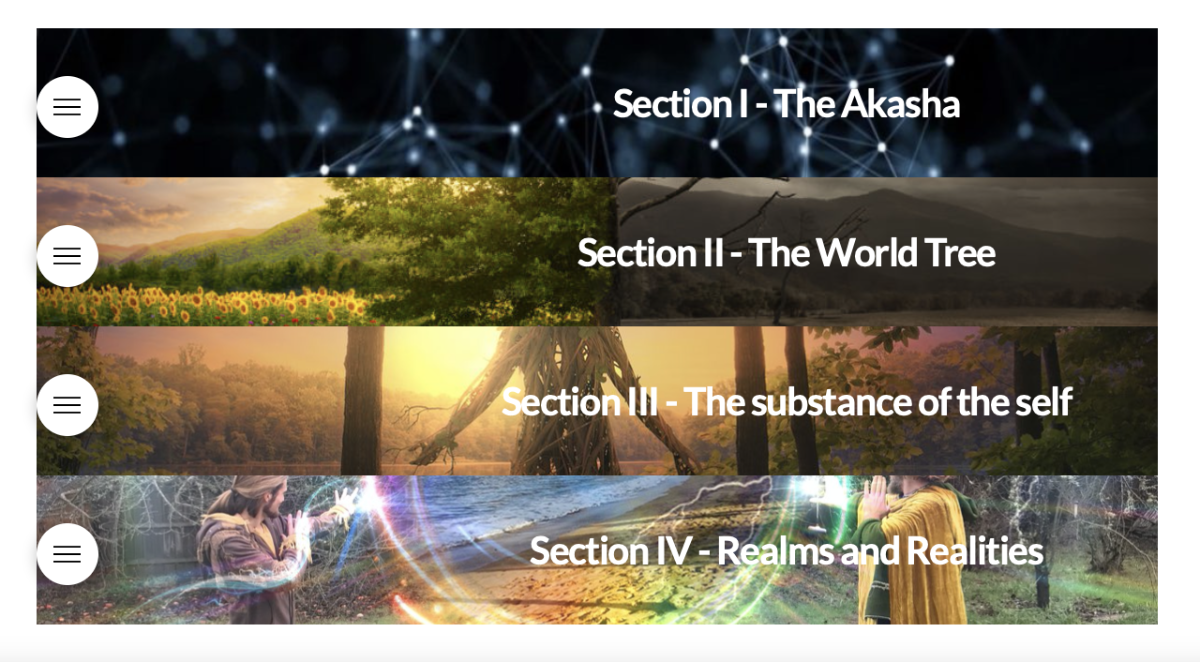
I have a question. I’m playing with a more visual way of leading users around the website, and am using the modal menu dropdown on this page --> https://intothemythica.com/test-wisdom-tree-drop-down-menus/

I’m wondering. Is there some way to put that kind of a modal dropdown on the sidebar as a shortcode or something similar? Ideally it would be a series of images that paralleled the images on this page and had the dropdown, like menu’s within the sidebar menu.

(Essentially visually what is seen here yet on the sidebar)

Like … how to get these on a sidebar, with the modal dropdown included (or simply as images w/links to pages. I’m open. Just feeling it out)
Hello Peter,

Thanks for writing in! You can place that modal menu in your sidebar by creating a global block. Please go to X > Global Blocks and create the same structure with your modal menu in it. Save your global block and take note of the global block shortcode. You can then go to your sidebar widget area in Appearance > Widgets, insert a text widget in your main sidebar and place the global block shortocode inside the text widget.

Hope this makes sense.

You’re so awesome, RueNei. Your facility with the code is so clean. I feel it so big when you answer the questions. bows Much respect.

A deeper query, if you would be so kind -

Does the ‘block’ setup you just described include a bit of the graphic on that line (as in, the picture that is the background to the modal menu w/the text)

Would like to have a text/background w/the menu on the sidebar?

Would all of that work or is it another type of code?

thank you

UPDATE - WHOA! That’s AWESOME! YES! That’s the concept.

Mmm … I wonder … some kind of CSS to make that flow more easily into the sidebar space on various devices … smooth. Hmm. How would that function ?

Hello Peter,

When you create your global block, you will do this:
1.) Insert 4 sections with one row and two columns in it.
2.) In each of the sections, you have to insert a section background image.
3.) In each of the row settings, the “Inner Container” should be turn OFF.
4.) In the left column, you can insert the Navigation modal element.
5.) In the right column, a headline element should serve as the title or description for your menu.

Off course, all of the elements can be adjusted and styled since you will have access to all of the element settings. Actually if the content you have here: https://intothemythica.com/test-wisdom-tree-drop-down-menus/ were created as global block, you can use this into your sidebar. There might be some adjustments needed to the sidebar which will come later once you have place it already in your sidebar.

Hope this explains it briefly.

Yah I got it. Very, very cool.

I took the original thing and made a template out of it, then loaded that into the global blocks. This was definitely the right thing to do.

Curious though, visually. What can be done to make the images & modal flush with edges of the container? Meaning … what CSS can be done to minimize the green space between the global block w/the images and the modal dropdown?

here --> https://intothemythica.com/the-false-story-and-the-good-story/

It would look smoother without the bit of green to the right, left and top of the global content block. Or maybe with just a little bit of green on the left side yet flush on the right.

This is awesome. Thank you. It opens up so many possibilities. :slight_smile:

Hey Peter,

Do you want it to look like this?

Please do this:

1.) Edit your global block and make sure that the section padding top and bottom is set to 0.

2.) And then you can add this custom css:

.x-sidebar.left {
    padding: 0;
}

Please let us know how it goes.

IT’s not quite working. I’m not sure why. I added the code and shifted the padding of the container.

Hi Peter,

The custom CSS provided by Ruenel above should work, but it seems there is a syntax error somewhere on your custom CSS.

For now, let’s adjust the CSS code provided to this:


.x-sidebar.left {
    padding: 0 !important;
}

And add this on top of Theme Options > CSS.

To find the syntax error on your Theme Options > CSS please copy all your custom CSS here and address any found errors.

Thanks,

This topic was automatically closed 10 days after the last reply. New replies are no longer allowed.