Editing navbar/menubar style

Hi there,

Im very new at website building so I would really appreciate some help. Just got X at the beginning of the year, and just figured out how to get Cornerstone operational, but I don’t think thats relavent in this question.

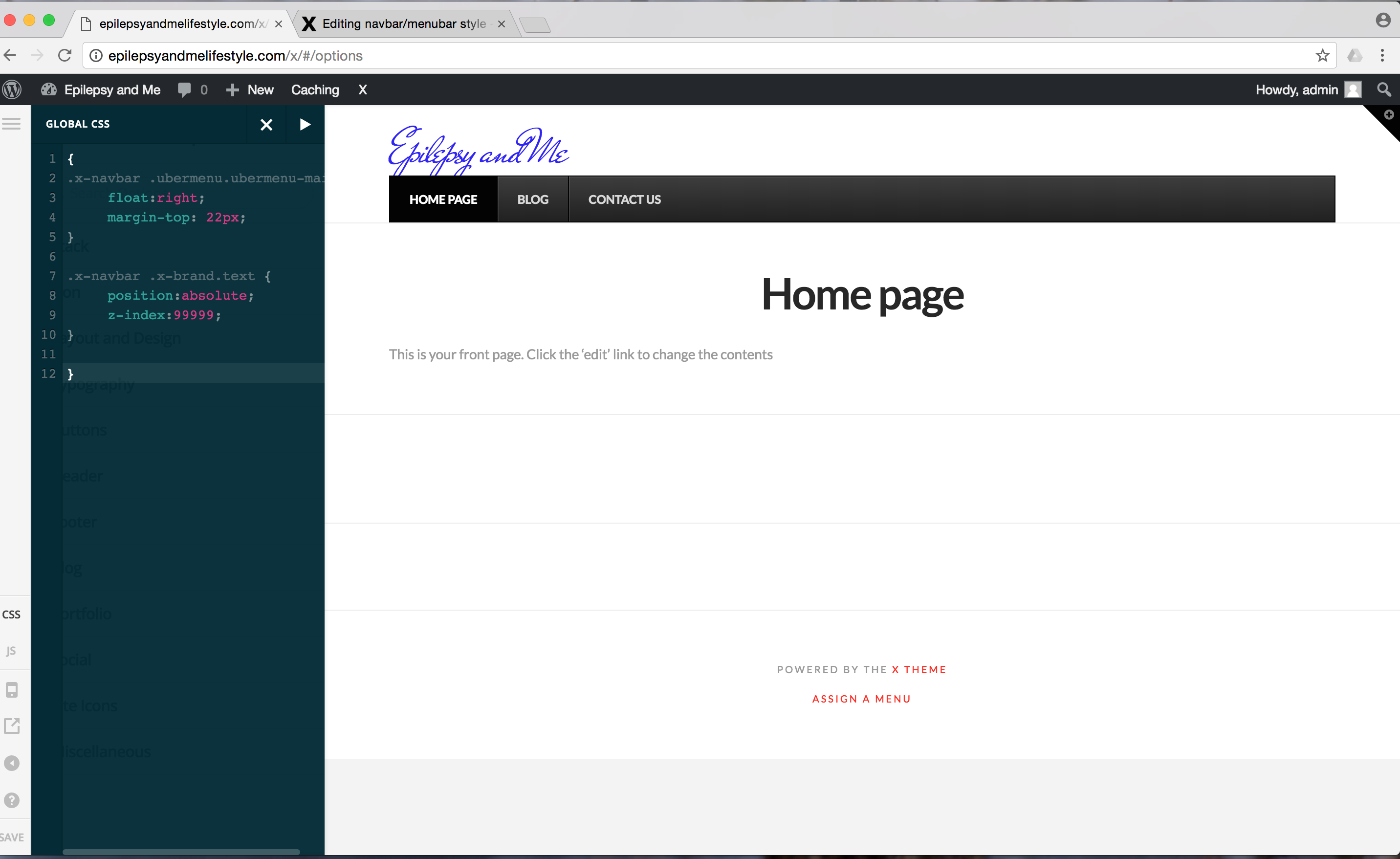
Im trying to edit the overal layout and style of my menu bars (http://epilepsyandmelifestyle.com/). Currently dark grey with page names “Home Page”, “Blog”, and “Contact Us” . Is there anyway to make this whole dark grey section into something like this

http://annamitchelllaw.com/

I saw this person had a similar question to me a while back and now has it corrected, but it didn’t work for me.

Also, Im trying to get rid of the large text font below the menu bar that says “Home page”

If anyone could assist/ give guidance on this, I would greatly appreciate it!

Many thanks,

Hi.

  1. To make you logo and navbar inline, you can add the code below in Theme Options > CSS
@media(max-width:959px) {
.x-navbar .ubermenu.ubermenu-main {
     float:right;
     margin-top: 22px;
}

.x-navbar .x-brand.text {
     position:absolute;
     z-index:99999;
}

}

  1. You can disable page title under XSettings.

Hi there,

Many thanks for taking the time to reply to my question! I truly appreciate you taking the time to assist with this!

I tried editting the CSS but that did not change anything, and I dont see the button on the bottom left where I can disable the title.

Any assistance would be greatly appreciated.

Many thanks again!

I think Im getting somewhere with this menubar.

I inputted the below CSS and played around with the color #fff
Is there anyway I can remove the black borders, change the font’s of “Home”, “Blog” and etc, and change the positioning of the “Epilepsy and Me” from the right side to the very left?

.ubermenu-main, .ubermenu.ubermenu-main .ubermenu-item-level-0 > .ubermenu-target {
background: transparent !important;
color: #fff;
}

Many thanks!!!

Hello There,

Since you are using UberMenu, please make all your changes within the UberMenu settings. Go to Appearance > Ubermenu > Main UberMenu Configuration > Style Customizations and in Appearance > Ubermenu > Main UberMenu Configuration > Fonts.

For more details, please check this documentation:

This topic was automatically closed 10 days after the last reply. New replies are no longer allowed.